
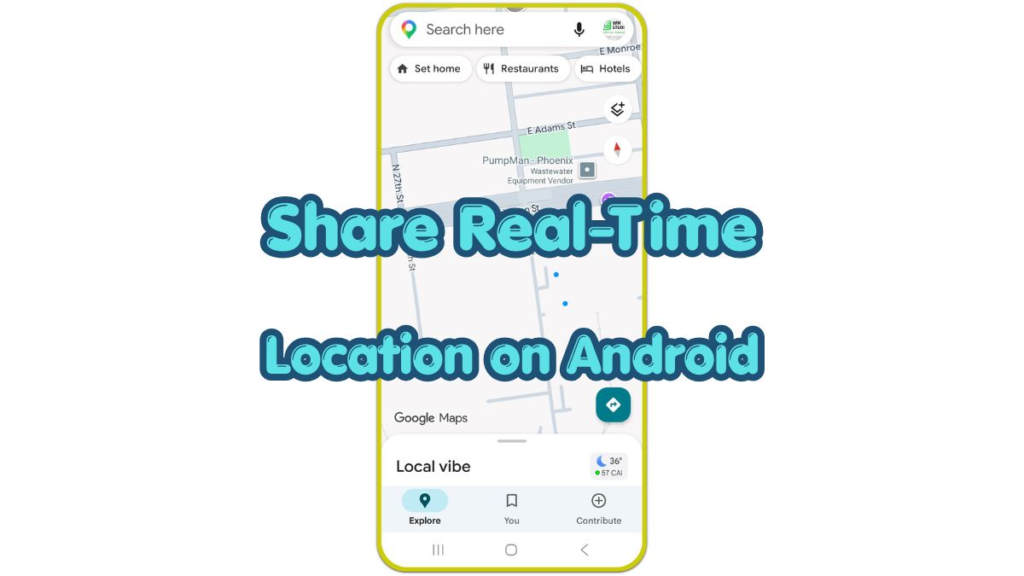
Introduction
Real-time location sharing on Android helps another person follow your current position for a short time. It is useful during travel, pickups, late-night walks, group meet-ups, or any situation where someone needs to know where you are.
The risk starts when live access stays on too long, reaches the wrong person, or uses broader location access than needed. A safe setup needs a clear app, a trusted contact, a short duration, and a quick way to turn access off.
Android phones use different menu names by brand and version. Samsung Galaxy, Google Pixel, Motorola, OnePlus, and other Android phones place location controls in different areas, but the main check usually starts from Settings and the Location menu.
Step-by-Step Guide: Share Real-Time Location on Android
Step 1: Check Location Access First
Open Settings on your Android phone, then choose Location. Make sure Location is on before you start. Without a clear reading, the shared map often freezes, jumps between nearby places, or shows an old position.
Next, check the app you plan to use. Open Settings, tap Apps, choose Google Maps or your messaging app, then open Permissions. Tap Location and choose the option that matches the sharing task.
For most short sharing tasks, Allow only while using the app keeps access easier to control. If Google Maps stops updating after the screen turns off, choose Allow all the time for Google Maps when that option appears, then keep it only during the active sharing session.
After the trip, pickup, or meet-up ends, return to the same permission screen and change access back to Ask every time or Allow only while using the app.
Step 2: Share Your Real-Time Location From Google Maps
Open Google Maps and tap your profile picture or initial in the top corner.
Choose Location sharing, then tap New share or Share location if that label appears. Select how long you want to share. A short duration works better for most situations because it ends automatically.
Choose a trusted contact from the list. For someone outside your Google contacts, send a link through a message app when that option appears. Send the link only to the person who needs to see your current position.
After sending it, stay on the screen for a moment and confirm the correct person and time limit. This check helps you catch the wrong contact or duration before you leave the screen.
Step 3: Stop Sharing After the Trip or Meet-Up
Open Google Maps again, tap your profile picture or initial, then choose Location sharing.
Select the person who currently sees your position, then tap Stop. The person no longer sees your live movement after the session ends.
For a messaging app, return to the same chat and look for Stop sharing, Stop live location, or a similar option. The wording depends on the app, but the stop control usually stays inside the chat where sharing began.
After stopping, review Android app permissions again. Change location access to Ask every time or Allow only while using the app when you no longer need active access.
Troubleshooting
Troubleshooting 1: The Shared Map Does Not Update
Open Settings, then Location, and confirm Location is on. Move near a window or open area when the map stays stuck indoors.
Turn Wi-Fi on during the test, even while using mobile data. Nearby networks help the phone place you more accurately in cities, malls, apartments, and parking areas.
Troubleshooting 2: The Other Person Does Not See Your Location
Check whether you sent the invite to the right contact or chat. For link sharing, create a new link from the sharing screen instead of forwarding an old one.
Also check the time limit. A short session ends automatically, so the other person sees nothing after the sharing window expires.
Troubleshooting 3: Sharing Still Looks Active
Return to Google Maps and open Location sharing. Stop each active contact one by one.
For a chat app, open the same conversation and stop the live location there. Then review the app permission in Android Settings so the app does not keep broader location access than needed.
Additional Tips
Share your live location only with someone you trust. A short duration is better than leaving access open until you remember to turn it off.
Use Google Maps for most everyday sharing because the controls are easy to find and the stop option is clear. Messaging apps work well for quick chats, but each app handles live location differently.
Check the contact name before sending. Real-time sharing is not the same as sending a one-time map pin because the other person follows your movement until the session ends.
Final Notes
To share real-time location on Android safely, start with the Location setting, choose a trusted app, set a short duration, and confirm the right contact before sending.
The stop step is as important as the start step. After the trip, pickup, or meet-up ends, return to the sharing screen and end access manually. A safe setup lets someone follow your trip without leaving your live position open afterward.
Checklist
- Turn on Location from Android Settings.
- Check location permission for the app you plan to use.
- Open Google Maps and choose Location sharing.
- Set a short sharing duration.
- Send the live location only to a trusted contact.
- Stop live sharing after the trip, pickup, or meet-up ends.