
Introduction
Google Chrome safety on Android does not rely on a single option or security mode.
Safety comes from how browsing data, background protection, and account synchronization work together in daily use.
Many users trust Chrome because Google builds it and integrates it deeply into Android.
That trust becomes a problem when default settings quietly favor convenience over exposure control.
On Android, Chrome behaves as part of the system, not as a standalone app.
Because of that, users need to limit integration deliberately instead of leaving it untouched.
This guide defines a stable baseline for secure Chrome usage on Android.
The focus is not extreme restriction, but predictable and explainable behavior.
For reliable google chrome safety on android, reviewing these privacy and security settings is essential.
Step-by-Step Guide for Google Chrome Safety on Android
Step 1 — Review Chrome Privacy and Security Menu
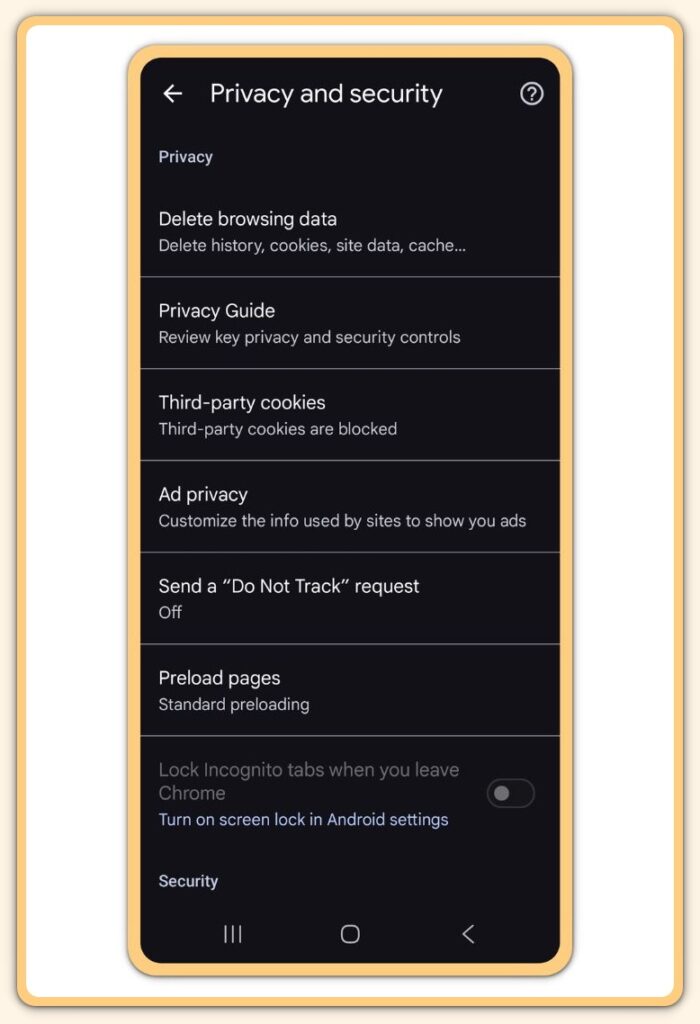
Open Chrome and go to:
Settings → Privacy and security
This section shows how Chrome stores, evaluates, and retains browsing activity.
When users skip this step, Chrome runs entirely on permissive defaults.
Before changing anything, review the full menu once.
This prevents accidental over-restriction later.
Judgment note:
If you cannot explain what each option controls, Chrome is not configured safely yet.
Step 2 — Enable Safe Browsing Protection
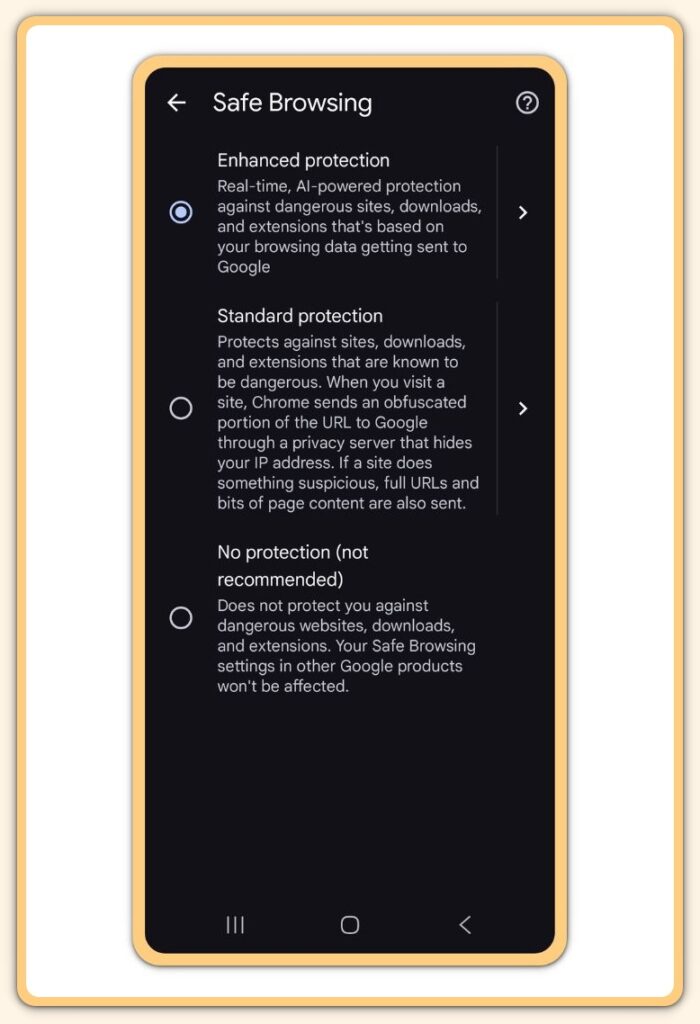
Inside Privacy and security, open Safe Browsing.
Select Enhanced protection when available.
This setting checks URLs, downloads, and page behavior before content fully loads.
Standard protection reacts after threats appear.
Enhanced protection reduces exposure earlier, which matters on mobile networks.
Judgment note:
If Safe Browsing stays on Standard or Off, Chrome prioritizes speed over prevention.
Step 3 — Control Browsing Data Retention
Open Clear browsing data.
Set regular clearing for:
- Browsing history
- Cookies and site data
- Cached images and files
Keep passwords and autofill data only when a trusted manager protects them.
Otherwise, long-term retention increases tracking correlation.
Judgment note:
If browsing data persists indefinitely, tracking builds up by design.
Step 4 — Restrict Third-Party Cookies
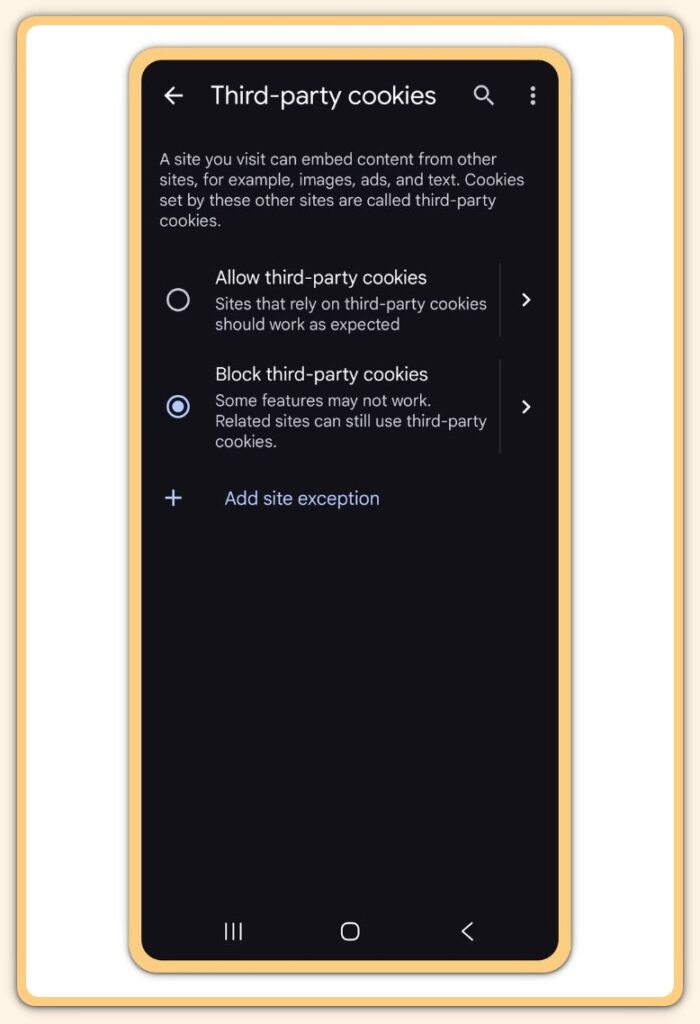
Under Privacy and security, open Third-party cookies.
Select Block third-party cookies.
This limits cross-site tracking without breaking most normal browsing.
Some login systems require exceptions.
Apply those exceptions per site and avoid global allowances.
Judgment note:
If third-party cookies are allowed globally, tracking outweighs usability.
Step 5 — Limit Google Account Sync Scope
Go to:
Settings → Sync and Google services
Disable syncing for:
- Open tabs
- Browsing history (optional)
- Autofill data when privacy matters
Sync is not neutral.
It expands where browsing data exists and how long it remains accessible.
Judgment note:
If activity mirrors across devices by default, exposure scales automatically.
Troubleshooting
Repeated logins after blocking cookies are expected.
They occur because tracking-based sessions were active before the change.
If a site fails to load, allow cookies only for that domain.
Avoid restoring global settings for isolated issues.
Enhanced Safe Browsing may trigger more download warnings.
This reflects earlier detection, not increased risk.
Additional Tips for Android Public Wi-Fi Safety
Public Wi-Fi security depends more on habits than tools.
Strong encryption means little when devices connect automatically without context.
Keep Android system updates enabled at all times.
Many network-level vulnerabilities are patched silently through updates.
Avoid unknown Wi-Fi networks with strong signals but unclear locations.
Signal strength shows proximity, not legitimacy.
Use mobile data for short, sensitive tasks whenever possible.
Public Wi-Fi should not handle authentication or payments by default.
Consistency matters more than perfection.
This is what keeps android public wifi safety effective over time.
Final Notes
Public Wi-Fi itself is not dangerous.
Most problems come from incorrect assumptions and careless use.
Android already provides the tools needed for safe public network access.
Users remain responsible for configuring those tools correctly and using them consistently.
If a network feels unnecessary, skip it.
Convenience never justifies silent exposure.
Public Wi-Fi Safety Checklist (Android)
This checklist confirms execution rather than summarizing content.
If any item fails, the setup is incomplete.
- Public Wi-Fi auto-connect is turned OFF
- Unused public Wi-Fi networks are removed
- VPN is enabled before connecting to public Wi-Fi
- Nearby Share is disabled
- Bluetooth stays off when not needed
- Background data is restricted for non-essential apps
- Sensitive actions are avoided on public Wi-Fi
- HTTPS appears on all websites
- Secure DNS is enabled in Android settings
- Android system updates are up to date
Extra Section 1 — Real-World Risks of Public Wi-Fi on Android Devices
Public networks expose devices to more than passive monitoring.
They also allow attackers to manipulate traffic under the right conditions.
Man-in-the-middle attacks rely on user assumptions, not technical complexity.
People trust connectivity without verifying context.
Session hijacking, DNS manipulation, and captive portal abuse remain common.
These risks exist even when users believe nothing sensitive is happening.
This is why android public wifi safety starts with behavior.
Technical defenses only work when user habits support them.
Extra Section 2 — Security Is a Boundary, Not a Lockdown
Security does not mean disabling everything.
It means deciding what data persists and what does not.
Cookies, cache, and sync should serve the session, not the identity.
When data outlives its purpose, it becomes exposure.
The settings in this guide reduce correlation without breaking daily use.
They preserve usability while enforcing clear limits.
This balance defines the practical core of google chrome safety on android.
Control without friction.