
Introduction
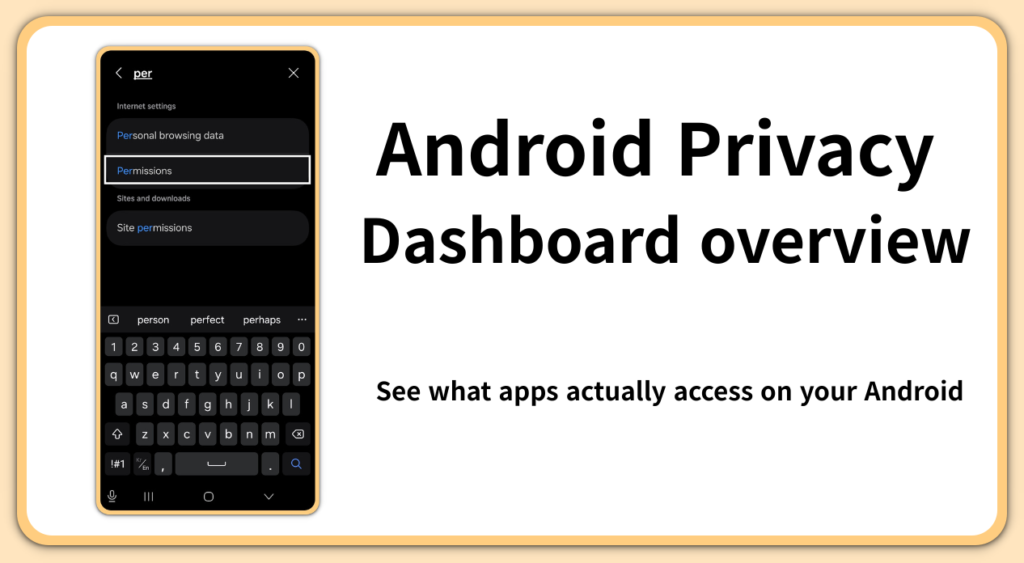
Most Android privacy issues do not appear suddenly.
They build up over time, quietly and repeatedly.
Users often believe privacy risks come from malware or unknown apps.
In reality, they usually come from apps already installed and trusted.
Navigation apps checking location more often than expected.
Social apps accessing the microphone outside obvious use.
Utility apps requesting permissions unrelated to their function.
Individually, these actions seem harmless.
The real problem is that users cannot see patterns.
When activity is invisible, judgment disappears.
Permissions stay open by default, not by choice.
Android introduced a built-in tool to solve this visibility problem.
The Android Privacy Dashboard records and displays permission behavior instead of blocking access automatically.
This guide explains how that dashboard works, how to read its data,
and how to make precise permission decisions without breaking normal app use.
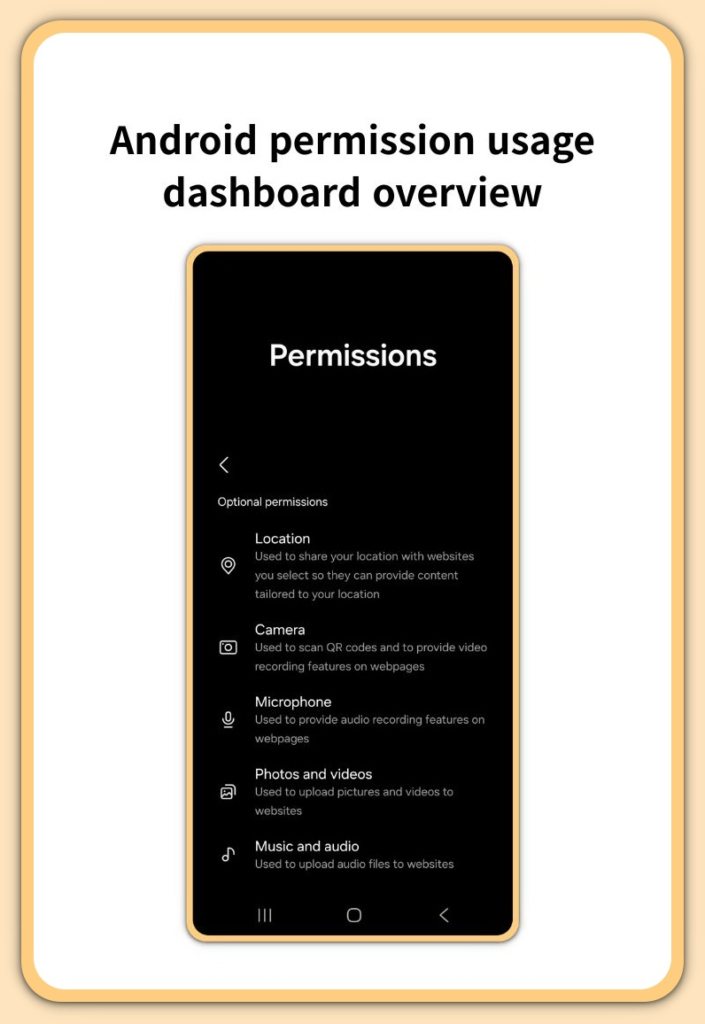
Step-by-Step Guide — Android Privacy Dashboard
Step 1 — Open the Privacy Dashboard
Start by opening the system privacy overview.
Go to:
Settings → Privacy → Privacy Dashboard
On some devices, the menu may appear as:
Settings → Privacy & security → Privacy Dashboard
Brand skins may rename sections, but the feature itself is the same.
This screen is not a summary or suggestion page.
It is a live record of permission activity.
Every decision later depends on understanding what is shown here.
Step 2 — Understand the Activity Timeline
At the top of the dashboard, Android shows a 24-hour timeline.
Each icon represents a permission being used:
- Location
- Camera
- Microphone
Tap any time segment.
The system reveals:
- Which app accessed a permission
- Which permission was used
- The exact time it happened
This information is logged directly by the operating system.
It is not estimated or inferred.
Learning to read this timeline correctly is the foundation of effective privacy control.
Step 3 — Distinguish Normal Use From Background Use
Not every permission event is a problem.
Location access during navigation is expected.
Microphone access during a call is normal.
The concern begins with background behavior.
If an app accesses location repeatedly while not in use, that matters.
If microphone activity appears without an audio feature running, that matters.
The dashboard makes this distinction visible without guesswork.
Step 4 — Focus on Frequency, Not Isolated Events
Many users react to a single dot on the timeline.
That usually leads to overcorrection.
A better approach is frequency review.
Open a permission category and check:
- How often an app accesses it
- When those accesses occur
- Whether timing matches real usage
Patterns tell the real story.
Single events rarely do.
Step 5 — Adjust Permissions at the App Level
Tap an app name inside a permission category.
Android shows several options:
- Allow all the time
- Allow only while using the app
- Ask every time
- Don’t allow
This is where control becomes precise.
For most apps, limiting access to active use is the safest default.
If something stops working, adjust only that app, not the system.
Step 6 — Lower Location Precision When Possible
Location permissions often include two modes:
- Precise
- Approximate
Many apps do not need exact coordinates to function.
Weather, feeds, and recommendations usually work with rough data.
Reducing precision lowers exposure without noticeable side effects.
This single adjustment significantly improves privacy without sacrificing usability.
Step 7 — Treat Camera and Microphone as High-Risk
Camera and microphone access deserves extra scrutiny.
Open each category and verify:
- Why access occurred
- Whether timing matches visible activity
- Whether background use exists
If unsure, revoke access temporarily and test the app.
Legitimate apps explain missing permissions clearly.
Questionable behavior often does not.
Step 8 — Review After App Updates
Permissions can change after updates.
An app that once required minimal access may request more later.
This is not always malicious, but it should never go unnoticed.
A quick weekly check prevents gradual permission creep from becoming permanent.
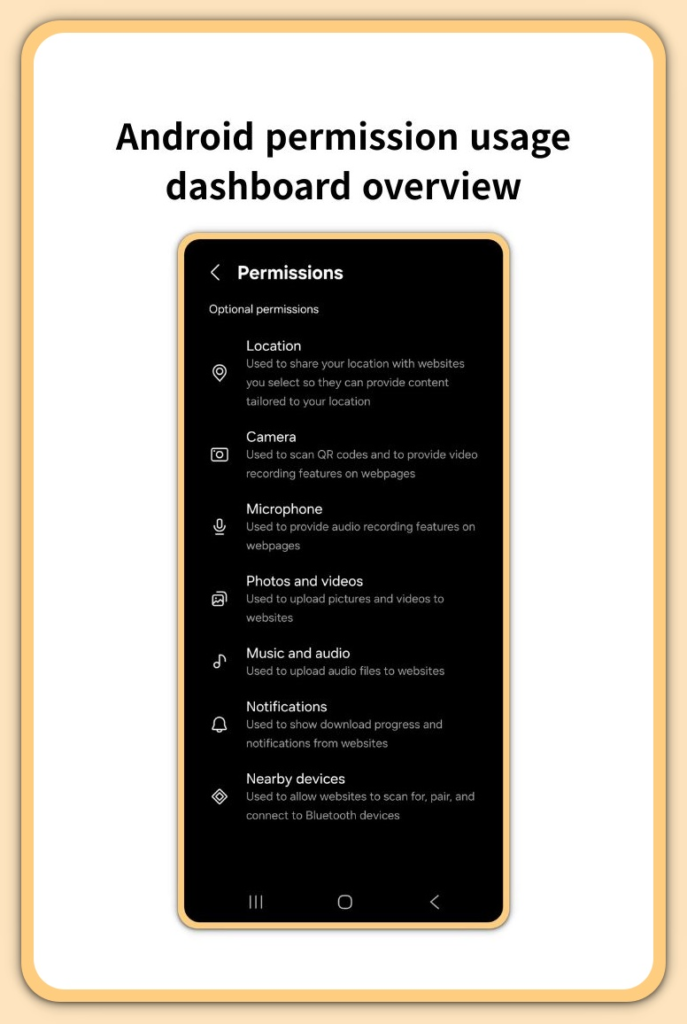
After completing the permission review, you may also want to manage notification settings to reduce unnecessary background interruptions—see how to manage notifications on Android and stop annoying alerts.
Troubleshooting
Dashboard Not Visible
If the privacy dashboard does not appear:
- The Android version may be below 12
- The manufacturer may have relocated the menu
Use the Settings search and look for “Privacy”.
Permissions Re-enable Automatically
Some apps request permissions again after updates.
Instead of uninstalling immediately, review access frequency first.
Make decisions based on behavior, not frustration.
Different Permission Names
Manufacturers sometimes rename categories.
Focus on function rather than wording.
Camera, microphone, and location behavior remains consistent.
Additional Tips
Review Permissions After Installing Any App
Install the app.
Use it briefly.
Then check its activity.
This prevents long-term exposure from the beginning.
Combine With Background and Notification Controls
The dashboard shows access history, not interruptions.
Combining it with background activity and notification controls creates stronger overall privacy control.
Default to Restrictive, Then Expand
If unsure, restrict first.
Expand access only when a feature clearly requires it.
This approach minimizes risk without constant micromanagement.
Final Notes
Android privacy is not about disabling everything.
It is about visibility, pattern recognition, and deliberate choice.
Once users understand how to read permission behavior,
privacy control becomes systematic rather than stressful.
Extra Section 1 — Why Visibility Prevents Privacy Drift
Privacy erosion rarely happens at once.
It happens through small decisions:
- A permission granted permanently
- An update expanding access
- An app changing behavior quietly
Without visibility, these changes stack unnoticed.
Making activity visible forces review.
Review prevents drift.
That is the real value of this system-level dashboard.
Extra Section 2 — A Sustainable Privacy Routine
Effective privacy control must be light.
If it feels heavy, users abandon it.
A simple routine works best:
- Open the dashboard once a week
- Scan the timeline
- Review one permission category
This takes less than two minutes.
Over time, it prevents overload, avoids breakage,
and keeps control stable without stress.