
Introduction
Disable personalized ads on Android is not about removing ads completely from your phone.
It is about stopping Google and apps from building long-term behavioral profiles based on how the device is actually used.
Many Android users assume ad personalization is harmless.
Ads feel temporary, generic, and disconnected from personal data.
In reality, personalized ads are created from background signals that accumulate quietly over time.
App usage frequency, search behavior, location patterns, and interaction timing are not evaluated in isolation.
They are combined, weighted, and stored to predict interests and intent.
This is why ads often feel “relevant” even when users never explicitly shared preferences.
That relevance is the result of prediction, not coincidence.
Android does provide controls to limit this system.
The real issue is not availability, but visibility.
Privacy settings are scattered across multiple menus.
Some options are renamed depending on Android version or manufacturer, while others appear harmless but directly affect how ad profiles are built.
This guide explains how ad personalization actually works on Android and how to disable it properly without breaking system features or everyday app functionality.
Step-by-Step Guide
Before changing ad settings, it helps to understand how Android tracks permission activity through the Android Privacy Dashboard.
Step 1 — Disable Personalized Ads on Android via Google Settings
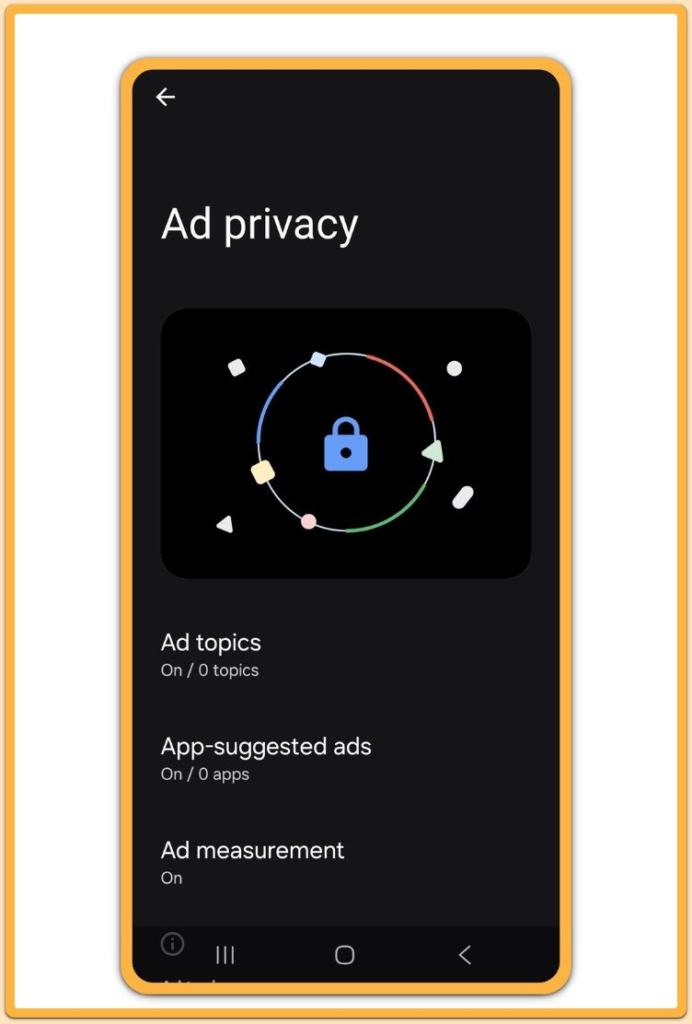
Open Settings on your Android device and scroll down to Google.
This section controls system-level Google services, not Chrome or individual apps.
Inside Google settings, tap Ads, Ads & privacy, or Privacy & ads, depending on your Android version and device brand.
Find Ad personalization and turn the toggle off.
This action prevents Google from using activity data to build interest-based ad profiles.
Ads will still appear, but they will no longer be selected using behavioral history.
Disable personalized ads on Android at this level first.
However, this step alone is not sufficient.
Step 2 — Delete or Reset Advertising ID
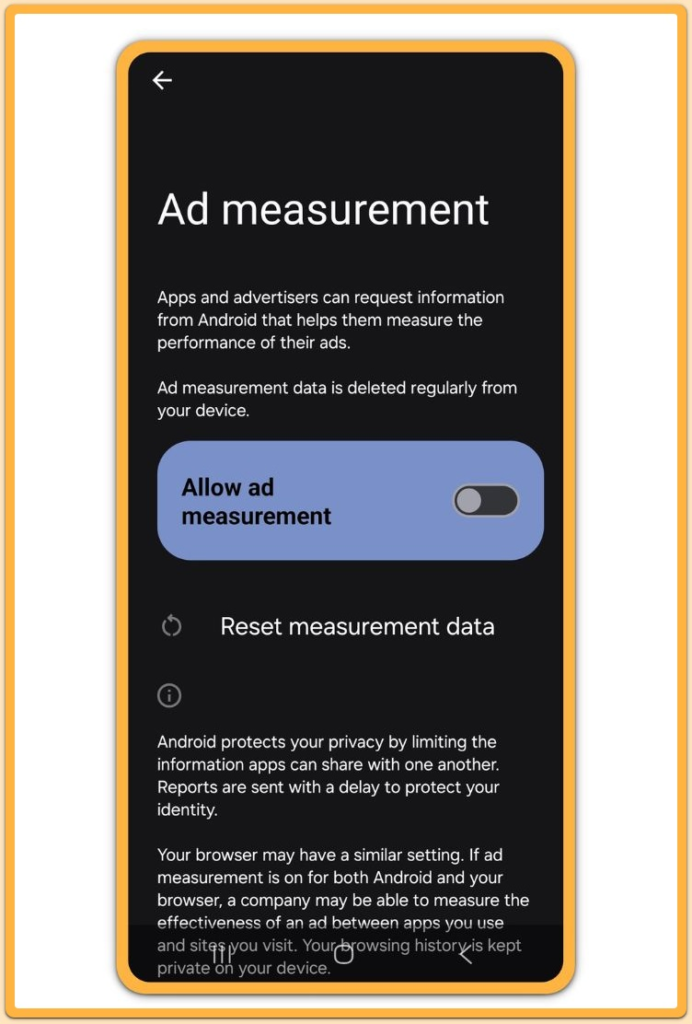
Stay in the Ads menu and locate Advertising ID.
On Android 13 and later, you may see Delete advertising ID.
Select it and confirm the action.
On older Android versions, choose Reset advertising ID instead.
The advertising ID is a unique identifier that allows apps to recognize the device across different services.
Even with ad personalization turned off, this identifier can still link past behavior.
Deleting or resetting it breaks that historical connection.
Skipping this step leaves tracking partially intact, which is why many users feel ad settings “do not work.”
If your goal is to disable personalized ads on Android properly, this step is mandatory.
Step 3 — Review App-Level Permissions Related to Ads
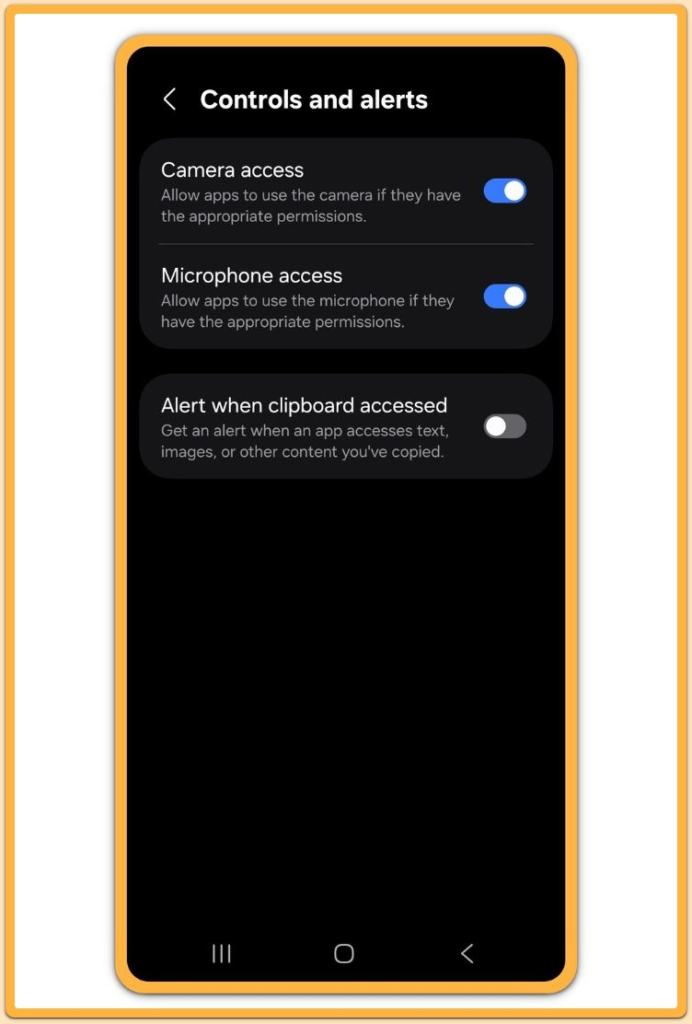
If you are not familiar with how permission access works, learning how to manage app permissions on Android helps reduce unnecessary data exposure.
Go to Settings → Privacy → Permission manager.
Focus on permissions commonly used for profiling:
- Location
- Phone
- Sensors
- Files & media
Location access, in particular, is often used to infer interests indirectly.
Some apps combine permission data with advertising identifiers to enrich ad profiles.
If an app does not clearly need a permission to function, remove it.
Advertising systems perform best when data sources are rich and continuous.
Reducing permission access limits the signals available for profiling and strengthens the effect of disabling ad personalization.
Step 4 — Limit Google Account Ad Data
Open Settings → Google → Manage your Google Account, then go to Data & privacy.
Turn off options such as:
- Ad Topics
- Web & App Activity
- YouTube History
These settings control account-level data sharing across Google services.
Without adjusting them, ad profiles can still be built at the account level even if device-level controls are applied.
Separating device behavior from account data is critical for meaningful privacy reduction on Android.
Troubleshooting
If ads still look personalized, some apps may use internal profiling systems unrelated to Google Ads.
Check in-app privacy or advertising settings and clear app data to remove cached targeting signals.
If the Ads menu is missing, manufacturers often rename menu paths.
On some Samsung devices, the Ads menu appears under Privacy instead of Google.
System warnings may appear after disabling personalization.
These warnings are informational and do not indicate broken functionality or reduced performance.
On some Samsung One UI versions, the Ads menu is grouped under Privacy instead of Google, which causes confusion for many users.
Additional Tips
Disabling personalized ads on Android does not reduce the number of ads.
It changes how ads are selected.
Generic ads may still appear, but they are based on context rather than long-term behavior.
For stronger privacy, keep Android updated, avoid unnecessary free apps with aggressive ad models, and review permissions regularly.
Privacy on Android is cumulative.
Each small adjustment reduces overall exposure.
Final Notes
Disabling personalized ads on Android is not a single switch.
It is a combination of system-level controls, account-level limits, and permission management.
Skipping one step does not break the process, but it weakens the result.
When all settings are applied together, ad tracking is significantly reduced without affecting normal device use.
Disabling personalized ads on Android works best when combined with other privacy controls, such as learning how to turn off location tracking on Android.
Checklist
- Disable ad personalization in Google settings
- Delete or reset advertising ID
- Review and reduce app permissions
- Limit Google account ad data
If all items are checked, ad tracking is significantly reduced across most Android environments.
Extra Section 1
Many users confuse ads with tracking, but the two are not the same.
Ads are unavoidable in free ecosystems.
Tracking is optional.
Android allows advertising without behavioral profiling.
When you disable personalized ads on Android, the system shifts from prediction-based targeting to contextual delivery.
This does not eliminate ads, but it limits long-term data accumulation.
Over time, this reduces the amount of behavioral information stored and reused.
The practical benefit is subtle but important.
Ads stop adapting aggressively to past activity, and cross-app profiling becomes weaker.
For users who care about privacy but still rely on free apps, this balance matters.
Extra Section 2
Some manufacturers add their own advertising services on top of Google’s system.
Samsung, Xiaomi, and others may include separate ad or recommendation settings.
Always review:
- Manufacturer privacy dashboards
- System service permissions
- Preinstalled app settings related to ads or recommendations
Android privacy control is layered.
Google settings are only the first layer.
Understanding and adjusting each layer is the difference between assumed privacy and actual privacy.