
Introduction
────────────────────────
Android Backup Skips App Data means the backup process completes without errors, but the system excludes important app data before the backup even begins.
This is not a temporary sync delay, a server issue, or a mistake made during setup.
When users see “Backup complete,” they naturally assume everything was saved.
However, in reality, Android decides what to include long before that message appears.
System-level rules, app-defined permissions, and storage behavior drive that decision, and users cannot override them.
Once the system applies the exclusion, repeating the backup does not change the result.
This behavior appears consistently across devices, Android versions, and Google accounts.
Therefore, it does not indicate a broken phone or a corrupted account.
This article explains where that decision is made,
why app data is skipped without warning,
and where user control realistically ends in android backup skips app data cases.
────────────────────────
Step-by-Step Guide — android backup skips app data
────────────────────────
────────────────────────
Step 1: Confirm That the Backup Actually Completed
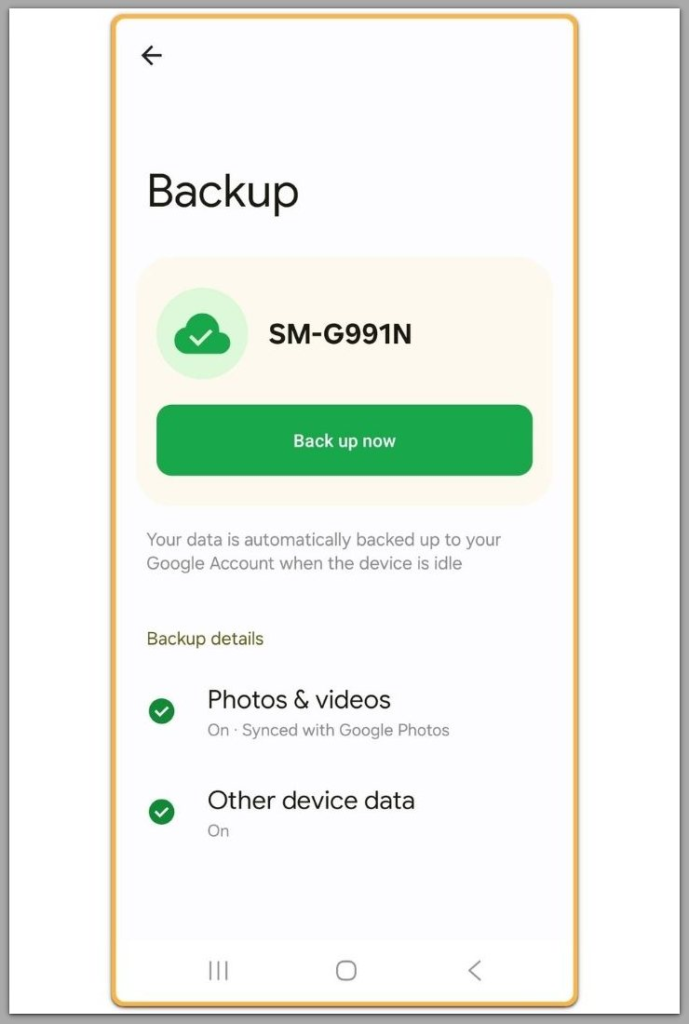
First, verify that Android backup itself did not fail.
Open Settings and check the Google backup status.
If the backup shows as completed with a recent timestamp, the system finished its job, which is where android backup skips app data cases begin.
At this point, the issue is not an interrupted process.
For this reason, this distinction matters.
A failed backup and a completed backup with missing app data represent fundamentally different situations.
If the backup never completed, this article does not apply.
However, if it completed successfully, the exclusion already happened upstream.
────────────────────────
Step 2: Identify Which App Data Is Missing
────────────────────────
Next, look at the restored device or account and identify what did not return.
Most users notice missing login states, preferences, or in-app progress.
These gaps often appear selective rather than total.
For example, some apps restore fully, others partially, and some not at all.
As a result, that pattern signals a system-level choice.
Android does not treat all apps equally during backup.
The system evaluates each app independently.
Once the system flags an app’s data, Android silently skips it.
────────────────────────
Step 3: Understand Why Android Skips Certain App Data
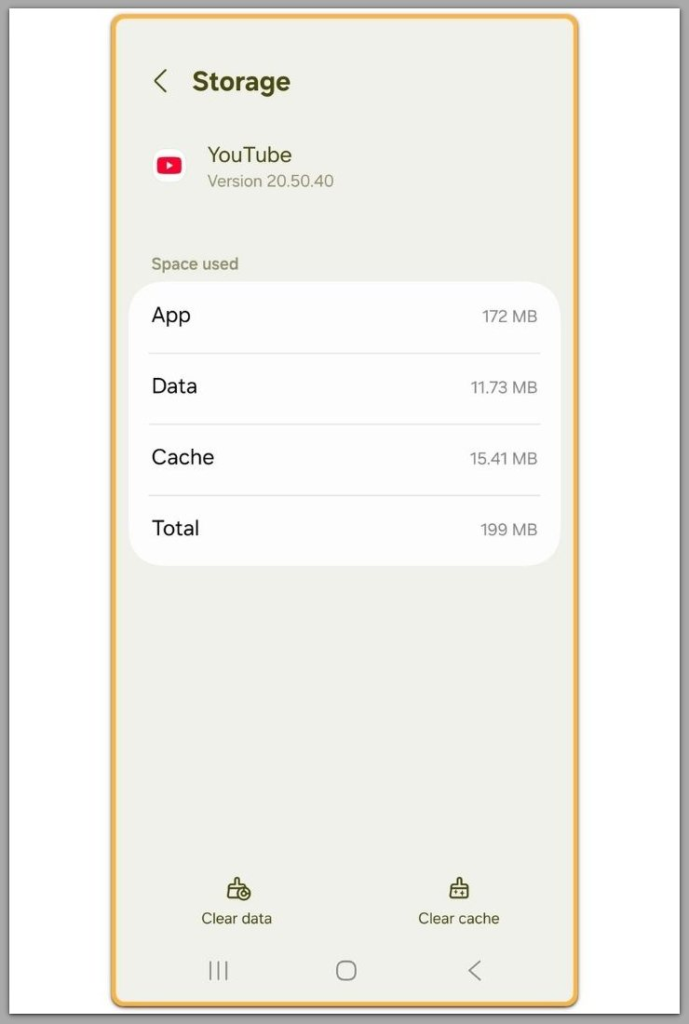
Android backup is not a full device image, which explains why android backup skips app data by design.
Instead, it functions as a filtered system intended to protect security, privacy, and storage efficiency.
Apps can explicitly opt out of backup.
They can also mark specific data directories as non-backupable.
In addition, Android often excludes large or frequently changing data by default.
As a result, cached data, temporary files, and sensitive authentication tokens fall into this category.
Users have no setting to override these rules.
By the time the backup runs, Android has already enforced the decision.
────────────────────────
Step 4: Why Retrying Backup Does Not Work
────────────────────────
Many users attempt the same fixes repeatedly.
They toggle backup off and on, sign out of Google, or reboot the device.
These actions only restart the same evaluation process.
They do not change the criteria Android uses to include or exclude app data.
If Android excludes the data once, it repeats the same exclusion again.
Therefore, the outcome remains stable.
At this point, retries add time but do not add new options.
User control has effectively ended.
This limitation cannot be resolved through Android settings alone.
In these cases, reviewing how this issue is typically handled outside user-level controls can help clarify the remaining options.
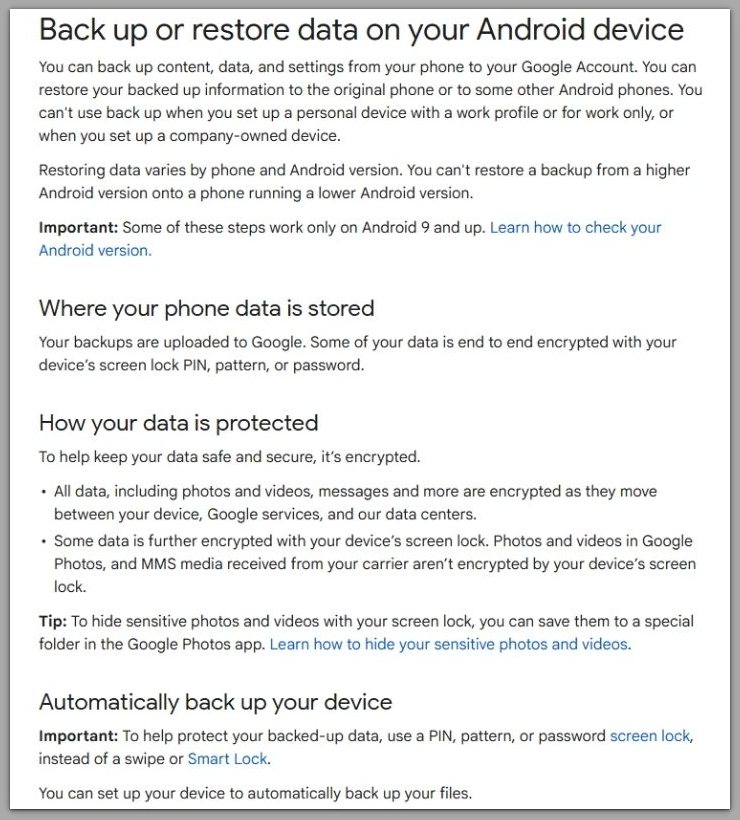
See Google’s official documentation on how Android backup works.
────────────────────────
Troubleshooting
────────────────────────
In practice, when android backup skips app data, troubleshooting focuses on confirmation, not recovery.
At this stage, the goal is to identify boundaries, not to force a different outcome.
If the backup completes successfully and the same app data is missing every time, the system behaves deterministically.
As a result, this confirms a system rule rather than a temporary failure.
Repeated restores, account re-logins, or device resets do not introduce new variables.
Instead, they repeat the same evaluation path that already excluded the data.
If different apps fail inconsistently, account sync or storage issues may still be involved.
However, when the pattern remains stable across restores, the system has already finalized the decision.
Recognizing this distinction prevents unnecessary resets and false hope.
It also avoids mislabeling normal system behavior as a device or account problem.
────────────────────────
Additional Tips
────────────────────────
If certain app data is critical, check whether the app provides its own cloud sync or export feature.
For this reason, many developers intentionally bypass Android’s system backup.
This approach is common for apps handling authentication states, financial records, or encrypted content.
In these cases, developers consider system backup unreliable or unsafe by design.
Manual exports, account-based sync, or in-app backup options often provide the only dependable path.
Therefore, this is not a workaround caused by Android limitations.
It reflects how the app itself defines responsibility for its data.
Android backup was never intended to replace app-level control.
When setting up a new device, always test restoration early.
If key data does not return on the first restore, assume it will not return through Android backup alone.
────────────────────────
Final Notes
────────────────────────
When android backup skips app data, the system is not malfunctioning.
Instead, it enforces predefined rules that users cannot override through settings or retries.
This point marks the end of user control.
Further attempts inside Android settings do not change the outcome.
If everything above checks out and the data is still missing, recovery depends entirely on app-specific solutions or professional data handling.
Understanding this boundary early prevents wasted effort and repeated resets.
────────────────────────
Checklist
────────────────────────
☐ Confirm that Android backup completed successfully
☐ Identify which app data did not restore
☐ Verify whether the app opts out of system backup
☐ Stop repeated retries once the pattern is consistent
☐ Check for app-level export or sync options
────────────────────────
Extra Section 1
────────────────────────
Many users struggle with this issue because android backup skips app data without clearly communicating exclusions.
As a result, the interface implies completeness even when exclusions are active.
A “backup complete” message creates a false sense of security.
The gap only becomes visible after restoring to a new device.
Android backup prioritizes safety and stability over transparency.
Therefore, the system avoids backing up data that could cause conflicts, leaks, or restore failures.
Understanding this design choice reframes the problem.
The real question is not how to force backup, but what was never meant to be backed up.
That shift allows users to make decisions based on limits rather than assumptions.
────────────────────────
Extra Section 2
────────────────────────
In contrast, relying solely on Android backup for critical app data is risky.
The system was never designed as a full migration tool.
Android backup works best as a baseline layer, not a guarantee.
Instead, it protects against device loss, not against every form of data dependency.
Users who change devices frequently or depend on app-specific states should plan ahead.
Therefore, external backups, app-level sync, or manual exports belong to that strategy.
This is not a failure of Android.
It is a boundary.
Once that boundary is understood, users stop fighting the system and start working around it intelligently.
That is where control realistically returns.