
Introduction
────────────────────────
Android Backup Failed When Storage Is Full means the device has reached a physical storage limit where the system can no longer create, stage, or prepare backup data for upload.
This is not a settings mistake, a temporary glitch, or a background sync issue.
Android backups do not stream data directly to the cloud.
The system first creates temporary backup files inside internal storage.
When storage is full, this preparation step stops entirely.
At that point, android backup failed when storage is full does not slow down or partially succeed.
The process stops at a clear boundary.
Retrying the backup without freeing real space does not change the result.
This article explains
where user control realistically ends,
why backups cannot continue once storage reaches this limit,
and how to identify the exact moment backup failure becomes unavoidable.
────────────────────────
Step-by-Step Guide
────────────────────────
────────────────────────
Step 1: Confirm the Failure Is Caused by Storage Limits
────────────────────────
First, confirm that the backup failure appears after storage warnings show up.
Messages such as “Storage almost full” or repeated backup interruptions act as key signals.
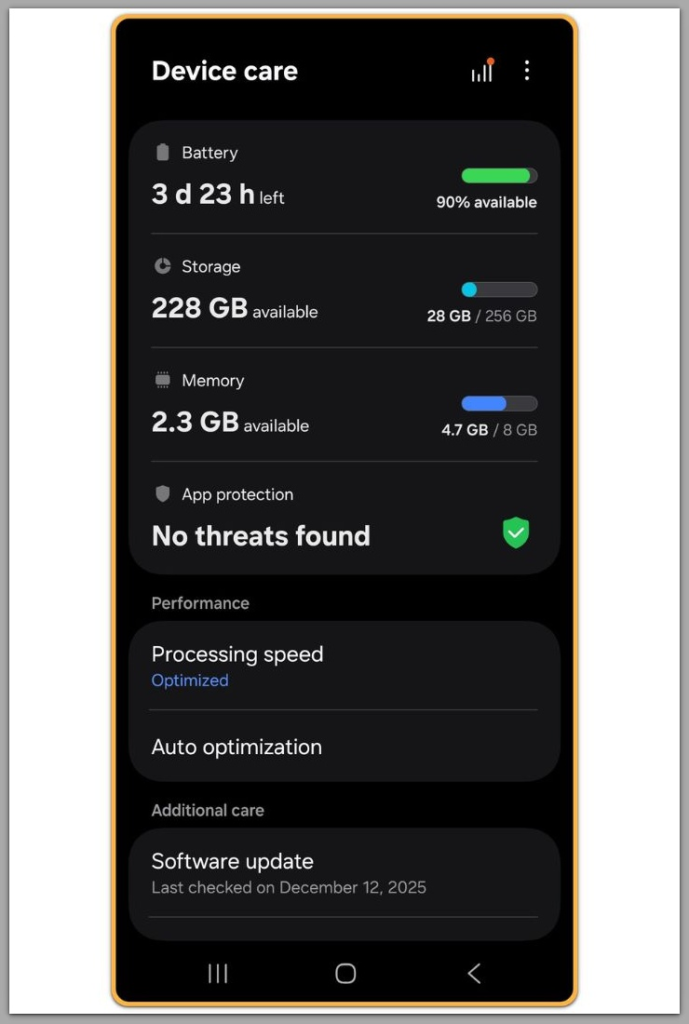
The critical factor is not the percentage shown, but whether Android can still allocate temporary space.
Even when some storage appears available, fragmentation and reserved system space can block backup creation.
If the backup fails immediately after starting and storage warnings were already present, Android has already determined the cause.
In this state, android backup failed when storage is full occurs before upload even begins.
────────────────────────
Step 2: Understand Why Backup Cannot Continue Without Free Space
────────────────────────
Android requires free internal storage to compress and stage backup data.
This process includes app data, system settings, and account information.
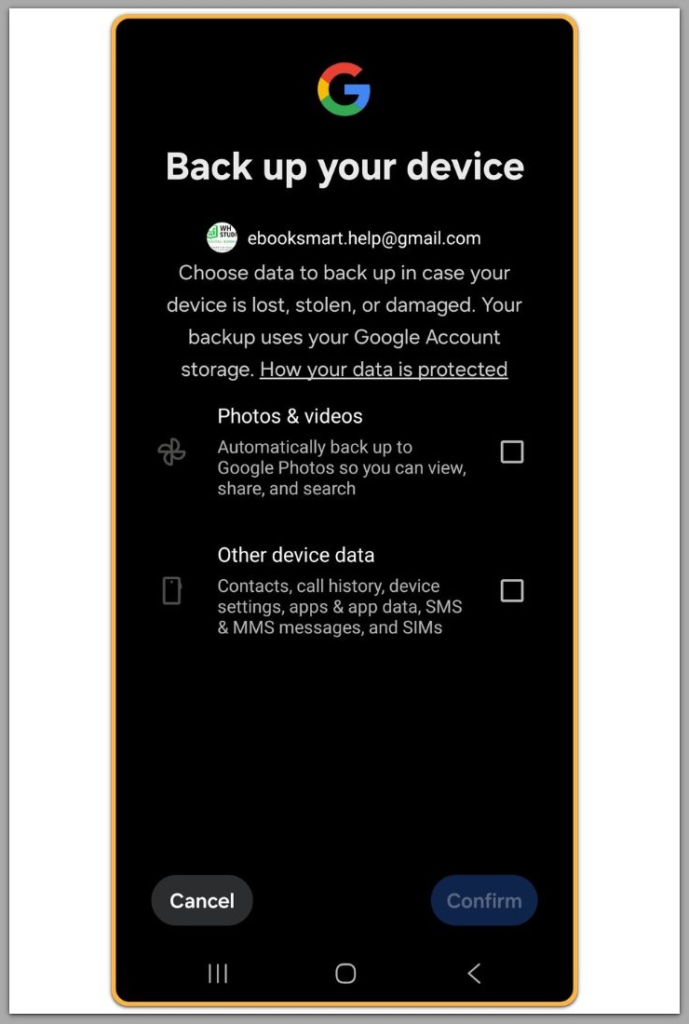
When storage fills up, Android cannot safely assemble these data blocks.
To prevent corruption, the system stops the backup process completely.
This represents a hard system boundary, not a negotiable condition.
No network setting, account refresh, or backup toggle can bypass it.
Once the system reaches this boundary, backup cannot continue until the device frees physical space.
────────────────────────
Step 3: Identify the User-Controlled Recovery Boundary
────────────────────────
User control exists only up to one point: reclaiming real storage space.
Deleting cache, removing unused apps, or offloading large media files can reopen the backup path.
However, symbolic actions do not count.
Restarting the device, forcing sync, or repeatedly pressing “Back up now” does not create storage.
If freeing sufficient space allows the backup to resume normally, the issue remains within user control.
If the backup still fails after meaningful space recovery, the problem has already moved beyond basic cleanup.
If freeing sufficient storage does not restore backup functionality, this issue is no longer resolvable through user actions alone. In such cases, reviewing advanced recovery or support options may be necessary.
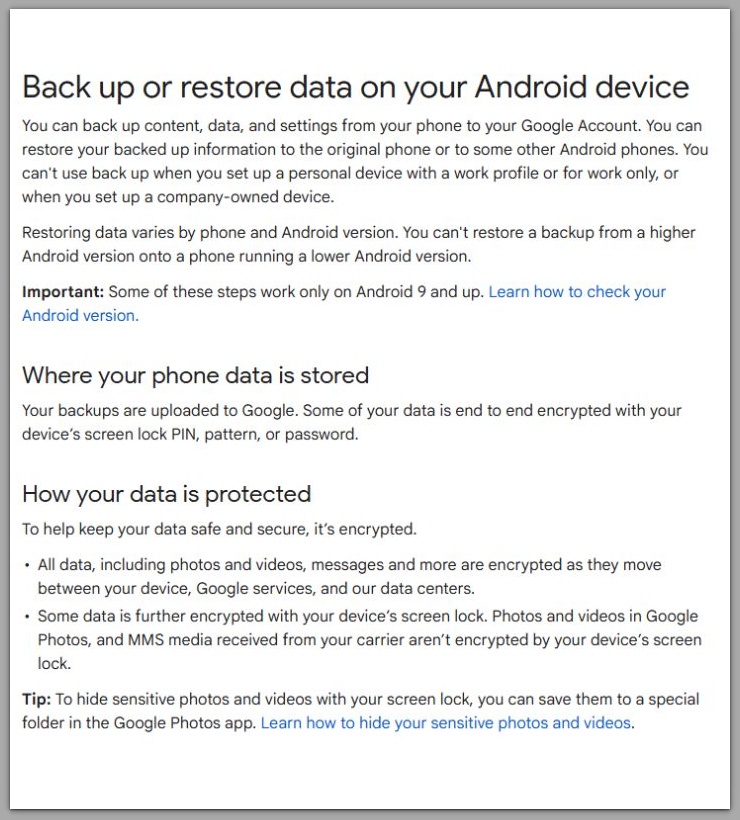
Google One storage & backup explanation (static help page)
────────────────────────
Troubleshooting
────────────────────────
Repeated backup attempts without freeing space often create confusion.
Users expect progress because the backup option remains visible, but visibility does not equal capability.
Android does not show a detailed error explaining internal storage allocation failure.
As a result, users often misinterpret silence as a temporary delay.
Timing also matters.
If the failure happens immediately after tapping “Back up now,” the process stops before any data preparation begins.
That timing confirms the issue lies in local storage allocation, not network or account sync.
If android backup failed when storage is full repeats after storage cleanup and a clean reboot, the pattern is already stable.
At that stage, further retries only consume time without changing the result.
Troubleshooting helps only to confirm the boundary, not to bypass it.
────────────────────────
Additional Tips — Android Backup Failed When Storage Is Full Scenarios
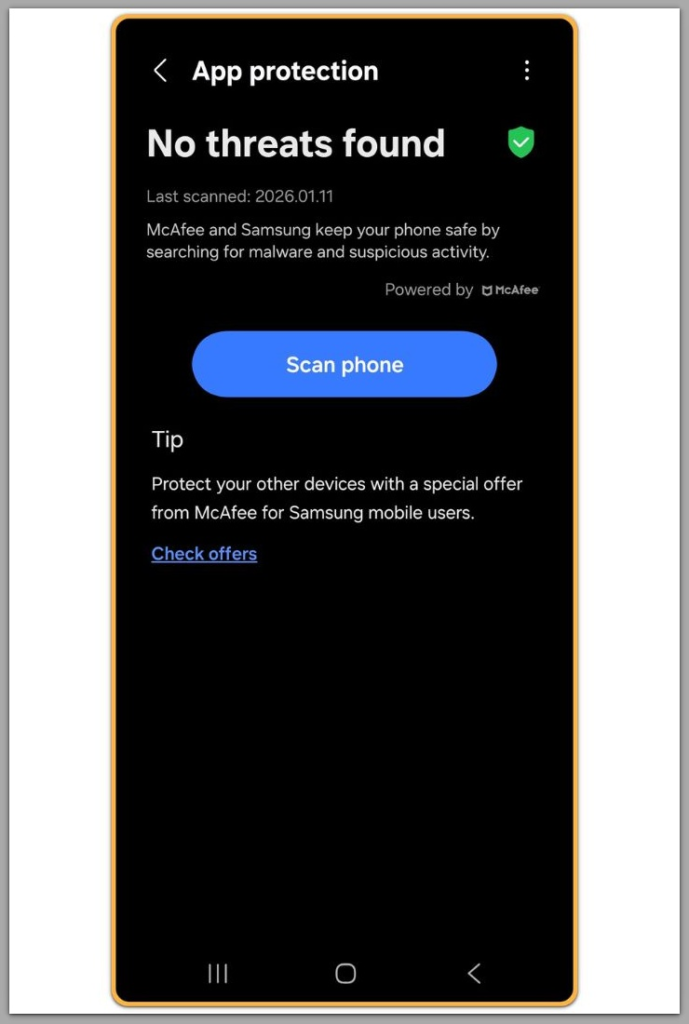
Storage-heavy apps often reserve space even after apparent deletion.
Media messaging apps, offline maps, and cached video platforms commonly behave this way.
Another subtle factor involves background indexing.
After large deletions, Android may still reorganize storage in the background, temporarily limiting usable space.
During this window, backups can fail even though free space appears to increase.
System updates may also reserve storage during background preparation.
This process can reduce usable space without clear user visibility.
Checking detailed storage categories provides more accurate insight than total free space alone.
This approach helps distinguish between recoverable user data and protected system allocations.
────────────────────────
Final Notes
────────────────────────
When android backup failed when storage is full appears, the system has reached a non-negotiable storage boundary.
In this state, the system does not fail backups gradually — it stops them by design.
Freeing real internal storage remains the only user-controlled recovery path.
If the device cannot meet that condition, backup cannot continue further.
────────────────────────
Checklist
────────────────────────
☐ Confirm storage warnings appeared before backup failure
☐ Verify that free space is physically available, not just reported
☐ Remove large user data rather than relying on restarts
☐ Retry backup only after meaningful storage recovery
☐ Stop repeated attempts once the failure pattern stabilizes
This boundary defines where backup responsibility ends and system limits begin.
────────────────────────
Extra Section 1
────────────────────────
Android backup failed when storage is full often gets misdiagnosed as a cloud or account issue.
This confusion happens because the backup toggle remains visible even after storage capacity runs out.
The presence of a backup option does not mean the system can execute it.
Android keeps the backup interface active even when internal storage cannot stage data.
The system fails silently at execution time instead.
This design creates a false sense of recoverability.
Users assume that retrying later, switching networks, or waiting longer will eventually succeed.
In reality, the system has already reached a point where it cannot allocate even temporary backup blocks.
Another overlooked factor involves storage reservation behavior.
Android dynamically reserves space for system stability, updates, and rollback protection.
User-facing storage summaries do not always show this reserved space.
As a result, a device may appear to have free space while remaining incapable of backup preparation.
At this stage, backup failure reflects a protective stop, not a malfunction.
Understanding this distinction prevents unnecessary troubleshooting and incorrect conclusions about account or network reliability.
────────────────────────
Extra Section 2
────────────────────────
In long-term device usage, backup failure due to full storage often signals a broader storage management problem.
The issue rarely comes from a single large file.
Over time, cached data, app remnants, media thumbnails, and offline content accumulate in fragmented blocks.
Even after visible files disappear, these fragments can limit the contiguous space required for backup staging.
This explains why small deletions sometimes fail to restore backup functionality.
Backup creation requires not just free space, but usable, allocatable space.
Another important boundary appears when android backup failed when storage is full becomes a recurring pattern tied to device lifecycle limits.
Older devices with smaller internal storage reach this limit earlier, especially after multiple OS updates.
In these cases, backup failure reflects hardware constraints rather than user behavior.
At that point, repeated cleanup efforts deliver diminishing returns.
The system may operate normally for daily use while remaining incapable of completing backups.
This is where a judgment call becomes necessary.
Either storage usage patterns must fundamentally change, or backup expectations must adjust.
Android does not automatically warn users when backup capability permanently degrades.
The system leaves that decision to the user, based on observed failure patterns and storage behavior.
Recognizing this boundary early helps avoid wasted effort and clarifies when the issue has moved beyond basic maintenance.