
Introduction
Photos permission not showing on Android happens when an app asks to use your pictures, but the Photos and videos option does not appear in the permission screen.
The upload page, profile image picker, chat attachment button, or gallery import screen opens, but Android shows a picker window, a limited photo list, or no separate Photos and videos menu.
Check both places because Android saves the access choice in settings, while the upload screen shows whether picture selection works again.
Step-by-Step Guide: Photos Permission Not Showing on Android
Step 1: Open App Permission Page
Go to Settings, tap Apps, then choose the app that does not show your pictures. Tap Permissions and look for Photos and videos. Tap Photos and videos once it appears, then check the current option. Return to the app after changing the setting and test the photo feature again.

Step 2: Check Photos and Videos Option
Choose Photos and videos from the permission page. Use Allow all photos and videos for full gallery access. Choose Select photos and videos for chosen items only.

That option limits the app to the pictures or videos the user chooses through Android. Close and reopen the app after changing this setting, then test the failed photo feature before changing more settings.
Step 3: Test Same Photo Screen Again
Open the app and return to the failed photo feature. Use the upload button, profile image button, attachment button, or gallery import screen again.
If Android opens a picker, select the needed pictures there and finish the task. When the feature still does not show the right option, update the app from Google Play and restart the phone. Then check the permission page again and repeat the test.
Troubleshooting
Troubleshooting 1: Photos Permission Not Showing on Android Opens a Picker
Some apps use Android’s built-in photo picker instead of asking for full gallery control. In that setup, the app does not need a full Photos and videos switch on its permission page. The picker opens only for the current task, such as uploading a profile image, attaching a picture, or importing a gallery item.
Choose the needed pictures inside that window and continue from the app screen.
Troubleshooting 2: Option Appears on One App but Not Another
Gallery, social, browser, and chat apps do not always request the same type of photo access. One app shows Photos and videos in Android settings, while another opens a picker only after the user taps the upload button.
Check the exact app that failed instead of changing permissions for another. Then return to the upload, profile image, attachment, or import page where the option did not appear.
Troubleshooting 3: Same Screen Still Does Not Load Pictures
The app sometimes keeps an old screen state after a permission change. The permission page looks correct, but the upload page still shows no pictures, loads only recent items, or opens the same empty attachment screen.
Close the app fully, install the Google Play update, and restart the phone. Then reopen the problem screen and test the failed photo feature again.
Extra Section 1: Profile Photo Upload Shows Only Selected Pictures
A profile photo screen often looks different from a normal gallery screen. The user taps Edit photo, Change picture, or Upload image, but the app shows only a few recent pictures instead of the full camera roll.
The permission page looks open, so the short photo list feels like a broken upload screen. Only selected photos appear, not the full gallery.
Open the profile photo screen again and use the picker to add the picture for that profile. If the app still shows the same small group of images, return to app settings and check whether selected-photo access limits what the app sees.
Extra Section 2: Browser or Chat App Opens Its Own Upload Screen
A browser or chat app often handles pictures through its own upload screen. The user taps Upload photo on a website or taps the attachment button in a message thread, but Android opens a picker instead of showing a separate Photos and videos option in settings.
That page asks for one item for the form, message, support ticket, or comment box. The process stays inside the website or message thread instead of moving back to the Android permission page first.
Return to the website or message thread and tap the upload or attachment button again. If the picker opens, choose the needed item there and finish the upload.
Official Source: Android Photo Picker Does Not Require Runtime Permissions
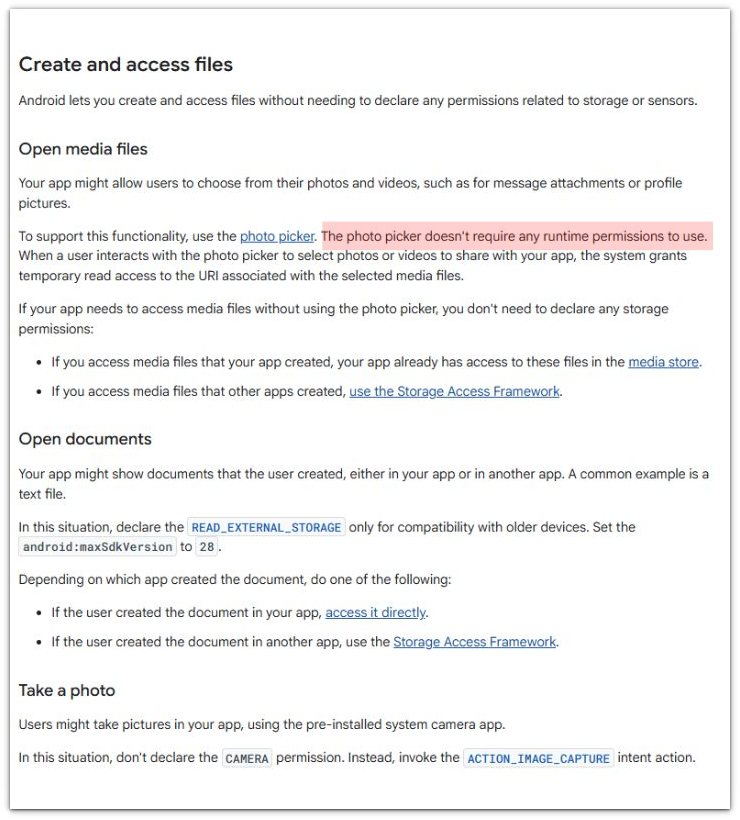
Android Developers says, “The photo picker doesn’t require any runtime permissions to use.” When an app uses the Android photo picker, the user selects photos or videos through that picker without a separate runtime permission.
Additional Tips
Some apps change the photo access path after an update, especially browsers, chat apps, and social apps. After updating, check the same upload area again. The permission page and picker do not always change at the same time.
A work profile, school account, or managed device policy also changes how picture access appears. On a managed phone, the setting often follows the profile rule instead of the normal settings page.
Older apps sometimes show a custom gallery screen instead of Android’s newer picker. In that case, the update matters more than changing the same page repeatedly.
Final Notes
Photos permission not showing on Android does not always point to a broken setting. The app uses Android’s photo picker, selected-photo access, or its own upload screen instead of a separate Photos and videos switch in many cases.
Check the permission page first, then the exact photo screen. The picker opens, the upload finishes, and Android handles picture selection instead of using a full gallery page.
Checklist
- Open the app permission page.
- Check the Photos and videos option.
- Choose full access or selected-photo access.
- Return to the same photo screen.
- Select the needed picture in the picker.
- Update and test the upload again.
For a broader check, see the main Android app permissions guide above.