
Introduction
Android Nearby Devices permission missing usually happens when Bluetooth pairing, a car system, a watch, or a speaker does not show the expected access prompt. The screen opens normally, but the permission does not appear in the usual list.
Android still needs that access before it scans, pairs, or connects to nearby hardware. The missing prompt usually sits between the permission page and the accessory setup screen.
Step-by-Step Guide: Android Nearby Devices Permission Missing
Step 1: Check App Permission Page
From Settings, select Apps and choose the app that controls the watch, speaker, car system, or Bluetooth accessory. Tap Permissions and look for Nearby devices in the list. Once Nearby devices appears, set it to Allow.
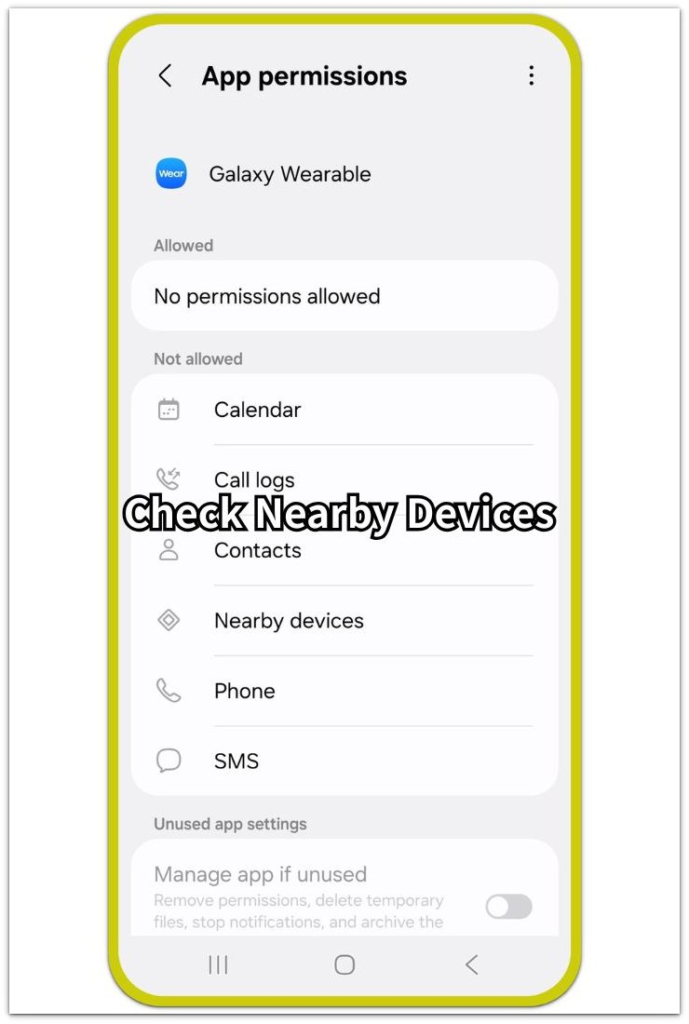
Close the app after changing the setting, then return to the same pairing or setup screen. Keep the other permission items unchanged at this stage. Check the pairing path before resetting full settings.
Step 2: Check Bluetooth and Connected Devices
In Settings, select Bluetooth or Connected devices. Turn Bluetooth on and check the paired devices list. Remove the failed accessory from the list, then start pairing again with the accessory close to the phone.
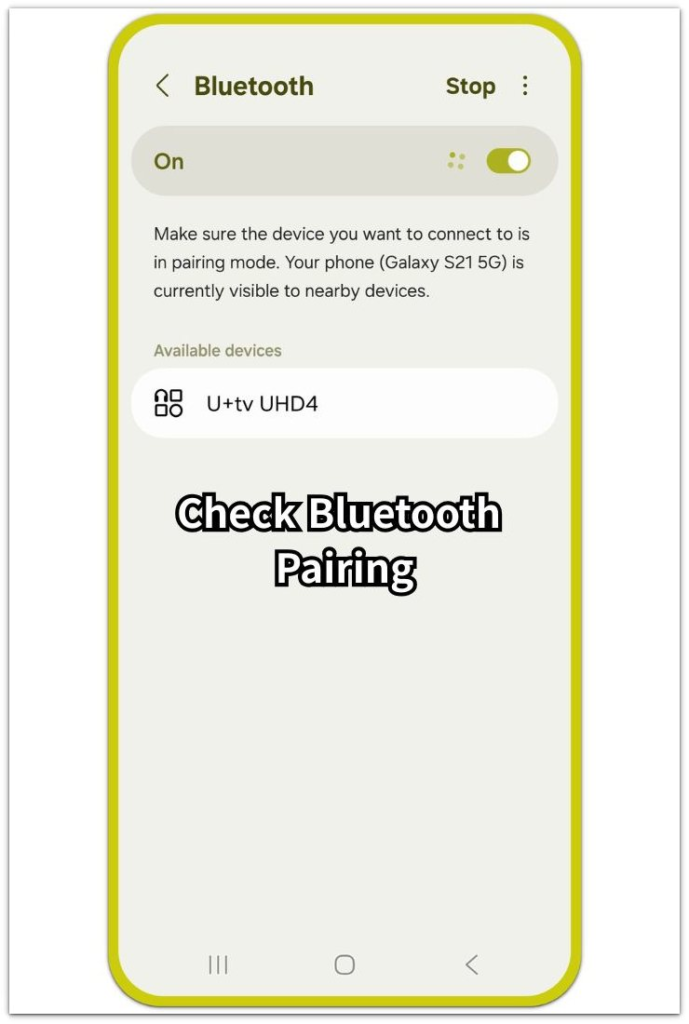
Follow the prompt on the screen and finish the pairing attempt from there. After pairing starts, test the same feature again. The permission prompt appears when the app requests nearby access, so use the screen that failed earlier.
Step 3: Update App and Test Again
Open Google Play Store and update the app that controls the accessory. Restart the phone after the update finishes. Return to the same scan, pairing, or setup screen instead of testing a different feature.
Test with the accessory again. If the option still does not appear, check the device menu or brand support page next. Some accessories use a separate setup screen outside the normal Android permission list, so the option does not always appear on the first permission page.
Troubleshooting
Troubleshooting 1: Android Nearby Devices Permission Missing After Bluetooth Works
Bluetooth settings sometimes finish pairing before the Nearby devices option appears. Android completes the system connection first, but the setup screen stays separate.
Return to the exact feature that failed earlier, such as scan, pair, add device, or connect accessory. Keep using the same setup menu. Android often shows the permission prompt on that path.
Troubleshooting 2: Device Appears But Still Will Not Connect
A watch, speaker, car system, or other accessory appears in the list but does not complete the connection. The phone already sees the hardware, while the link remains unfinished.
Remove the accessory from the list, then pair it again from the same screen. Keep Bluetooth turned on and leave the accessory close to the phone during the test. After setup finishes, check whether the connection stays active.
Troubleshooting 3: Nearby Devices Still Missing After Update
After an update, the accessory setup option sometimes stays inside the app’s own menu instead of appearing clearly on the normal Android permission list. Wearables, car systems, smart speakers, and branded accessories often use their own setup screen.
Check the device, accessory, or account menu before changing system settings again. Use the support page for that exact accessory only when the menu shows no setup option.
Extra Section 1: Car App Needs Nearby Access After System Pairing
A car already plays music, handles calls, or shows the phone on the media screen. Even then, the vehicle app still stops at add vehicle, connect car, or sync device.
Android has already paired with the car, but vehicle registration has not finished. The Bluetooth list only confirms the system connection. A Nearby devices prompt usually appears after the vehicle setup screen starts.
Open the car app and return to the add vehicle, connect car, or sync device screen that failed earlier. Keep the car turned on and leave the phone close to the dashboard during the test. Continue from that screen and follow the prompt when Android asks for Nearby devices access.
Extra Section 2: Watch Or Speaker App Opens Its Own Setup Screen
A watch, earbuds, or speaker app sometimes does not show Nearby devices on the Android permission page at first. The Settings page looks incomplete, but the permission item appears after setup starts.
Setup screens often use labels such as set up device, add watch, find speaker, or pair new device. Those screens start the nearby scan and then bring up the Android permission prompt.
Open the accessory app and use its device setup screen. Keep the watch, earbuds, or speaker close to the phone during the test. After scanning starts, check whether the Nearby devices prompt appears.
Official Source: Android Nearby Devices Prompt
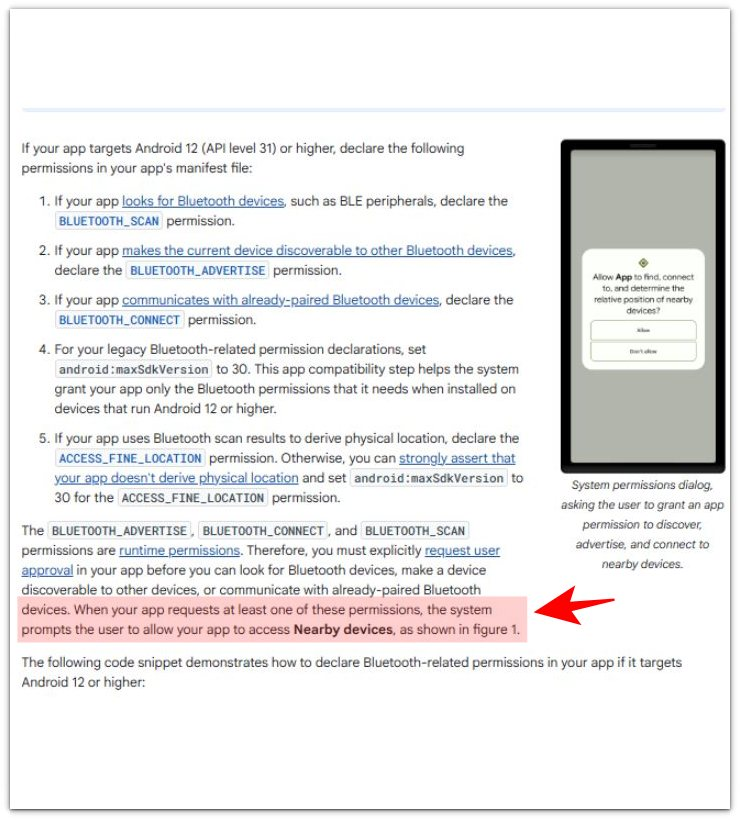
Android Developers says Android shows the Nearby devices permission dialog when an app requests Bluetooth permissions for scanning, advertising, or connecting to nearby devices.
Additional Tips
Nearby devices access often depends on an active accessory scan. Check the setup screen before treating the permission page as broken.
Work profiles, school profiles, and managed phone policies also change what appears on the permission screen. When the option stays locked or hidden on a managed phone, check the profile owner or admin setting before resetting the device.
Older accessories often need their own companion setup before Android shows the nearby access prompt. Check the accessory manual or brand support page before relying on the general Android permission list.
Final Notes
Android Nearby Devices permission missing is usually not a broken permission page. The phone, the accessory, and the setup screen must follow the same path before the prompt appears.
The strongest fix is to keep the test on one connection path: permission page, Bluetooth pairing, and the exact add device or connect screen that failed earlier. Keep the accessory close and continue until Android shows the Nearby devices prompt or the accessory setup clearly fails.
Checklist
- Open the app permission page and check Nearby devices.
- Turn on Bluetooth and check the paired devices list.
- Remove the failed accessory and pair it again from the same setup path.
- Return to the exact scan, add device, connect, or sync screen that failed earlier.
- Keep the accessory close to the phone during the test.
- Update the accessory app, then test the same connection path again.
For broader permission problems, check the main Android app permissions guide above before changing deeper settings.