
Introduction
Android location access blocked by a setting stops maps, weather, delivery, ride, camera tags, and nearby search from using the phone’s current position. The screen opens normally, but the feature still fails when the main switch stays off or the app does not have the right permission.
At first, the problem often looks like an app error. A map loads without the blue dot, a weather card shows the wrong area, a pickup page fails to set the current spot, or a camera app saves photos without tags.
Step-by-Step Guide: Android Location Access Blocked
Step 1: Check The Location Permission
Open Settings, tap Apps, then choose the app that fails to find your location. Open Permissions and tap Location. Select Allow only while using the app.
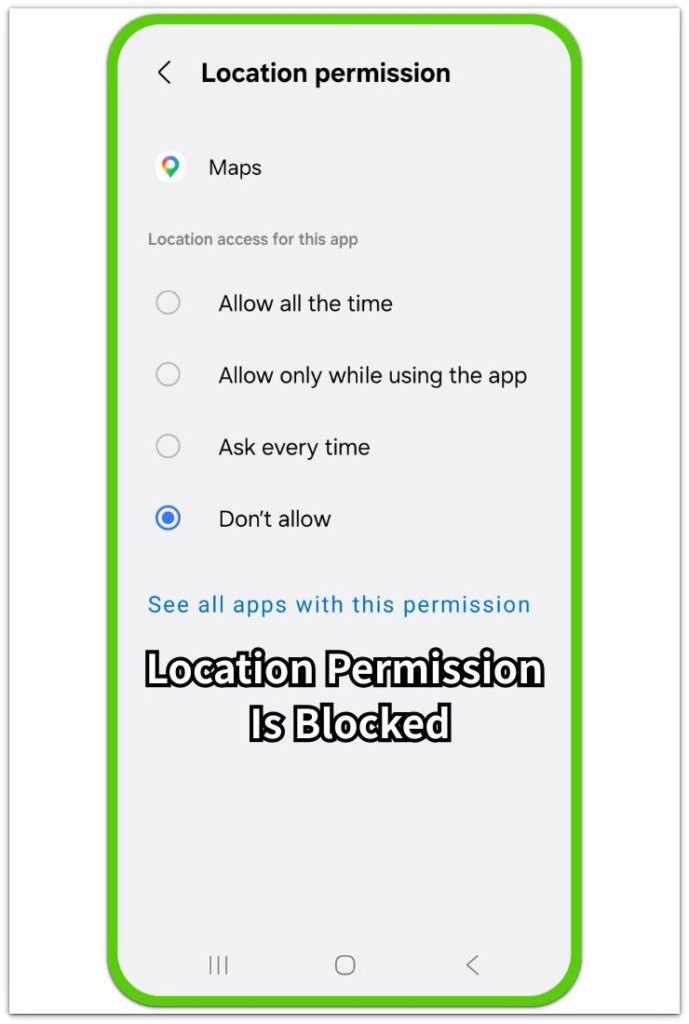
Use this check when a location-based feature opens without your current position. Reopen the app after changing the permission, then test the map view, pickup page, search result, or camera tag screen again.
Step 2: Turn On The Main Location Switch
Open Settings and go to Location. Turn on Use location or the main switch. Keep this switch on before checking the app-level permission.
Check this part when several features lose access at the same time. A map, pickup point, weather card, or nearby search screen needs this phone-level switch before it works correctly. Return to the affected screen and refresh it once.
Step 3: Improve Accuracy And Retest
Open Location settings and look for services or accuracy options. Turn on the accuracy option when it appears. Use this step when the blue dot jumps, the area looks wrong, or nearby results keep landing in the wrong place.
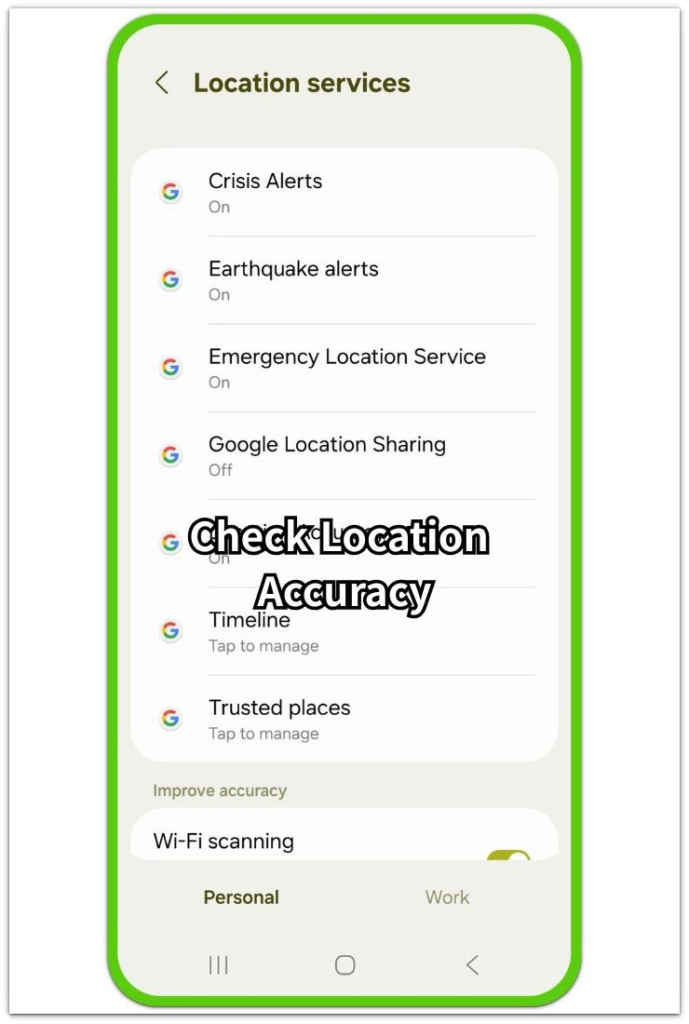
Close that service completely. Open it again and test the same feature one more time. Restart the phone once if the permission looks correct but the feature still fails.
Troubleshooting
Troubleshooting 1: One Service Still Cannot Find Your Location
Check the location option inside the affected screen. Ride, delivery, weather, maps, camera tags, and nearby search features often keep their own location control separate from Android settings.
Reopen that service after changing it. Sign out and sign in again if the feature keeps loading an old pickup point, saved place, wrong city, or outdated nearby result.
Troubleshooting 2: Maps Or Pickup Points Keep Showing The Wrong Area
A wrong area often appears indoors, near tall buildings, inside parking garages, or after the phone switches between Wi-Fi and mobile data. Move near a window or open space before testing the same map, pickup point, or nearby search again.
Turn Wi-Fi on during the test. Use this check when the blue dot jumps, the pickup point moves away, or nearby results appear outside your area.
Troubleshooting 3: Android Location Access Blocked Again After It Works
Check Battery Saver, background restriction, and work profile controls when it works once and then stops again. These settings affect live tracking, background updates, delivery progress, ride pickup screens, and checks that run after the screen changes.
Update that service when the permission screen looks correct but the feature still refuses location. Restart the phone once after the update, then test the feature again.
Extra Section 1: When A Saved Place Blocks The Current Spot
Delivery, weather, ride, or map services sometimes open with an old place already selected. The app loads a saved home address, work address, recent pickup point, or old city selection. The phone setting looks correct, but the screen still does not start from the current spot.
Some apps load their own saved place before they ask Android for a fresh reading. A weather card keeps showing a saved city. A delivery app returns to the last address. A ride app keeps an old pickup point on the map after the app opens again.
Open the same screen and check the saved entry, recent search, default city, or pickup field inside the app. Remove the old entry or choose the current spot again. Then close the app and reopen the same page so the app loads the new selection instead of the saved one.
Extra Section 2: When Indoor Signals Make The Area Look Wrong
A map or pickup screen sometimes looks wrong even after the permission and main switch are correct. This often happens inside a shopping mall, apartment complex, office building, underground parking garage, or subway station. The blue dot jumps, the pickup pin moves to a nearby road, or nearby results appear from the next building instead of the place you are standing.
Thick walls, basement floors, tall buildings, and weak network coverage make the screen less stable. The app opens normally, but the map keeps shifting because the phone does not get a clean reading from the area around it.
Move near a window, building entrance, or open space before testing again. Turn Wi-Fi on during the test, then reopen the map, pickup page, or nearby search screen. After the screen reloads, check whether the blue dot stays closer before changing more settings.
Official Source: Android Device Setting And App Access
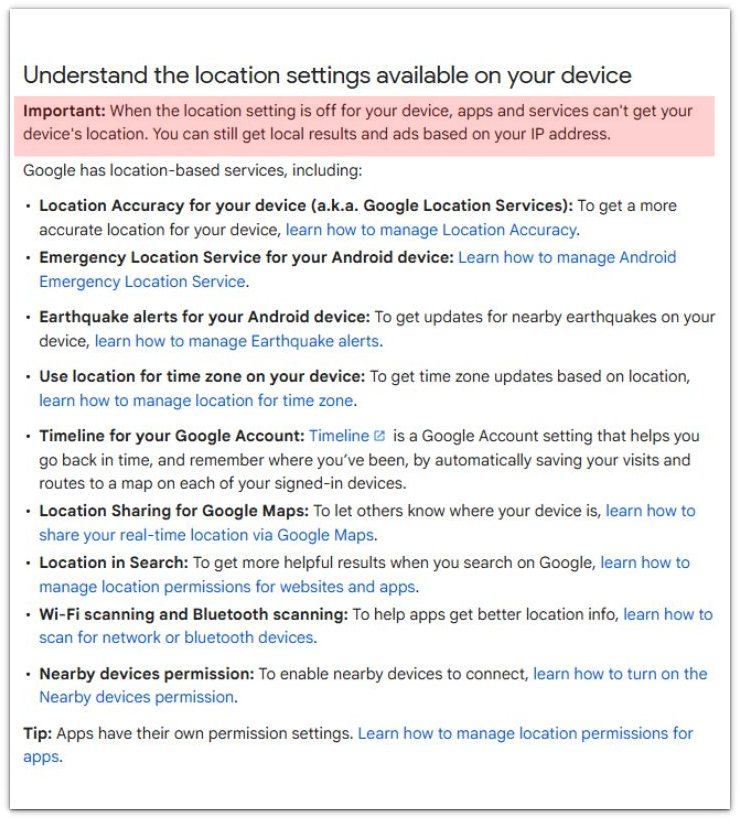
Google Android Help says: “When the location setting is off for your device, apps and services can’t get your device’s location.” This supports why the main device switch blocks apps and services from finding the device’s current position.
Additional Tips
App-stored places often override the phone’s current reading. Check the saved city, home address, pickup field, or recent search when the app keeps returning to the same wrong area.
Account settings sometimes bring back old places after sign-in. Check the saved address list, default city, or profile area when the same wrong spot returns again.
Browser-based maps need a separate site permission check. Android location access only covers the browser app, while the website keeps its own location request.
Final Notes
Android location access blocked by a setting usually starts with the main device switch or the app’s own permission. Once those two parts match, maps, weather, delivery, ride, camera tags, and nearby search have a proper path to the phone’s current position.
Accuracy settings and signal conditions matter when the screen opens but the area still looks wrong. Fix the permission path first, then retest the same map, pickup page, weather card, or nearby search screen in a place with a cleaner signal.
The fastest fix is a clear order: turn on the main device switch, allow the affected app to use it, improve accuracy, then reload the exact feature that failed.
Checklist
- Turn on the device Location setting.
- Allow location access for the affected app.
- Check Location Accuracy when the area looks wrong.
- Clear saved places inside the app when it keeps showing an old spot.
- Test the map, pickup page, weather card, or local result again.
- Move near a window, entrance, or open space when indoor signals look unstable.
For a broader overview, read the main Android app permissions guide above.