
Introduction
Android app permissions not working usually means the camera will not open, the microphone stays blocked, location access fails, or notifications do not appear after tapping Allow. The blocked feature cannot use the camera, microphone, location, or notification setting it needs.
Android places permission controls on more than one screen. The app page shows access for camera, microphone, location, contacts, photos, files, and nearby devices, while Permission Manager shows which apps have each permission.
Some controls sit outside the normal permission list. Notifications, special app access, privacy controls, unused app settings, and update changes block access even when the main permission screen looks correct.
Step-by-Step Guide: Android App Permissions Not Working
Step 1: Check Camera, Microphone, And Location Permissions
Open Settings, tap Apps, then choose the problem app. Open Permissions and check Camera, Microphone, and Location first because they affect calls, maps, scanners, social and video apps, and recording tools.
Set Camera and Microphone to Allow only while using the app when that option appears. For Location, choose the access level that matches the task. A map, delivery, weather, ride, or fitness app needs location access while open.
Reopen the app after changing the setting. Test the action that failed before, such as opening the camera, starting voice input, joining a call, loading a map, or using a nearby place search. When the problem continues, check Permission Manager and privacy controls next.
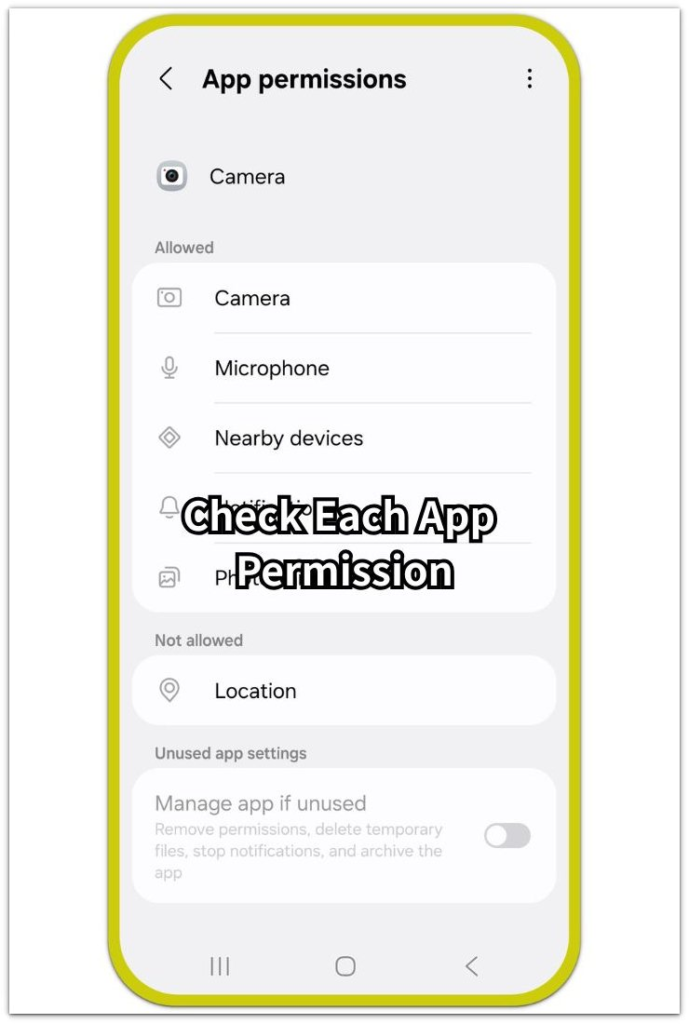
Step 2: Check Notifications, Photos, And Files Access
From the app page, check Notifications, Photos and videos, Files, Music and audio, or similar access. These controls affect alerts, image uploads, media selection, downloads, attachments, and local file use.
Turn on Notifications when alerts, messages, reminders, or account notices do not appear. For Photos and videos, choose the access level that matches the task. Allow all photos and Select photos and videos often show different results inside upload or picker screens.
Check Files, Music and audio, or similar storage access when upload, attachment, save, or file opening fails. Reopen the app and test the media, alert, or file task before moving to Permission Manager.
Step 3: Match Contacts And Nearby Devices To Failed Features
Use Contacts for names, address book sync, saved people, or phone number matching problems. Contact access affects calling, messaging, email, and calendar apps.
Use Nearby devices for Bluetooth pairing, earbuds, watches, speakers, car systems, or device scanning failures. On newer Android versions, some Bluetooth actions use Nearby devices instead of Location.
Close and reopen the app after changing Contacts or Nearby devices. Return to the contact list, sync screen, Bluetooth connection, or nearby search before changing broader system settings.
Step 4: Use Permission Manager For Repeated Permission Requests
Open Settings, tap Security and privacy or Privacy, then open Permission Manager. This screen groups access by type, so Camera, Microphone, Location, Contacts, Photos, Files, and Nearby devices appear in one place.
Open the permission type that matches the problem and find the app. Move it from Not allowed to Allowed for that feature, then return and test the failed action.
Check unused app settings when the permission request returns after you allowed it. Android removes permissions from unused apps, so the request appears again when the app needs that access.
Step 5: Review Locked Permissions, Updates, And Location Resets
Check the permission screen again if a permission looks grayed out or stays locked. A work profile, parental control, device admin app, security setting, or restricted setting often controls that switch outside that page.
Review recent system updates if permissions changed after an Android update. An update sometimes resets access, moves a permission to a new menu, or triggers the permission request after the first launch.
Return to Location when access keeps resetting after you choose Allow. Compare While using the app, Ask every time, Precise location, and background location options, then reopen the app and confirm the location feature.
Troubleshooting
Troubleshooting 1: Privacy Controls Still Block Access
Review privacy controls after camera or microphone use fails even though the permission page looks correct. Android privacy settings block camera or microphone across the phone, even when the permission looks allowed.
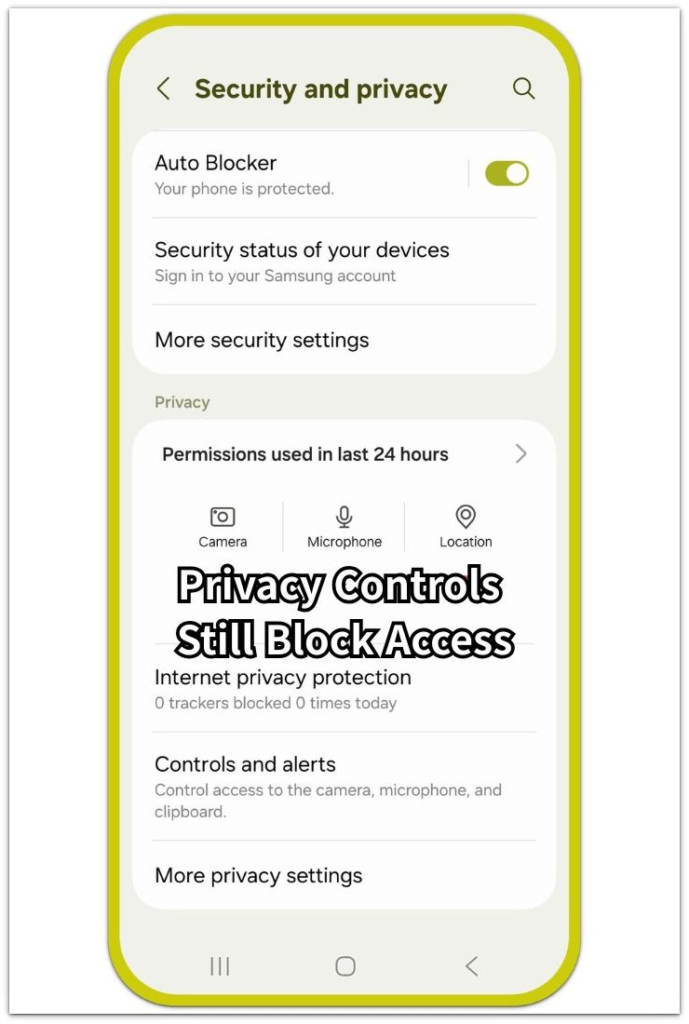
Open Security and privacy or Privacy, then review camera access, microphone access, and any privacy dashboard warning. Turn the blocked control back on, reopen the app, and test the camera, call, recording, or voice feature.
Troubleshooting 2: Special App Access Blocks The Feature
Use Special app access for display over other apps, picture-in-picture, install unknown apps, notification access, battery restriction, or all files access. These settings sit outside the permission list.
Open Settings, Apps, then Special app access. Match the setting to the feature that failed, then change only the access needed.
Troubleshooting 3: The App Fails After You Allow Permissions
Restart the app after the permission screen looks correct but the feature still fails. A stuck session, old login state, cache, or background restriction keeps the app from reading the new permission.
Close the app fully, reopen it, and test the feature. If the problem stays, update the app, restart the phone, then test the permission in another app before changing more Android settings.
Real Case: One App Failed After Permissions Looked Allowed
A common case starts when one app looks normal but several features fail. The camera button stays inactive, location search returns nothing, and notifications never appear after the user taps Allow.
The permission page shows some permissions as allowed, so the problem looks like an error. A closer check finds a mixed setup: the app has Camera access, Location asks every time, and Notifications are off.
Permission Manager helps confirm the mismatch because it shows permissions by category. After matching Camera, Location, and Notifications to failed features, the app starts working normally.
Android app permissions not working needs more than one screen. The app page, Permission Manager, privacy controls, and unused app settings all affect the final result.
Google Android App Permissions Official Source
Google explains that Android permissions control which phone features or information an app uses. Camera, microphone, location, notifications, files, and nearby device access all depend on permission settings.

Additional Tips
Keep work and personal profiles separate because each profile keeps its own copy and permission state. Check the app’s settings for alerts, uploads, calls, or maps that stay limited after Android shows permission allowed.
Use the failed feature as the test. A camera screen, map screen, upload picker, and Bluetooth pairing screen each use a different permission. Record which permission prompt returns after a restart or update because that clue reveals an unused app reset, account restriction, or device policy.
Final Notes
Android app permissions not working usually comes from a settings mismatch, not a broken phone. Match the failed feature with the permission it uses, then confirm the permission through the app page, Permission Manager, privacy controls, and special access.
Once those screens match, the issue is no longer a basic permission mismatch. A feature that fails after that points to the app, account, update, or device policy rather than the Android permission screen.
Checklist
- Camera, Microphone, and Location match the failed feature.
- Notifications, media, and files have separate checks.
- Contacts and Nearby devices match sync, Bluetooth, or device scanning failures.
- Permission Manager lists the app under the correct allowed category.
- Privacy controls and Special app access explain issues when permissions look correct.
- Unused app settings, updates, work profiles, or device policy explain resetting permissions.