
Introduction
Android notifications allowed but not working happens when the permission is already on and alerts still fail to appear on the lock screen, notification shade, or status bar.
Android shows Allow notifications while a separate category, sound setting, pop-up option, battery limit, Do Not Disturb rule, or lock screen setting still controls the actual alert. The screen looks approved, so the problem feels different from a normal denied notification permission.
Step-by-Step Guide: Android Notifications Allowed But Not Working
Step 1: Check The App Notification Page
Go to Settings, tap Apps, then choose the app that does not send alerts. Tap Notifications and turn on Allow notifications.

Stay on the notification screen and look for messages, updates, reminders, promotions, or background activity. Many apps place these options below the main switch.
Turn on the missing item, then test again. When the main switch is on but one item stays off, Android blocks only that item.
Step 2: Check Silent Or Hidden Categories
On the notification screen, choose the category related to the missing alert. Look for Silent, pop-up, sound, and vibration options.
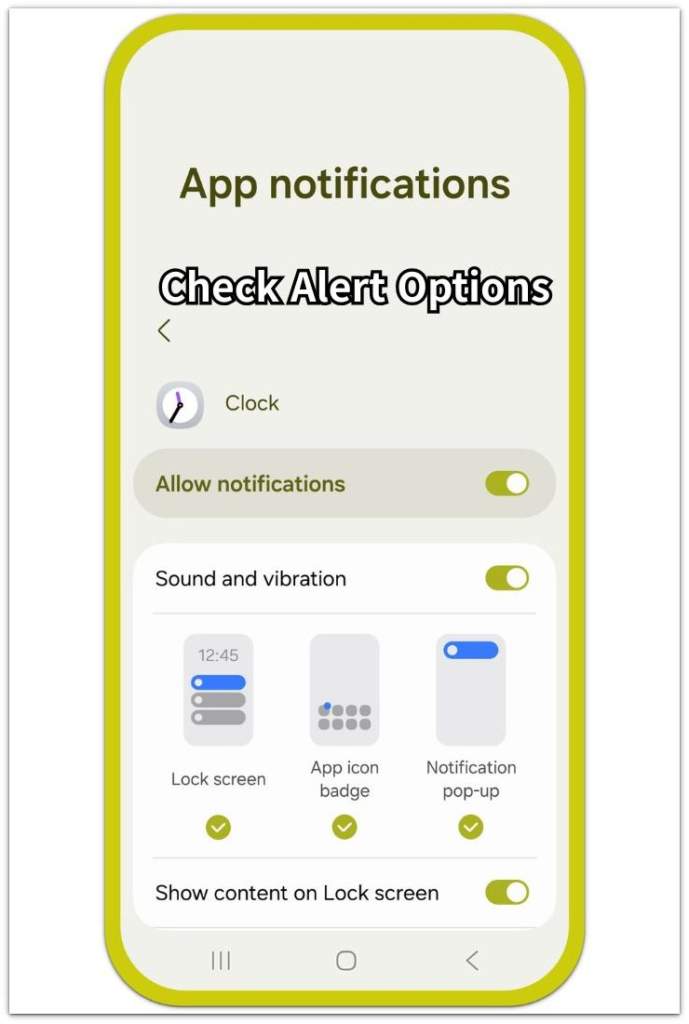
Turn on the display and sound options that match the result you want. A silent setting removes sound or vibration, while lock screen and pop-up options control where it appears.
Test again after the change. If it appears quietly without sound, change those options before moving to battery settings.
Step 3: Check Battery And Phone-Level Alert Controls
Return to the info page and open Battery. Turn off deep sleeping, restricted background use, or any limit that delays activity.
Next, check Do Not Disturb, lock screen notifications, and pop-up settings. Turn off Do Not Disturb during testing and allow lock screen alerts.
Reopen and test the same action again. After Allow notifications is already on, check the remaining category, battery, and phone-level settings.
Troubleshooting
Troubleshooting 1: Alerts Arrive Late
Late delivery often starts after the phone sits idle or the screen stays off for a while. The permission switch stays on, but background limits still slow delivery.
Open the app after a delay and check what appears right away. If the missing item arrives only then, battery restriction or sleeping behavior still affects timing.
Troubleshooting 2: Alerts Show In The Shade But Make No Sound
A notification that reaches the shade without sound, vibration, or a pop-up still arrives quietly.
Match the quiet item to its category and check sound, vibration, lock screen, and pop-up options there. The main notification page only confirms permission, while the category controls how that item appears.
Troubleshooting 3: Only One App Still Has The Problem
If other apps work normally, the problem usually sits inside that app’s setup, account state, or muted thread. Phone-level settings do not turn a muted chat, paused reminder, or disabled account alert back on inside the app.
Open its notification menu and check muted chats, paused reminders, blocked threads, signed-in account, or in-app settings. Turn those controls back on first, then test the same alert again.
Extra Section 1: Notifications Change After A Phone Update
After a phone update, Android notifications allowed but not working looks confusing because the main permission still shows Allow notifications. The setting looks approved, but one type starts acting differently from the others.
For example, a delivery app still shows order updates while promotions stay quiet. A banking app keeps login alerts active, but transaction alerts stop showing on the lock screen. In chat apps, direct messages still appear while group alerts lose sound or pop-up behavior.
The problem feels new because the same service worked before the update. The key sign is that only one alert type changed after the latest system or service update.
Extra Section 2: Notifications Appear Only After Opening The App
Some alerts do not appear at the right time. They load together only after the user opens the app. The lock screen stays quiet, the notification shade looks empty, and then several missed alerts load at once.
This often happens with email, chat, shopping, delivery, or account security notices. A message from two hours ago, an older order update, or a missed sign-in alert appears only after the screen opens inside the service.
This case does not look like a fully blocked notification. The alert still exists, but it reaches the user late. That delay makes the permission page look correct even though the main Allow notifications switch does not explain the failure.
Official Source: Battery And Interruption Settings Delay Alerts
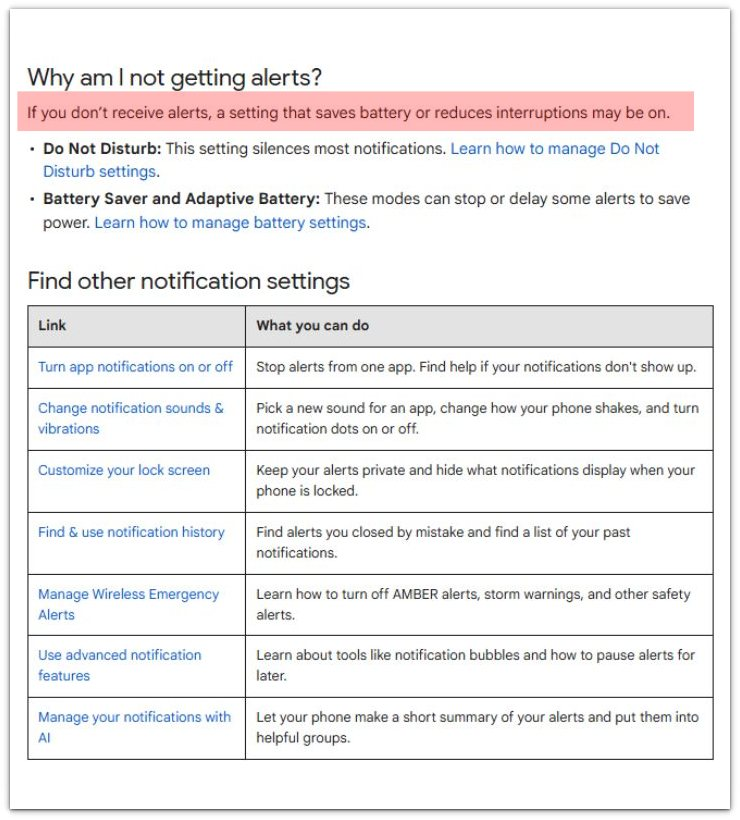
Google Pixel Phone Help says battery-saving or interruption-reducing settings affect alerts when they do not arrive. This supports checking Do Not Disturb, Battery Saver, Adaptive Battery, and other phone-level controls after Allow notifications is already on.
Additional Tips
Notification behavior changes more often after updates, account changes, or a phone restart than after the permission switch itself changes. Check the exact type when only one kind disappears.
Services with separate inboxes, chats, orders, or security notices often keep their own alert controls inside their menu. Android allows access, but the service still decides which type uses sound, pop-up, or lock screen display.
Wearables, car systems, and connected audio devices also change how alerts feel. A phone alert that seems missing often appears on a watch, headset, or car screen instead.
Final Notes
Android notifications allowed but not working still depends on category, sound behavior, lock screen display, battery use, Do Not Disturb, and the service’s own alert settings.
A full failure starts with the permission page or phone-level controls. A quiet one belongs to category sound and display settings. Late delivery usually comes from battery limits or background activity.
Once the exact alert type matches the right control, the fix becomes much clearer.
Checklist
- Open the app notification page and confirm the main permission.
- Check the exact category for the missing alert.
- Turn on sound, vibration, pop-up, and lock screen display where needed.
- Remove battery limits that delay background activity.
- Turn off Do Not Disturb during testing.
- Check the in-app menu when only one type fails.
For a broader check, read the main Android notification troubleshooting guide above.