
Introduction
Android microphone permission not working stops voice recording, video call audio, voice search, and recording screens. The screen opens, but the feature that records or listens does not respond.
Microphone access usually fails at one of three places: the app permission page, the phone-level control, or the recording screen left open after a setting change. The page still looks normal, even when the block sits outside the screen the user is viewing.
The mic button appears, the call screen opens, or the voice input screen loads, but no sound reaches the app. From the outside, these cases look like the same broken mic.
Step-by-Step Guide: Android Microphone Permission Not Working
Step 1: Check The App’s Mic Setting
Open Settings, tap Apps, then choose the app with the problem. Open Permissions and tap Microphone.
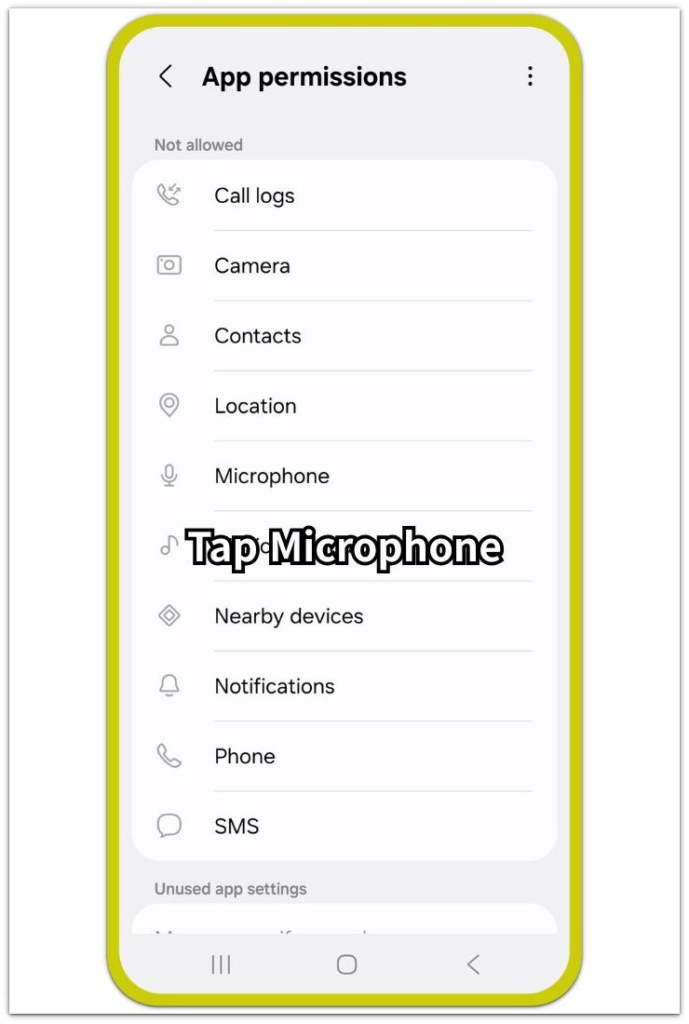
Set access to Allow only while using the app. Recorders, calls, voice search, chat tools, camera apps, and in-app recording screens need this permission before they start listening. After changing the setting, go back and test the failed recorder, call, or voice input again.
When only one app fails, stay on the permission page first. A blocked Microphone permission stops that app even when other apps still record normally.
Step 2: Turn On The Main Microphone Control
Open Settings, tap Security & privacy, then open Privacy controls. Look for the main Microphone access control that turns microphone use on or off across the whole device.
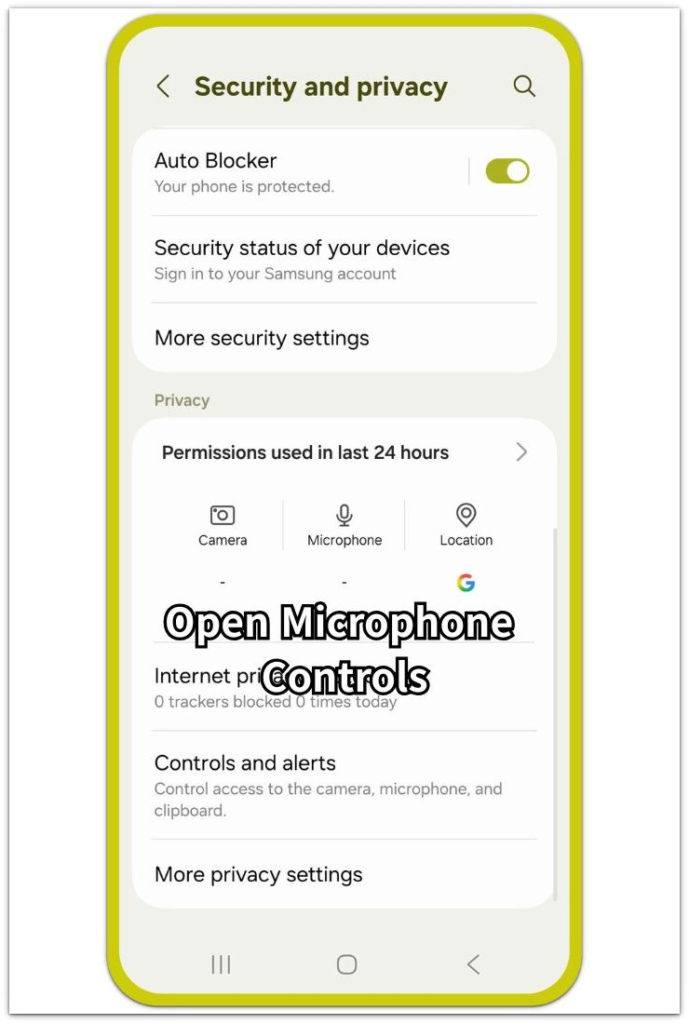
Turn the control on when it is off. This phone-level control sits above individual permission, so the app still fails when Android blocks access before it starts listening. When this switch blocks the mic, recorders, calls, voice search, and other audio tools often fail in more than one app.
After turning it on, return and repeat the failed test. Use the original recorder, call, or voice search button so the result shows whether the main control blocked the mic.
Step 3: Reload The Recording Screen
Close the app after changing microphone access. Open it again and return to the same mic feature that failed.
A fresh session helps the app read the updated permission instead of staying stuck in the old blocked state after permission changes, Android updates, app updates, or a failed first test.
Start the mic feature again after the reload. Test the failed page, then check whether the prompt appears, the timer starts, call audio works, or voice input responds normally.
Troubleshooting
Troubleshooting 1: Android Microphone Permission Not Working In Browser Voice Search
Browser voice search still fails after you allow Android microphone permission when the website blocks microphone access inside the page. Android allows the browser, but the page controls voice input inside the site.
Open the site settings for the exact website and check access there. Reload the page after the change, then press the voice search or recording button again.
Troubleshooting 2: Permission Looks Correct But The App Picks Up No Sound
A connected headset, earbuds, car audio system, or Bluetooth microphone changes the input source. The phone allows microphone access, while the app listens through another input device instead of the phone mic.
Turn off Bluetooth for a quick test, or disconnect the audio device from the Bluetooth menu. Reopen the recorder, call, or voice tool and check whether the built-in microphone works by itself.
Troubleshooting 3: Only One App Still Does Not Record
One app still fails when its own audio setting blocks the mic. The permission and phone-level control look correct, but mute, call audio, voice input, or recording controls still sit inside the app screen.
Open the app’s own audio setting and check the exact screen that does not record. Reopen that page after the change and test the mic feature again.
Extra Section 1: After an Android Update
A microphone problem often appears right after an Android update, even when the same app worked before. It opens, but recording, voice search, or call audio stops working after the system restart.
The recorder, call screen, or voice search button still appears ready. The mic fails when the app keeps the old recording session open after the phone changes its permission controls.
After the update, check the Microphone permission again, close and reopen the app, and test the mic feature once the phone finishes applying the update.
Extra Section 2: When Work Profile Or School Controls Block The Mic
A microphone problem also appears on phones connected to a work profile, school account, or managed device policy. The app permission screen looks limited because profile or admin rules sit outside the normal Android settings.
This case feels different from a normal blocked permission. Profile or admin rules often lock the microphone option, remove it from the expected menu, or reset it after a change.
Treat this as a profile or policy issue, not a broken microphone. Check whether the app runs inside a work profile, school profile, or managed account before judging the phone mic or reinstalling the app.
Official Source: Android Microphone Permission Setting
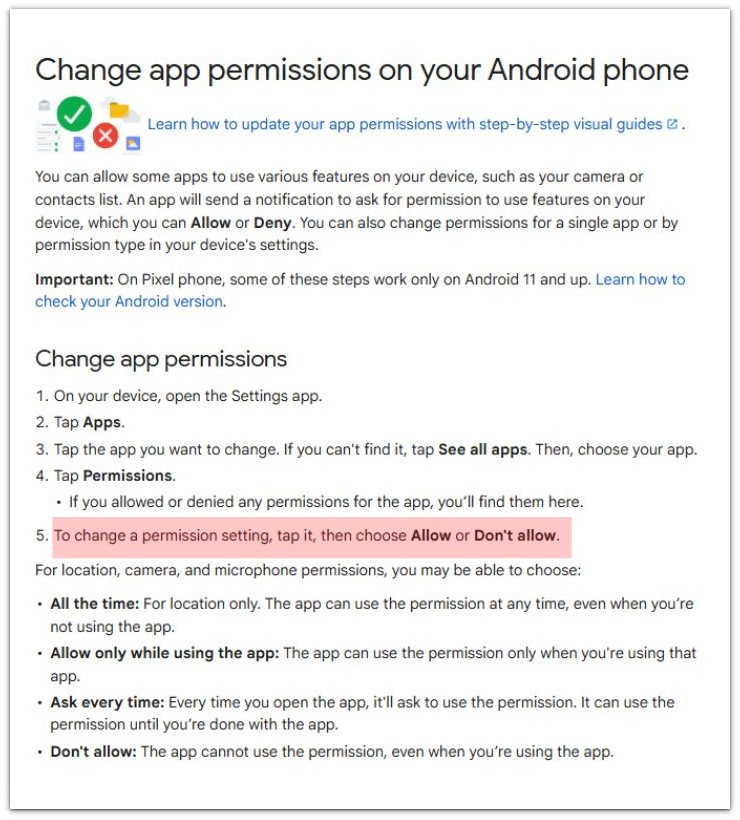
Google Android Help says, “To change a permission setting, tap it, then choose Allow or Don’t allow.” It also lists Microphone as the permission used to record audio. This supports checking the app’s Microphone permission before testing the recording feature again.
Additional Tips
Check the microphone with another simple recorder app when every app fails. A failed test across several apps points away from one setting and closer to a device-level control, connected audio device, or hardware problem.
Remove connected audio accessories before judging the phone microphone. Earbuds, car audio, and headsets often take the input path away from the built-in mic.
For browser recording tools, check the site permission separately from the Android permission. The browser and the website each hold their own access layer.
Final Notes
Android microphone permission not working becomes easier to fix when you check each control in the right place. Check the app’s Microphone permission first, then turn on the phone-level access control and reload the failed feature after the change.
When only one app fails, the problem usually belongs to that app, its recording screen, or its own audio setting. If every app fails, check the main control, connected audio equipment, a managed profile, or the phone microphone itself.
Checklist
- Check the app’s Microphone permission before changing other settings.
- Turn on the phone-level access control.
- Reload the recorder, call, voice search, or recording screen.
- Disconnect Bluetooth audio devices before testing the built-in microphone.
- Check the website microphone setting when the problem happens inside a browser.
- Review work profile, school profile, or managed device controls when the microphone option stays locked.
For broader permission problems, use the card above for the main Android app permissions not working guide.