
Introduction
Android app cannot access contacts usually appears when an address book view stays empty, a saved number disappears from search, or a messaging, calling, email, or sharing screen fails to load saved names. The screen opens normally, but saved names do not load from the phone, synced account, or saved address book.
Address-book access often breaks after a permission change, during an account switch, after a sync delay, or when the contact picker has not fully reloaded. The app still opens, but the screen that needs contacts does not show the saved names.
Step-by-Step Guide: Android App Cannot Access Contacts
Step 1: Check Contacts Permission
Open Settings, tap Apps, then choose the messaging, calling, email, or sharing tool that fails to load saved names. Open Permissions, tap Contacts, and set the permission to Allow.
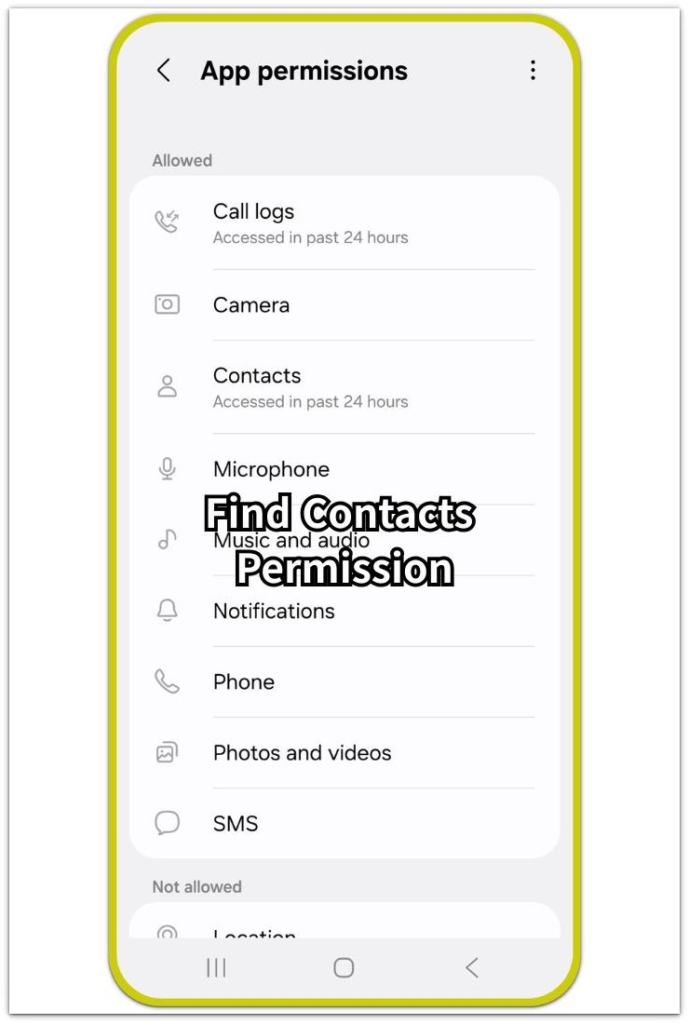
Return to the saved list and test it again. A blank list at this stage usually needs a full picker reload before more settings checks.
Step 2: Reopen Contact Screen
Close the affected app from Recents, then open it again. Return to the screen where the saved name did not appear or the recipient, invite, or sharing field stayed empty.
Test the picker or search field before moving to another menu. Once the picker screen reloads, type part of a saved name and check for the missing entry.
Step 3: Check Saved Name Source
Open the Contacts app on the phone and confirm that the missing names appear there. Then open its settings and check the account or list that stores those names.
A permission setting gives access only to names already available on the phone. Turn sync on for the correct account, then return to the saved list and test with that entry.
Troubleshooting
Troubleshooting 1: Names Still Do Not Appear After Permission Change
Search for the same name inside the phone’s Contacts app first. A name visible there but absent from the app usually means the picker, permission setting, or account filter needs another check.
If Contacts shows no result, fix the source first. Check the account, sync setting, or saved contact list before testing the app again.
Troubleshooting 2: Permission Turns Off Again
Contacts permission turns off again when Android removes access from apps the user has not opened for a long time. Open Settings, tap Apps, choose the app, then check whether the setting changed back to Deny.

Set it to Allow again. Test the same recipient or share screen during that active session so the new permission applies before checking account filters or picker limits.
Troubleshooting 3: Names Missing From One Account
Saved names seem missing because the phone stores them under another Google account, Samsung account, SIM list, or local phone list. Open Contacts and switch the visible contact list or account filter.
Choose the account that holds the names and wait until they appear. Once Contacts shows those entries, return to the picker and search the same saved name again.
Extra Section 1: Share Or Invite Screen Shows No Contacts
A share or invite screen often behaves differently from Contacts. A user taps Share, Invite friends, Add recipient, or Send to contact, but the page shows a blank field, a short suggestion list, or only recent people instead of the full address book.
That page ranks people by recent chats, email addresses, phone number format, or previous history. A saved name appears only after the app finds a matching number, email address, or earlier conversation.
Type the full name, phone number, or email address instead of relying only on the first suggestion list. A more exact search that finds the contact usually means the share or invite page limits results. The saved contact itself is not the problem.
Extra Section 2: Work Or School Contacts Stay Hidden
Work or school contacts sometimes stay hidden even though personal names appear normally. A user searches from a personal message screen, dialer, sharing field, or invite page, but company or school entries stay missing.
A managed profile separates company or school data from personal data. The phone keeps those names inside work mail, work chat, work contacts, or a managed profile area, so a personal screen leaves them out of the regular address book view.
Search from mail, chat, or contacts inside the managed profile first. Names that appear only there follow the profile rules, not a regular saved-contact problem.
Official Source: Contacts Permission Gives Apps Access To Contacts
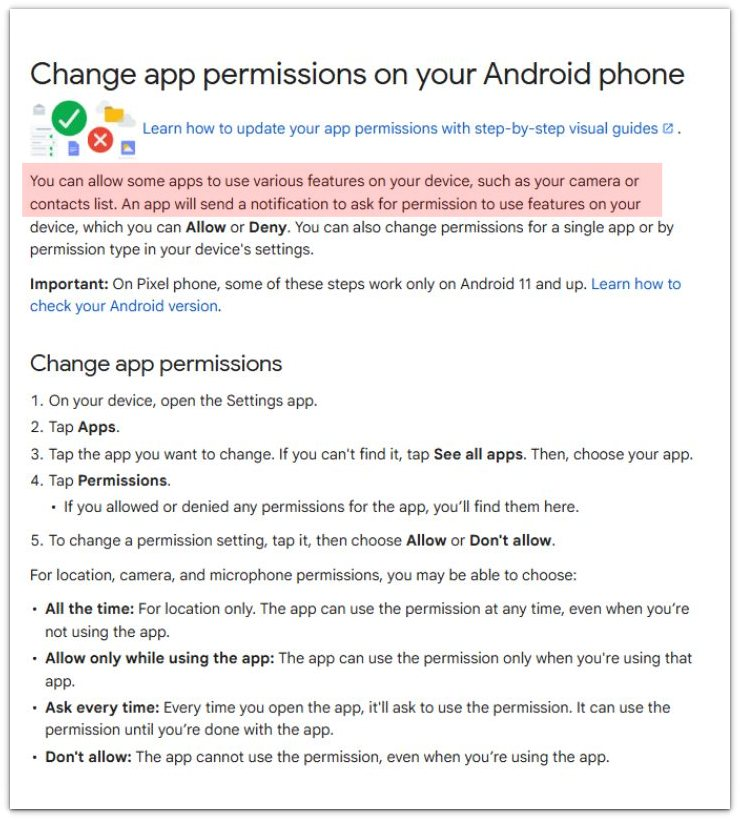
Google Android Help says users can allow apps to use device features such as the camera or contacts list. Official key sentence: “You can allow some apps to use various features on your device, such as your camera or contacts list.”
Additional Tips
Some contact fields need a specific detail before they show a saved contact. A text recipient box often looks for a phone number. An email field looks for an email address. A contact card without that detail stays harder to find inside that screen.
Duplicate entries also create confusion during search. The main Contacts list shows one combined name, but a picker reads from only one account, SIM list, or local entry. Cleaning up duplicate cards helps the picker match the right saved detail.
Final Notes
Android app cannot access contacts usually comes from a denied permission, a stale picker, or the account that stores the missing names. Start with the app permission, reload the screen, then confirm the saved name inside the phone’s address book.
A blank list often starts from the picker or account filter even when the contact still exists on the phone. Treat Contacts as the source of truth first. Once the saved name appears there and the app has permission, check the picker, account filter, or managed profile rules.
Checklist
- Check Contacts permission for the app.
- Reload the contact picker from Recents.
- Search the same name inside Contacts.
- Turn on sync for the account that stores the missing names.
- Switch the visible contact list or account filter.
- Test the same saved name again from the app screen.
For a broader permission checklist, see the main Android app permissions article above.