
Introduction
Android camera permission not working causes problems when the screen stays black, Android blocks access, or a scanner, video call, or social feature fails to open the camera.
The app opens normally, but the feature still fails when Android blocks access, changes the setting after an update, or applies a privacy control outside the permission page.
The problem usually sits in one of four places: the permission page, the main Camera access switch, unused app rules, or an in-app setting.
Step-by-Step Guide: Android Camera Permission Not Working
Step 1: Check The App Permission
Open Settings, tap Apps, then choose the app with the problem. Open Permissions, tap Camera, and set it to Allow only while using the app when that option appears.
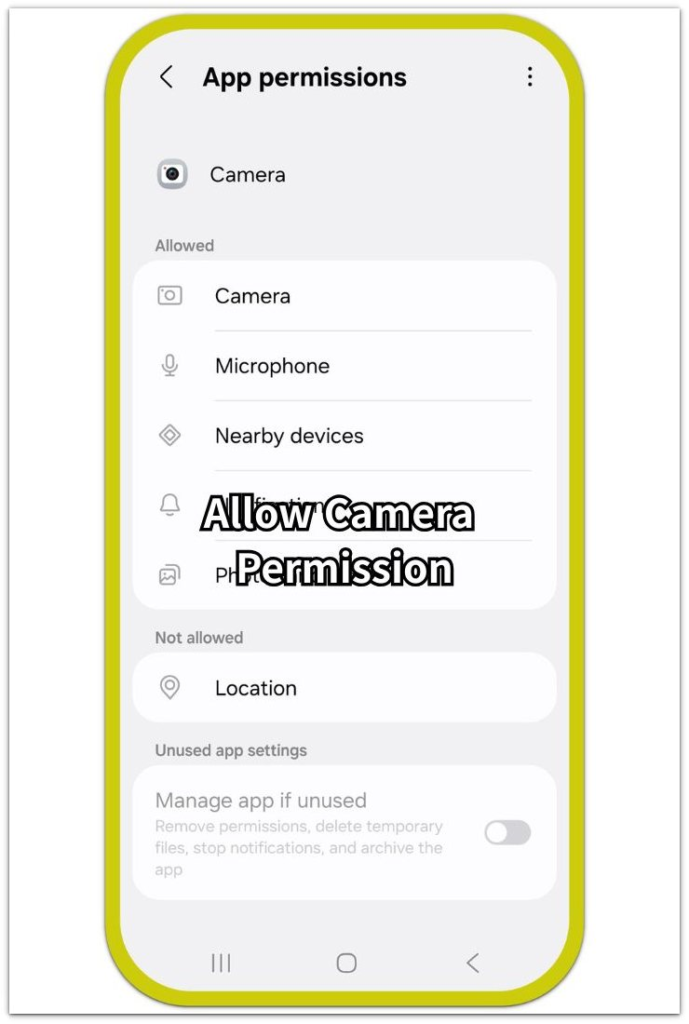
Reopen and test the same feature again. A denied permission blocks scanners, video calls, QR codes, social features, and upload screens even when everything else opens normally.
Return to the permission screen when the prompt appears again after launch. Allow the prompt before testing that feature.
Step 2: Check The Phone-Level Camera Switch
Check Privacy controls when the permission already looks allowed. Android also has a main Camera access switch that blocks the camera across apps when it is off.
Turn Camera access back on from the privacy controls, then reopen the same feature. The app permission and Camera access must both be on before the screen opens.
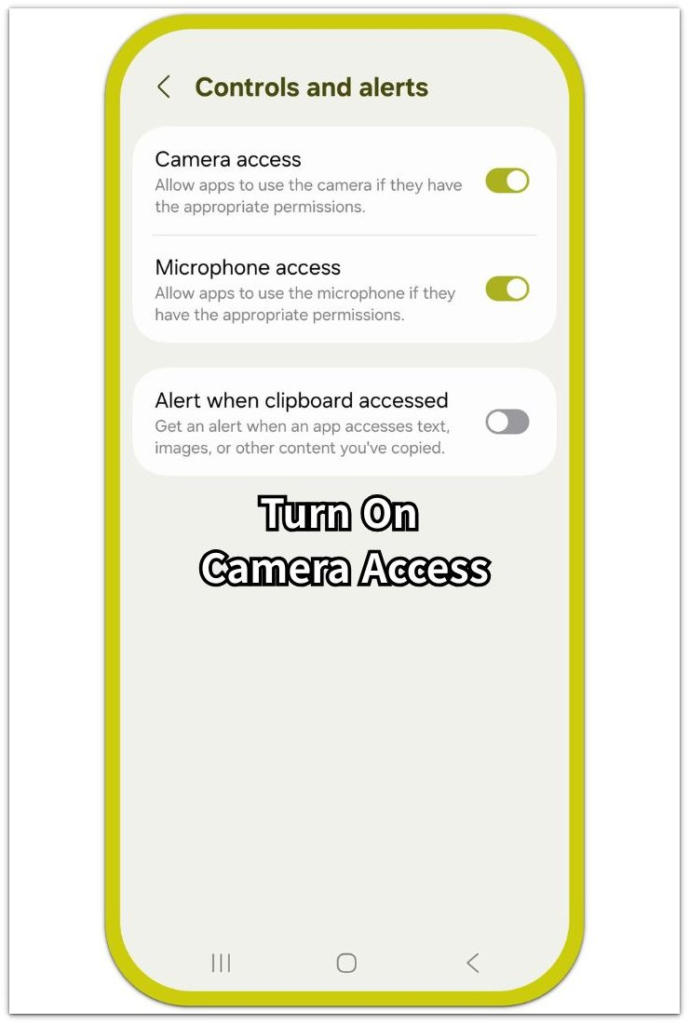
After the switch is on, return to the feature that failed first. Other permissions do not fix this block unless that feature also asks for them.
Step 3: Check Permission Reset And In-App Camera Settings
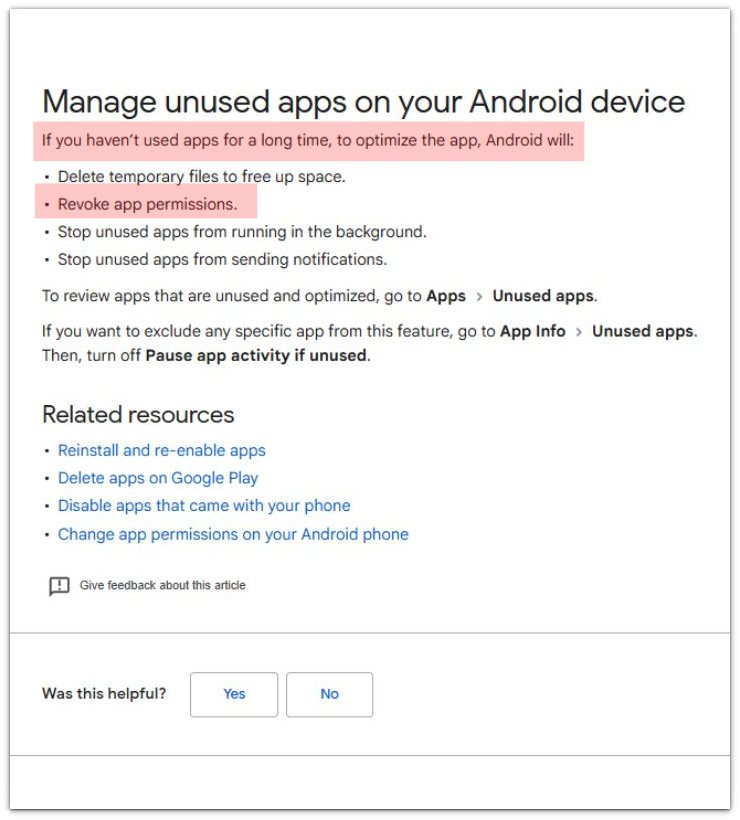
Unused app rules explain access that works once and disappears later. Android removes permissions from apps left unused for a while, so the prompt returns even after you allowed it before.
Turn off the unused permission reset for the problem app when access keeps disappearing. Then open it again and allow the next prompt.
For features that still fail with Android permission allowed, check the in-app setting next. Video call, scanner, browser, and social tools often keep a separate camera choice inside their own menus.
Troubleshooting
Troubleshooting 1: Camera Still Opens To A Black Screen
A black screen after permission changes usually means a stuck session or a camera tool that did not reload correctly. Close the app from Recent Apps, open it again, and return to the same screen.
Restart the phone when the black screen appears in more than one app. A fresh restart clears the stuck session before you check the permission again.
Troubleshooting 2: Browser Or Web App Still Blocks Camera
A scanner, video page, or upload tool inside a browser needs both Android permission and the browser’s site setting. The permission looks correct, but the website still blocks access inside Chrome, Samsung Internet, or another browser.
Open the browser’s site settings and check camera access for that specific website. Reload the page and test the same tool again.
Troubleshooting 3: Android Camera Permission Not Working With A Locked Option
A locked option usually comes from a work profile, parental control, device policy, security app, or restricted profile. The normal permission screen shows the setting, but the phone blocks changes from that page.
Check the profile or policy that controls the app before reinstalling it. Remove that control first, then change the camera permission again.
Extra Section 1: Why Camera Permission Fails Even When It Looks Allowed
A QR scanner fails even when the permission page shows Allow. The camera works in the default Camera app, but the scanner still opens to a black screen or shows an access warning.
The problem is not always the lens itself. It still runs into the main Camera access switch, a browser site rule, an old camera session, or its own camera choice before the screen opens.
The same camera works in one place and fails in another because each reaches the lens through a different path. One path is clear, while another still has a blocked setting or stuck session in the way.
Extra Section 2: When The Problem Is Not The Camera Permission
A video call app shows Camera as allowed and still fails before the preview appears. The app has camera access, but the call screen still depends on account status, version, browser session, or a separate camera module.
A managed phone creates the same confusion. A work profile, restricted profile, parental control, or security rule stops the camera before the normal permission page changes anything.
Changing Allow to Deny and back again does not fix the problem. The block comes from the app condition, profile rule, or security control outside the basic camera permission screen.
Official Source: Google Android Help On Unused App Permissions
Google Android Help says Android removes permissions from apps you have not used for a long time. This supports why a camera permission you allowed before disappears again later.
Additional Tips
Access works best after the feature fully reloads. Close the app after changing permission, then open the same feature again.
Browser tools need a separate site check. Android permission lets the browser use the camera, but the website still needs its own camera access.
Updates sometimes change how the camera screen opens. After an update, test the same scanner, video call, or upload tool before changing unrelated settings.
Final Notes
Android camera permission not working involves several layers, not one permission screen only. The permission, phone-level Camera access switch, unused app rule, and in-app setting all affect the final result.
When the camera works in one app but fails in another, the phone itself is usually not the main problem. The failed app still has a blocked route, stuck session, site rule, profile control, or separate setting in the way.
A permission that keeps disappearing usually comes from Android’s unused app rule or a managed device control. An option that stays locked usually comes from a profile, policy, or security restriction rather than a normal setting.
Checklist
- Check the app permission for camera access while the app is in use.
- Turn on the phone-level Camera access switch.
- Stop unused app rules from resetting the permission after long inactivity.
- Reload the app and test the same feature again.
- Allow camera access for the exact website in browser site settings.
- Check profile, policy, or security controls when the option stays locked.
For broader Android permission problems, see the main guide linked above.