
Introduction
Android car charging slow becomes noticeable when the battery rises only a little during a normal drive. You plug in the phone, keep the car running, and see the icon, but the battery level barely moves by the time you arrive.
Charging in the car is different from charging at home because the port, cable, screen use, maps, music, and heat can all affect the result at the same time. Start by checking how much the battery rises during one drive, then compare the car port, cable, and phone activity before changing anything else.
Step-by-Step Guide: Android Car Charging Slow
Step 1: Check The First Drive Result
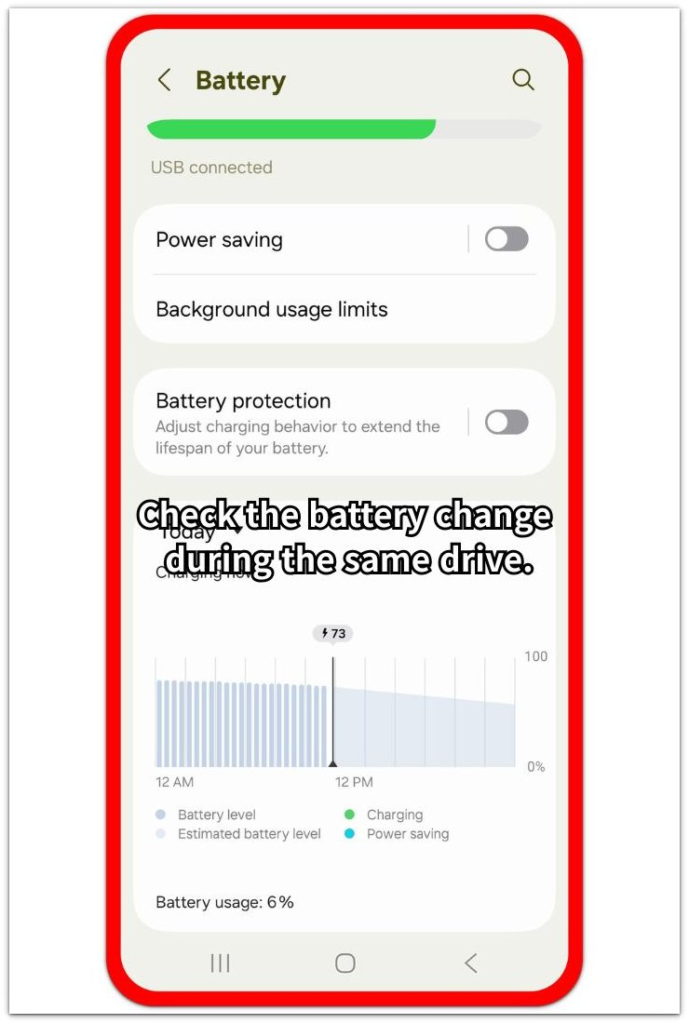
Before changing the cable or charger, start with one normal drive. Note the battery level before you plug in the phone, then check the level again when you arrive.
Use the same car port and cable during this first check. A small rise during a full drive shows that the phone is charging, but the car setup is not giving the battery enough usable gain.
Step 2: Compare The Car Port And Cable
Use the same phone with another cable or another car charging port for the next drive. Keep the drive length and phone use as close as possible to the first check.
A better rise with another cable or port points to the car charging setup first. A similar result means the slow increase is more likely coming from phone activity during the drive.
Step 3: Check Screen Use, Maps, Music, And Heat
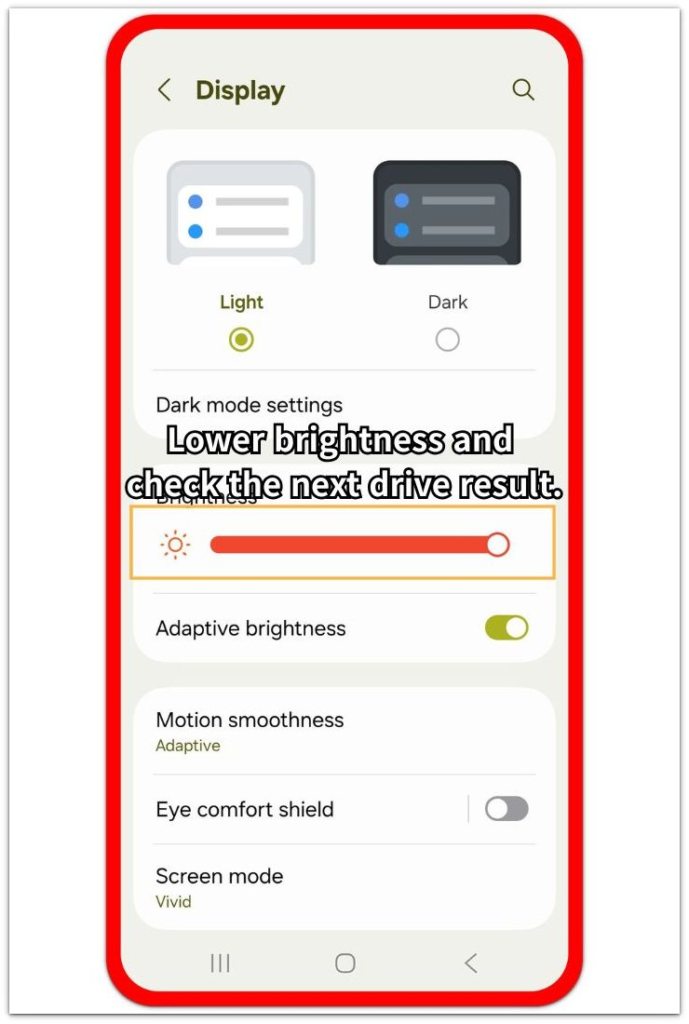
Open the phone settings or battery screen after the drive and look at what stayed active while you kept the phone plugged in. Navigation, a bright screen, music, Bluetooth, and heat all reduce how much the battery level rises during car charging.
Lower the screen brightness, stop apps you do not need during the drive, and repeat one more drive check. A stronger rise after reducing active use shows that the car charger was working, but the phone was using power at the same time.
Troubleshooting
Troubleshooting 1: Slow Charging Happens Only In The Car
The battery charges normally at home, but it rises very little inside the car. The icon still appears, so the problem does not look like a complete charging failure.
Use the same phone and cable with a wall charger later, then compare that result with the car drive check. A normal rise at home puts the car port, adapter, or vehicle USB power first instead of the phone battery. For the next drive, stop using that weak USB port and try a proper car charger or another charging port before judging the phone.
Troubleshooting 2: Navigation Uses Power During The Drive
The phone stays plugged in during the drive, but navigation, Bluetooth audio, and a bright screen keep running the whole time. The battery level barely rises because the phone is using power while it receives power.
Lower the screen brightness before the next drive, keep only navigation or the app you actually need open, and close anything running in the background. A stronger rise after that change means the car charger was working, but the phone was using too much power during the drive.
Troubleshooting 3: Heat Builds Up Near The Dashboard
The battery rises slowly when the phone gets warm on the dashboard, near sunlight, or beside a vent. Heat makes the result harder to read because the phone often slows charging to protect the battery.
Move the phone away from direct sun, dashboard heat, and warm air from the vent before the next charge. Keep it in a cooler spot during the drive, then check whether the battery rises more normally. A better result points to heat during the drive, not only the cable or car port.
Extra Section 1: A Short Drive Makes Car Charging Look Worse
A short drive often makes Android car charging slow look worse than it really is. You plug in the phone, but a ten-minute trip does not always give the battery enough time to show a clear rise.
The first part of the drive is also busy for the phone. The screen wakes, Bluetooth connects, music starts, maps load, and the phone adjusts to the car connection. That early activity uses some of the power the car charger is adding.
Use a longer drive with the same cable, same port, and similar phone use before judging the charger. A better rise during the longer drive means the first test was too short to show a useful charging gain.
Extra Section 2: Phone Position Changes The Car Charging Result
The same car charger gives a different result when the phone sits in a different place inside the car. A phone mounted near the windshield or dashboard often stays warmer than one placed lower in the cabin.
The result looks worse even when the cable and port have not changed. Sunlight, glass, and warm air around the mount keep the phone from gaining battery normally during the drive.
Move the phone to a cooler spot for the next drive and keep the same charger setup. A better rise from the lower or shaded position points to where the phone sat, not only to the charger itself.
Official Source: Google Help On Charger, Cable, And USB Power Adapter Issues
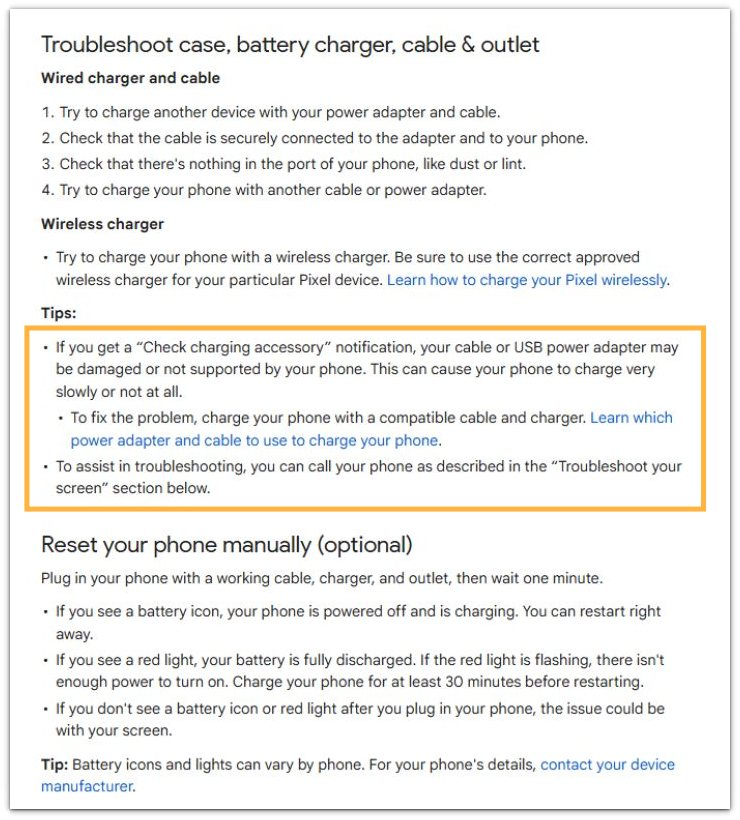
Google Help explains that a damaged or unsupported cable or USB power adapter makes a phone charge very slowly or not charge at all. It also recommends using a compatible cable and charger when fixing charging problems.
For this article, the source supports the charger-side checks first: the car port, cable, adapter, and USB power source. It does not need to cover every car charging situation to support that part of the guide.
Additional Tips
Some cars fill the battery more slowly through a built-in USB port than through a dedicated car charger. The charging icon still appears, but the power coming from the port stays weak during the drive.
A thick phone case also makes the result harder to read on a warm day. Heat stays around the phone longer, especially when the phone sits near the windshield.
Changing several things at once makes the next result harder to trust. A cleaner comparison comes from changing one part of the setup at a time.
Final Notes
Android car charging slow is not something to judge by the icon alone. The useful result is how much the battery rises during the drive while maps, music, screen use, and heat are also present.
Start with the car side first: port, cable, adapter, and USB power. Then compare phone activity and heat during the next drive. When the battery rises better after one change, that result gives the safest answer. When the rise stays weak across a better charger setup and lower phone use, the phone or battery needs a deeper check.
Checklist
- Check the rise during one normal drive.
- Compare the car port, cable, and charger setup.
- Review screen brightness, maps, music, Bluetooth, and heat during the drive.
- Test a longer drive before judging a short trip result.
- Move the phone away from dashboard heat or direct sunlight.
- Use the charging icon as the starting sign, not the final answer.
For wider charging problems, use the main Android slow charging guide as the next check.