
Introduction
Android slow charging after update starts standing out when the phone needs much more time on the same charger you used before the update. You plug it in during a normal part of the day, but the battery level rises much less than it used to by the next check.
The cable, adapter, and outlet have not changed, but the slower result began after the update and keeps showing up in the same routine. Start with the charger, the charging place, and the first slower rise in battery level.
Step-by-Step Guide: Android Slow Charging After Update
Step 1: Check the Usual Charging Routine
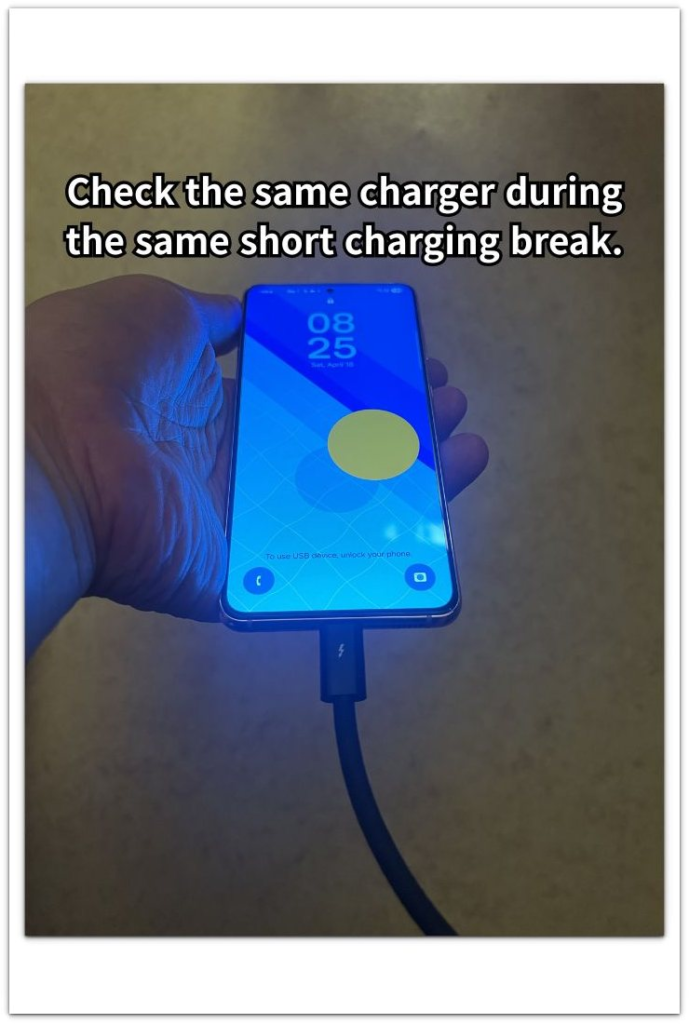
Start with the part of the day when the slow charge first became noticeable. Use the charger, cable, adapter, and outlet you already used before the update.
Plug in the phone during that usual charging break and check how much the battery level rises. The key is the difference from the old routine, not one bad plug-in.
Step 2: Separate Slow Charging From Heavy Phone Use
Use a normal charging break without gaming, streaming, navigation, or heavy phone use. Those tasks make the result look slower because the phone is using power at the same time.
Leave the phone alone in a normal room while it charges. A cleaner charging break shows whether the phone is still charging slowly without screen use, heat, or heavy app activity.
Step 3: Compare the Battery Screen After One More Charge
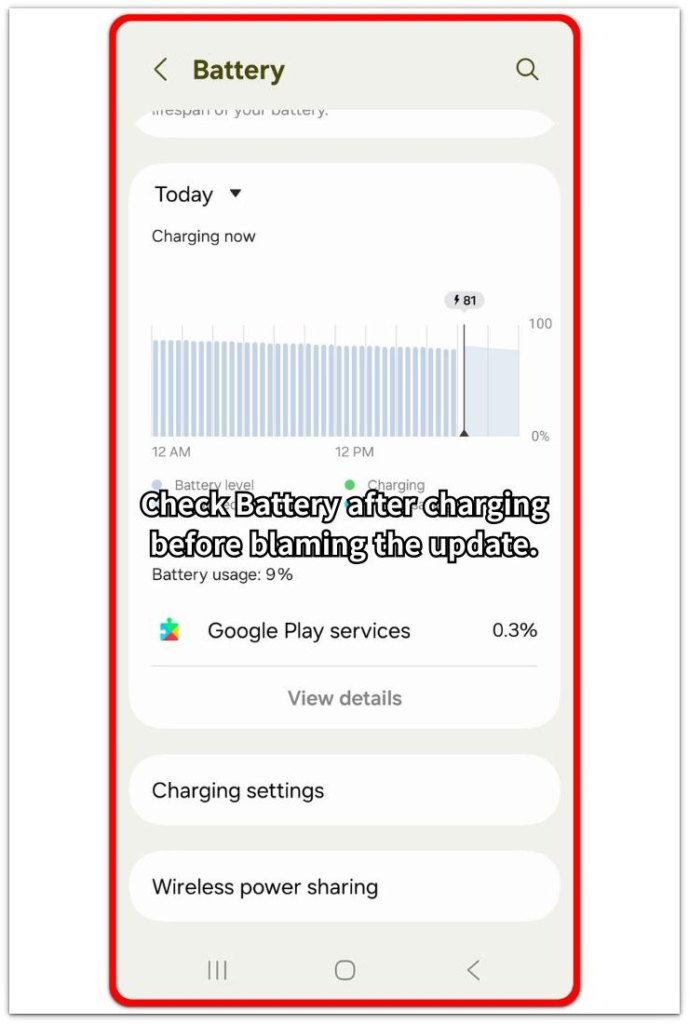
Open Settings, then Battery after the charge. Look at the time when you plugged in the phone and compare the battery rise with any app use, screen time, or heat around that period.
Use that period to see whether the phone was charging slowly while another app, screen use, or heat was also using power. A battery level that barely moves during a quiet break needs the next checks: charger behavior, heat, and battery use during charging.
Troubleshooting
Troubleshooting 1: Slow Charging Gets Worse When the Phone Feels Warm
The battery climbs more slowly after the update when the phone stays warm while plugged in. Gaming, video calls, navigation, hotspot use, or a long app session can leave the phone warm before charging.
Let the phone cool down before charging again. Keep the case off for that charge if the phone feels trapped in heat, then check whether the battery level rises more normally. A cooler phone that charges better points to heat as the stronger clue, not the update alone.
Troubleshooting 2: The Charger Looks the Same but Acts Different
The same charger still gives a different result after some updates. A loose cable, weak adapter, dusty port, power strip, or unstable outlet can make the phone charge more slowly even when nothing looks different.
Plug the charger directly into a wall outlet and check the cable fit at the phone. Try one known-good cable or adapter only after checking the original setup first. A better result with the other charger points to the charging setup instead of the update itself.
Troubleshooting 3: Battery Use Stays High While Charging
Slow charging after an update is harder to read when the phone keeps using power while plugged in. Syncing, app updates, backup activity, Play services, or a busy system process can slow the battery rise without making the charger look broken.
Open Settings, then Battery and look at the charging period. Check whether one app, system activity, screen time, or background use stayed active after you plugged in the phone. When battery use stays high while plugged in, reduce that activity first and check whether the level starts moving more normally.
Extra Section 1: Same Charger, Shorter Battery Rise After the Update
The phone charges in the same place with the same cable, adapter, and wall outlet. Before the update, that usual charging break raised the battery level enough to feel normal.
After the update, the phone stays plugged in for a similar amount of time, but the battery level rises less. The charging setup looks unchanged, so the update feels like the first suspect.
One slow charge is too weak to judge. A repeated weaker result in the same routine is the stronger clue. Check the usual charger, cable fit, wall outlet, and charging place before treating the update as the main cause.
Extra Section 2: Charging Looks Slow Because the Phone Stays Busy
The phone stays plugged in, but the battery level barely moves because the phone is still working in the background. Screen use, app updates, backup activity, syncing, or post-update system work keeps using power while the charger tries to raise the battery level.
A broken charger is not the only reason the number climbs slowly. The charger sends power to the phone, but setup, downloads, or heavy background activity uses part of that power right away.
Check Battery after the charge and look at the plugged-in period. A weak result with high activity points to power use while plugged in first. Reduce the busy activity, charge again during a quieter break, and compare the battery rise before changing the charger.
Official Source: Google Charger, Cable, and Outlet Checks
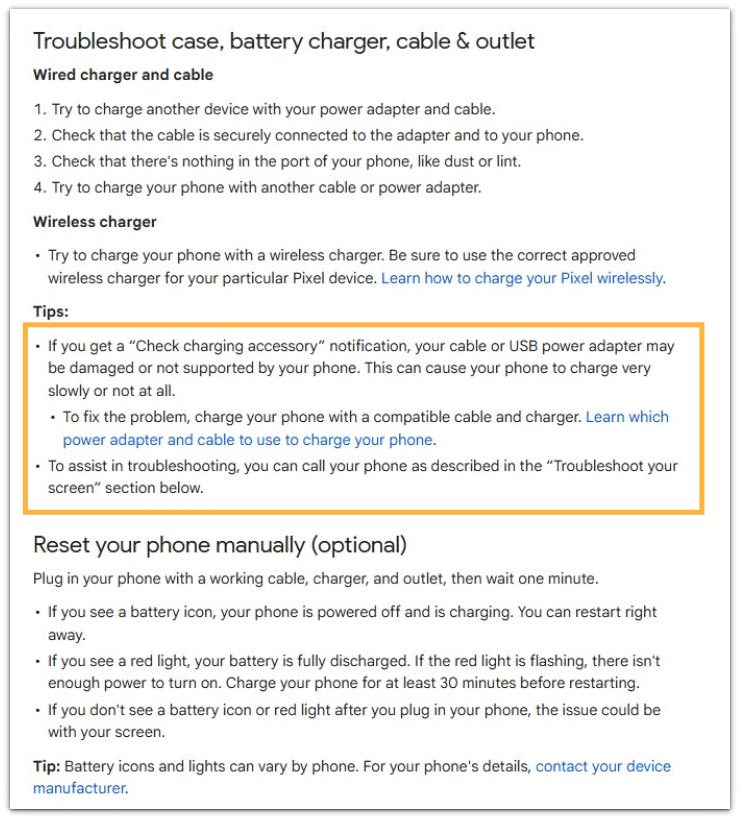
Google says to check the charger, cable connection, phone port, and another cable or power adapter when a phone does not charge normally. That fits the charger-side check in this article: slow charging can start after an update, but you still need to test the same charger setup before the update becomes the main suspect.
Additional Tips
A slow charge is easier to read when the phone starts from a normal battery level. A nearly dead battery, a very warm phone, or a charger plugged into a weak USB port can make the first few minutes look strange.
Use one steady wall outlet for the main check. Charging from a laptop, car port, power bank, or loose extension cord can change the result and make the update look more suspicious than it is.
Final Notes
Android slow charging after update needs a charger setup check and a battery-use check before the update becomes the main cause.
One slow charge does not carry enough weight. The stronger sign is a repeated weak result with the same charger routine, low phone activity, and no clear heat problem.
Better charging after a cleaner test points away from the update and toward the charging setup, heat, or power use during charging. A slow rise that continues across the same clean routine deserves a deeper charging or battery check.
Checklist
- Check the usual charger, cable, adapter, and outlet first.
- Charge the phone during a normal break without heavy screen use.
- Compare the result with the usual routine from before the update.
- Look at Battery after charging and check the plugged-in period.
- Separate heat, charger setup, and power use during charging before blaming the update.
- Repeat the check with a cleaner charge before making the final judgment.
Use the main Android slow charging guide when the slow charge also happens outside the update situation.