
Introduction
Android alarm silent in Do Not Disturb refers to a situation where alarms fail because Android deliberately blocks sound under interruption rules.
This behavior is not a temporary glitch or a volume mistake.
Once it occurs, Android limits what users can control and enforces system-level decisions.
Many users assume alarms always override Do Not Disturb.
However, that assumption no longer holds true on recent Android versions.
This guide explains exactly where user-accessible fixes end, why Android alarm silent in Do Not Disturb can still occur, and the point where the system takes control beyond normal settings.
Step-by-Step Guide
Step 1: Verify Alarm Category Is Allowed in Do Not Disturb
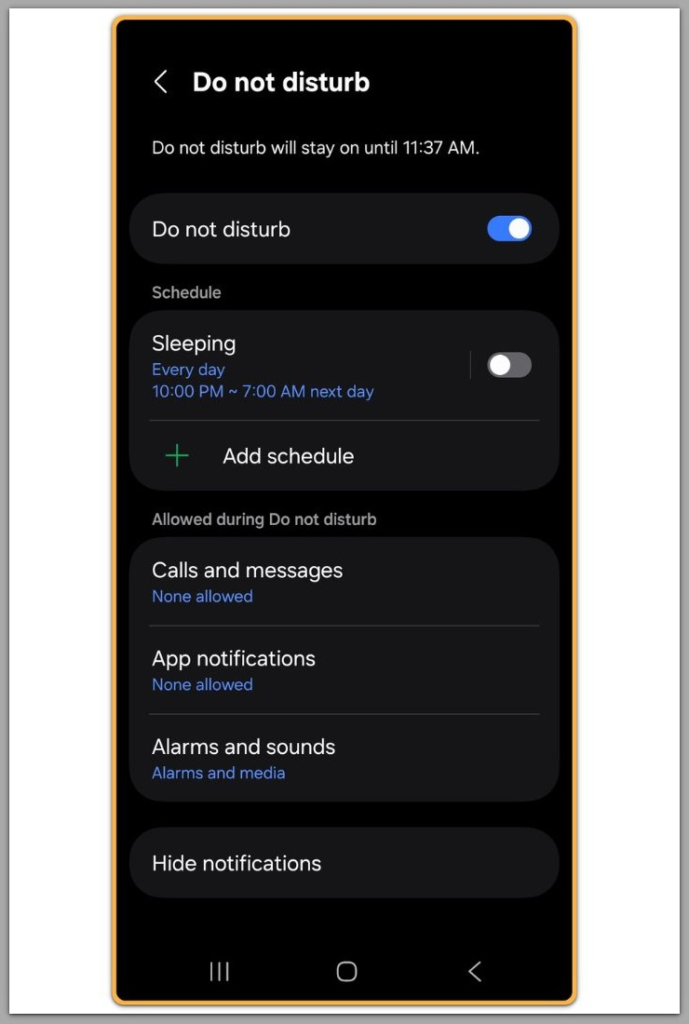
First, open Settings.
Then go to Sound and vibration.
Tap Do Not Disturb.
Next, open the Exceptions or Allowed interruptions section.
Check whether Alarms are explicitly allowed.
If alarms are disabled here, Android blocks sound immediately.
As a result, Android alarm silent in Do Not Disturb occurs regardless of volume or app settings.
This step represents the first and most basic cutoff point.
Step 2: Confirm Alarm Volume Is Not Internally Muted
Open Settings.
Go to Sound and vibration.
Tap Volume.
Then manually increase the Alarm volume slider.
Do not rely on hardware buttons alone.
On recent Android versions, the system stores alarm volume independently.
When alarm volume stays at zero, Android alarm silent in Do Not Disturb continues even if exceptions are allowed.
Step 3: Check Clock App Notification Channel Behavior
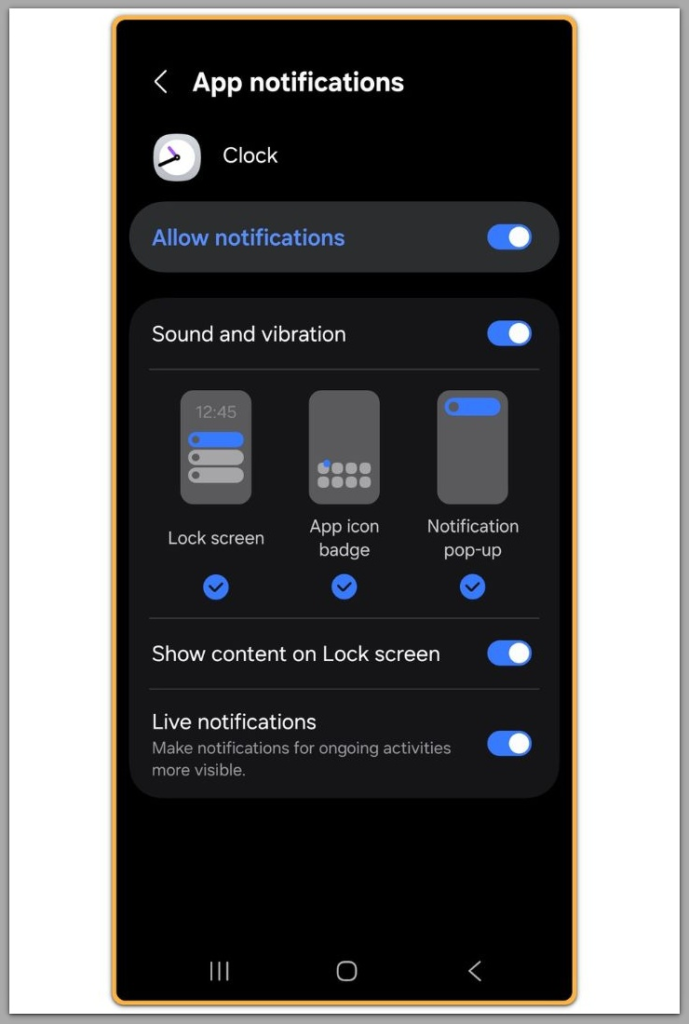
Open Settings.
Then go to Apps.
Select Clock.
Tap Notifications.
Open the Alarm notification category.
Confirm notifications are enabled and not set to Silent.
In practice, system updates sometimes push this channel into silent delivery.
When that happens, this behavior cannot be overridden through user settings.
Step 4: Verify Do Not Disturb Schedule and Automation
Open Settings.
Go to Sound and vibration.
Tap Do Not Disturb.
Then open Schedules or Automation.
Check whether an overnight schedule is active.
Also review linked modes such as Bedtime Mode.
When Bedtime Mode runs, Android applies additional restrictions.
As a result, this outcome may occur even when all visible exceptions appear correct.
Step 5: Check Battery Restrictions on the Clock App
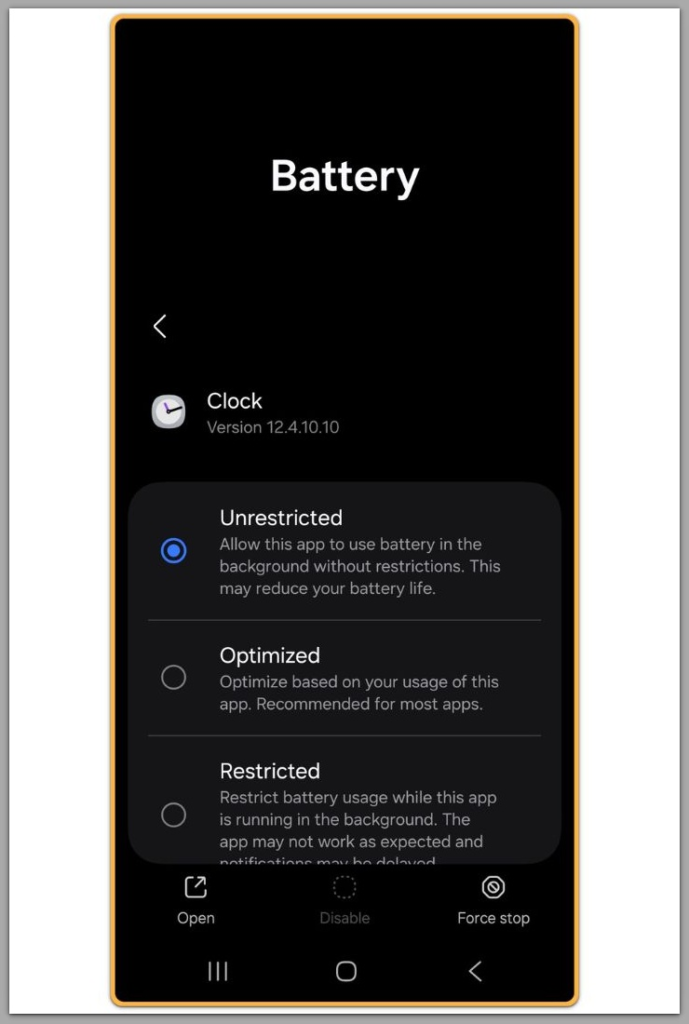
Open Settings.
Go to Apps.
Select Clock.
Tap Battery.
Set battery usage to Unrestricted or Allow background activity.
If the system delays background execution, alarms never reach the sound delivery stage.
As a result, Android alarm silent in Do Not Disturb appears without warning on aggressive power profiles.
Step 6: Test With a New Alarm After All Changes
Finally, create a new alarm.
Set it for two to three minutes ahead.
Do not reuse an existing alarm.
Older alarms can retain earlier delivery rules internally.
If Android alarm silent in Do Not Disturb continues after all checks, basic configuration paths have already ended.
If the issue still persists after checking everything above, it is unlikely to be a basic settings problem. In these cases, restrictions related to the device, account-level limitations, or underlying system errors usually require direct inspection by professionals. Below is an outline of what is typically checked and how the support process usually works when resolving this type of issue.
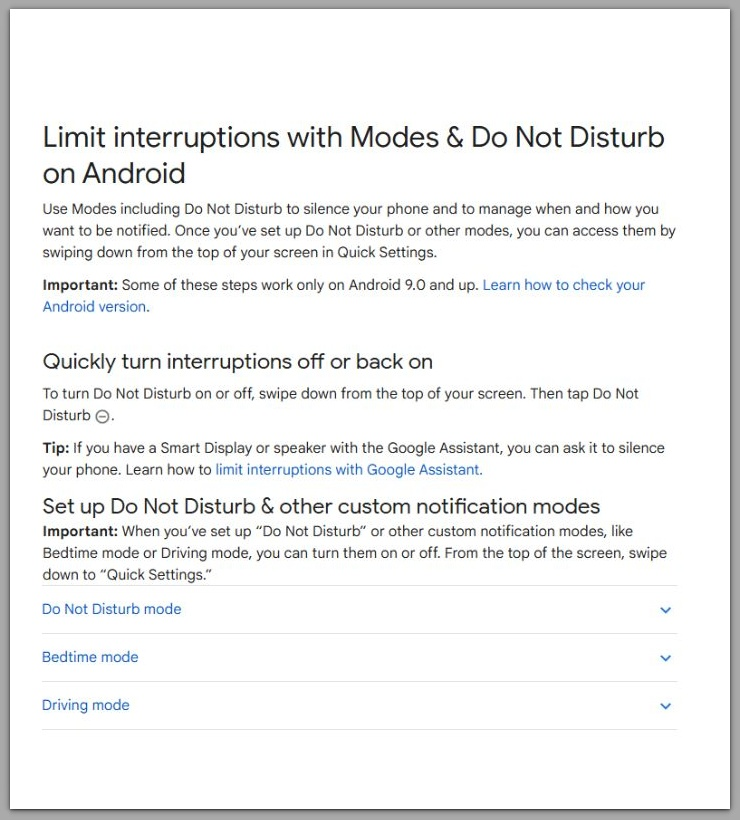
If you need further assistance, please refer to the official support page below.
Troubleshooting
If alarms work when Do Not Disturb is disabled but remain silent when it is enabled, the system enforces higher-level interruption rules.
This behavior does not relate to alarm time, vibration, or volume configuration.
On some devices, manufacturer sound policies override user controls.
These policies operate beyond manual adjustment.
Rebooting does not reset these rules.
Clearing cache does not change them.
Additional Tips
Do not assume all Android devices treat alarms identically.
For example, Samsung, Pixel, and other manufacturers implement different internal policies.
After major Android updates, Do Not Disturb behavior can change silently.
Always recheck alarm exceptions after updates.
Third-party clock apps follow the same system logic.
They cannot bypass Android alarm silent in Do Not Disturb behavior.
Final Notes
Android alarm silent in Do Not Disturb is not always a misconfiguration.
When all visible settings are correct and alarms still fail, the limitation exists at the system level.
Checklist
☐ Alarm allowed in Do Not Disturb exceptions
☐ Alarm volume set above zero
☐ Clock notification channel not silent
☐ No restrictive DND schedule or Bedtime Mode
☐ Clock app battery usage unrestricted
If all items are confirmed and the issue persists, user-accessible fixes have ended.
Extra Section 1
Many users believe alarms behave as emergency-level interruptions.
On older Android versions, that belief aligned more closely with reality.
Modern Android prioritizes consistency and power management above individual alert urgency.
As a result, alarms pass through multiple decision layers before sound plays.
Do Not Disturb represents only one of those layers.
At the same time, notification channels, battery policies, and manufacturer rules operate alongside it.
When conflicts occur, the system resolves them silently.
From a user perspective, this feels like failure.
From the system perspective, it represents expected behavior.
Extra Section 2
There is no universal switch to force alarms through Do Not Disturb on all devices.
If such control existed, manufacturers would expose it clearly.
When Android alarm silent in Do Not Disturb continues after all checks, the device has reached a control boundary.
That boundary varies by model and Android version.
At this point, further changes require system-level inspection.
Manual configuration has ended.