
Introduction
Android one-handed mode helps when the top of a large phone screen feels too far away. It brings the active area lower so your thumb reaches menus, buttons, search bars, and notifications more easily.
The exact menu name depends on the phone brand. Pixel phones often keep the option under System gestures. Samsung Galaxy phones usually keep it under Advanced features. Some older or customized Android phones use a similar name such as One-Hand Operation.
Set up the mode, activate it, and check the gesture when it fails to respond.
Step-by-Step Guide: Android One-Handed Mode
Step 1: Open the One-Handed Mode Setting
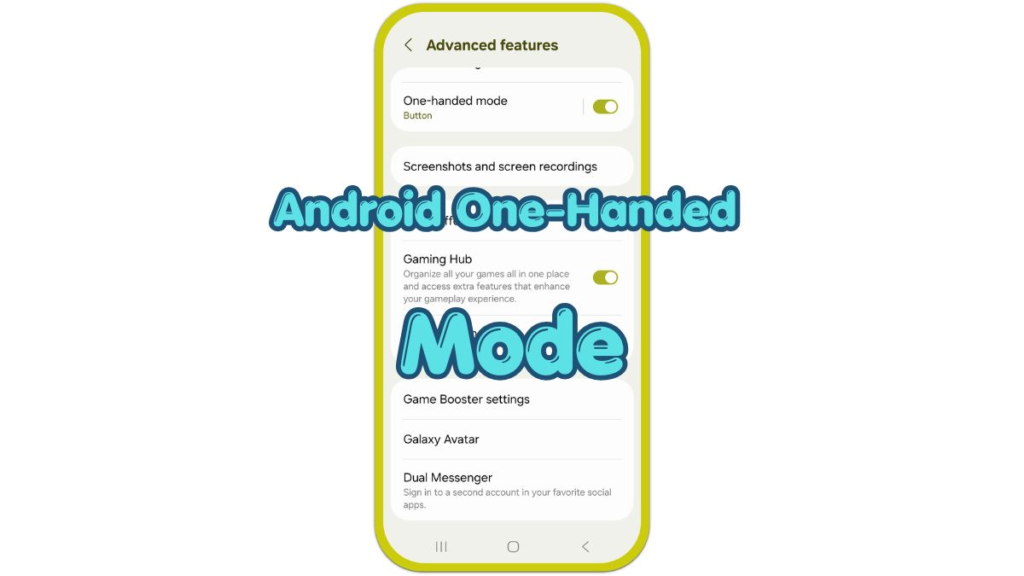
Open Settings and check the menu that matches your phone. On many Android phones, go to System, then Gestures, then One-handed mode. On Samsung Galaxy phones, go to Advanced features, then One-handed mode.
Use the Settings search bar when you do not see the menu right away. Type one-handed or one hand, then open the matching result. Android brands arrange gesture settings differently, so search often finds the option faster than scrolling through every menu.
Step 2: Turn On One-Handed Mode
Turn on One-handed mode, then check the activation method shown there. Many phones use a bottom-edge gesture, while Samsung models often show a button or gesture option.
Choose the option that matches your navigation style. Gesture navigation usually works with a downward swipe near the bottom edge. Button navigation works differently on some models, so follow the setting on your own phone instead of forcing one method.
Step 3: Activate and Adjust the Screen
Return to the Home screen or open an app, then use the activation method from Settings. Swipe down near the bottom edge when your phone uses the gesture method. Use the button option only when it appears on your device.
After the screen lowers or shrinks, test the top area of the app. Open notifications, tap a search bar, or reach a menu near the top corner. If the reduced screen opens on the wrong side, return to the setting and switch the layout to the left or right.
Troubleshooting
Troubleshooting 1: One-Handed Mode Gesture Does Not Work
Check the activation method first. A phone set to button navigation does not always use the same one-handed gesture as a phone set to gesture navigation.
Open Settings, return to One-handed mode, and read the method on that screen. Turn the feature off and on once, then test the same gesture from the bottom area of the screen again.
Troubleshooting 2: One-Handed Mode Is Missing
Some Android versions, older models, and customized brand menus do not show the feature in the same place. Search Settings for one-handed, one hand, reachability, or gestures.
On Samsung Galaxy phones, check Advanced features. On Pixel-style Android phones, check System and Gestures. If the option still does not appear, your phone model or Android version likely does not include the built-in feature.
Troubleshooting 3: The Screen Moves To The Wrong Side
Open the one-handed mode setting and check the screen position option. Some phones let you move the reduced display to the left or right side.
Choose the side that matches the hand you use most. Test the change inside a real app, not only on the Home screen, because the problem usually appears when you reach menus, tabs, or buttons near the top corner.
Extra Section 1: When One-Handed Mode Helps Most
The feature helps most when the button you need sits near the top of the screen. Notification shade controls, browser address bars, app menus, search fields, and top-corner buttons often require a second hand on larger phones.
The feature also helps during quick one-hand use, such as standing on public transport, holding a bag, or checking a message. It does not replace normal full-screen use, but it reduces the awkward stretch that causes missed taps and a loose grip.
Extra Section 2: Why The Setting Looks Different On Each Android Phone
Android brands change menu names because each company adds its own settings layout on top of Android. The feature still serves the same purpose, but the path looks different on Pixel, Samsung, Motorola, Xiaomi, and other models.
A different menu name does not always mean the feature is missing. It often means the brand placed the control under gestures, display, advanced features, or accessibility-related settings.
Additional Tips
One-handed mode works best when you only need to reach one part of the screen. Use it when a top menu, search bar, or notification control is just out of thumb range.
Some apps feel awkward in the reduced layout, especially games, photo editors, and split-screen views. Return to the full screen for those apps, then use one-handed mode again for quick taps.
Final Notes
Android one-handed mode solves the reach problem when the top of the screen sits outside comfortable thumb range. The setup is simple: find the control, turn on the feature, then test the activation method.
When the gesture fails, check the navigation method and the exact setting page before changing unrelated phone options. The usual problems come from the wrong activation method, a different brand menu, or a left-right layout that does not match your hand.
Checklist
- Open Settings and search for one-handed mode.
- Turn on one-handed mode from the matching settings page.
- Choose the gesture or button method your phone offers.
- Test the activation method from the Home screen or inside an app.
- Switch the layout to the left or right side if the screen opens on the wrong side.
- Return to full screen when an app needs the full display.