
Introduction
Android screen lock and fingerprint unlock protect the phone when someone else picks it up, wakes the screen, or tries to open personal apps. A phone without a screen lock leaves photos, messages, accounts, payment apps, and saved sign-ins easier to reach.
Screen lock does the main security work. Fingerprint unlock makes daily access faster, but it still depends on a PIN, pattern, or password as the backup method.
Together, the two settings give the phone a secure fallback and a faster way to unlock during normal use.
Step-by-Step Guide: Android Screen Lock And Fingerprint Unlock
Step 1: Open Security Settings
Open Settings on the Android phone. Tap Security, Security and privacy, Biometrics and security, or a similar menu name.
Look for Screen lock, Device lock, or Lock screen. The exact name changes by Android version and phone brand, but the setting usually stays inside the security area.
Open the screen lock menu before adding a fingerprint. Android needs a main lock method first because fingerprint unlock works as an added unlock option, not as the only protection.
Step 2: Choose A PIN, Pattern, Or Password
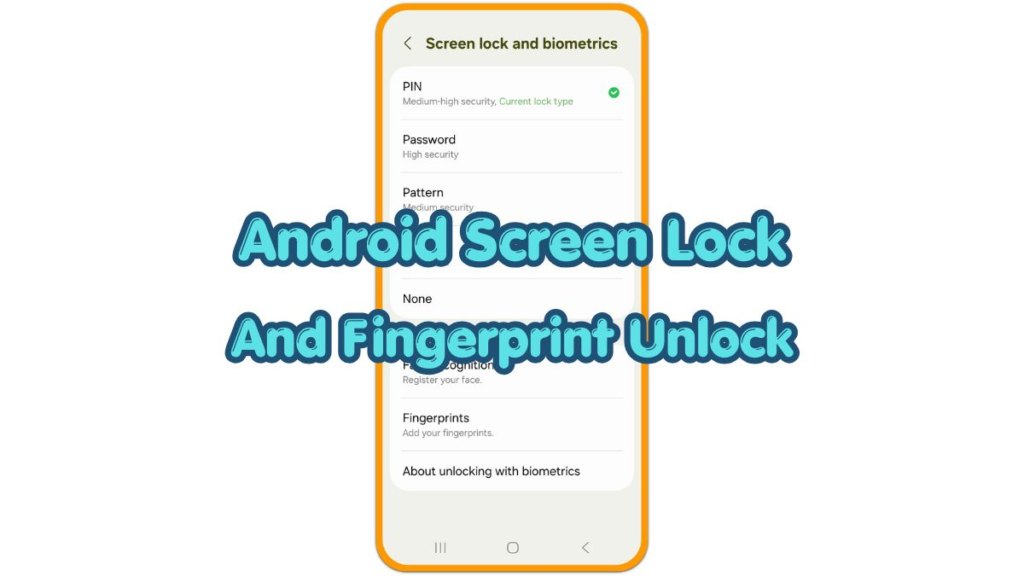
Select Screen lock and choose Pattern, PIN, or Password. Pick a lock that another person will not guess easily.
Skip simple choices such as 1234, 0000, repeated numbers, birthdays, or a pattern that follows an obvious shape. A stronger lock gives the fingerprint setup a safer backup when the phone asks for manual unlock.
Enter the lock once, then enter it again to confirm it. After the phone accepts the new lock, turn the screen off and wake it again. Check that the phone asks for the new PIN, pattern, or password.
Step 3: Add Fingerprint Unlock
Go back to the security menu and open Fingerprint, Fingerprint unlock, or Face and fingerprint unlock. Enter the PIN, pattern, or password when Android asks for it.
Place your finger on the sensor and lift it when the phone tells you to move. Cover the center, sides, and edge of the fingertip during registration. Scanning more angles helps the sensor recognize the finger during normal use.
Add one extra fingerprint for backup. Many people register the thumb they use most and one finger from the other hand. After registration, lock the phone and test fingerprint unlock from the lock screen.
Troubleshooting
Troubleshooting 1: Fingerprint Unlock Does Not Work
Fingerprint unlock often fails when the sensor is dirty, the finger is wet, or the finger touches the sensor at a different angle than the saved scan.
Wipe the sensor area and dry your finger before testing again. If the same finger keeps failing, delete that fingerprint and register it again with more fingertip angles.
For phones with an under-display fingerprint sensor, check the screen protector. Thick, damaged, or poorly fitted protectors often make fingerprint reading less accurate.
Troubleshooting 2: The Phone Keeps Asking For PIN Or Password
Android still asks for the PIN, pattern, or password in some situations. This usually happens after a restart, after failed fingerprint attempts, or when the phone needs the backup lock for security.
Keep the screen lock active even when the prompt feels repetitive. The PIN, pattern, or password protects the phone when fingerprint unlock is not available.
If the phone asks too often during normal use, check whether the fingerprint scan works correctly. Re-register the fingerprint and test again from the lock screen.
Troubleshooting 3: Screen Lock Appears Too Quickly Or Too Late
Open Settings and check the lock timing or screen timeout setting. A very short timeout locks the phone quickly, even during normal pauses.
A long delay leaves the phone open after the screen turns off. Shorter timing protects the phone better in public places, offices, schools, and shared rooms.
Choose a timing that matches how you use the phone. Then lock the screen manually and test whether the phone asks for the lock at the right time.
Extra Section 1: When Other People Use The Same Space
Android screen lock and fingerprint unlock become more important in shared places. A phone left on a desk, counter, classroom table, or work area exposes messages and notifications before the owner notices.
Use a shorter lock delay in these places. Hide sensitive lock screen previews and press the power button before putting the phone down. These small habits reduce accidental access without changing the main setup.
Extra Section 2: When Fingerprint Unlock Feels Less Reliable
Fingerprint unlock becomes less reliable after dry skin, wet hands, small cuts, screen protector changes, sensor dirt, or repeated failed scans. The phone is not always broken when recognition gets worse.
Check the sensor and finger surface first. Clean both, test again, then re-register the finger only if the problem continues. Registering the same finger with better angles usually works better than adding many rushed scans.
Additional Tips
A screen lock works better when the backup method is not easy to guess. Avoid numbers, birthdays, names, phone numbers, addresses, and repeated patterns that another person could connect to you.
Lock screen previews also need attention in shared spaces. Turning off message previews keeps private texts and app alerts away from the lock screen before the phone is unlocked.
After a repair, screen protector change, or major update, review the saved fingerprints. Delete old scans and register new ones when recognition becomes less reliable.
Final Notes
Android screen lock and fingerprint unlock work together. The PIN, pattern, or password protects the phone as the main lock, while fingerprint unlock gives faster access during daily use.
Set the screen lock first, add fingerprint unlock second, and test both from the lock screen. A clean setup gives the phone stronger protection without making normal unlocks slow or difficult.
Checklist
- Open the security settings before adding fingerprint unlock.
- Set a PIN, pattern, or password as the main screen lock.
- Skip simple numbers, birthdays, and easy unlock patterns.
- Add fingerprint unlock after the main screen lock works.
- Scan the center, sides, and edge of the fingertip.
- Test both screen lock and fingerprint unlock from the lock screen.