
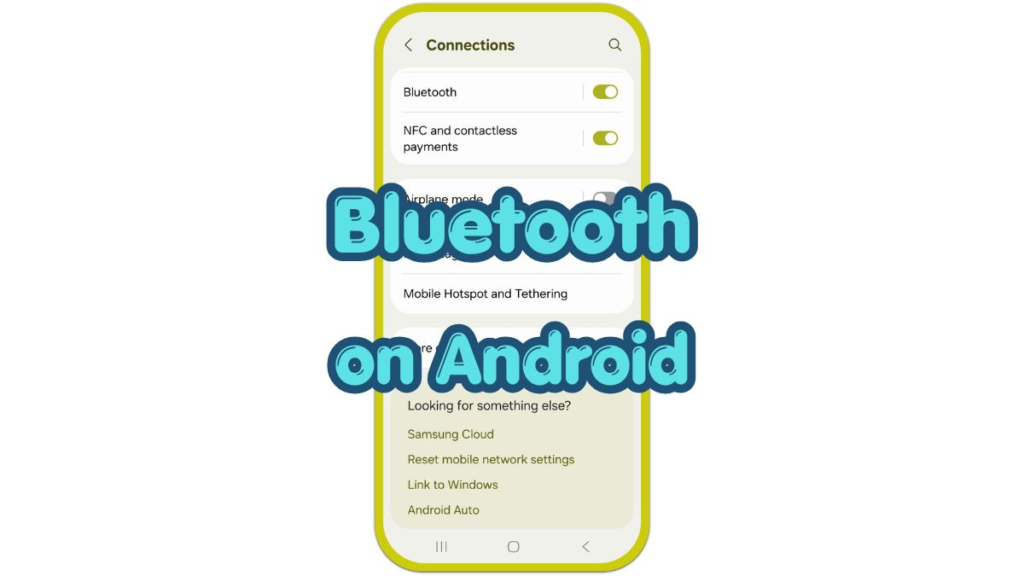
Introduction
Bluetooth on Android connects the phone to headphones, speakers, car audio, keyboards, watches, and other nearby accessories. Problems usually appear when the device does not show up, Android keeps an old saved name, audio goes to the wrong place, or a car system asks to pair again.
The Bluetooth menu is not always in the same place. Some phones use Connected devices, while others use Connections, Bluetooth, or the Quick Settings tile. Pairing works best when the accessory is in pairing mode, the phone is scanning on the Bluetooth screen, and you remove old saved connections before they conflict.
Step-by-Step Guide: Bluetooth on Android
Step 1: Open the Connection Settings
Open Settings and look for Connected devices, Connections, or Bluetooth. Tap the matching option when it appears.
Use the Settings search bar when the menu name looks different on your phone. Type Bluetooth, then open the matching result. Many Android phones also let you touch and hold the tile from Quick Settings to reach the same page faster.
Step 2: Put the Accessory in Pairing Mode
Turn on the headphones, speaker, car system, keyboard, or other device before scanning from the phone. Keep it close to the Android phone during setup.
Put the accessory in pairing mode. Many headphones and speakers use a long press on the power button or connection button. A light often flashes when pairing mode starts, but each brand shows this status differently.
Step 3: Pair the Accessory From the Phone
On the connection page, tap Pair new device or scan for nearby devices. Wait for the accessory name to appear on the list.
Tap the correct name when it appears. Confirm the pairing request, match the PIN, or accept the prompt when the phone asks. For cars, check both screens before accepting the connection.
Step 4: Check Calls and Audio Options
Open the paired device settings after the connection finishes. Tap the gear icon or details option next to the saved name.
Check the available controls for calls, media audio, contact sharing, or input use. Headphones usually need media audio and calls. Cars often need calls, media audio, and contact access to show caller names.
Step 5: Switch or Remove Old Connections
Open the saved device list when sound or controls go to the wrong place. Disconnect the device you are not using, then tap the one you want.
Remove old saved entries when the list becomes confusing. Tap the saved name, open its settings, then choose Forget, Unpair, or Remove. Pair again only with the device you want to use now.
Troubleshooting
Troubleshooting 1: The Accessory Does Not Appear
Check the accessory first, not the phone. Turn it off, turn it back on, then put it in pairing mode again.
Keep the connection settings screen open while the phone scans. Move the accessory closer and remove it from another phone, tablet, laptop, or car system when it already connects somewhere else.
Troubleshooting 2: Connection Works but No Sound Plays
Open the saved device settings and check the audio options. Turn on Media audio for speakers and headphones, and turn on Phone calls when calls need to go through the connected device.
Check the volume on both sides. A speaker or car system with its own volume control stays quiet even when the phone volume looks high. Disconnect other nearby accessories when Android sends audio to the wrong saved device.
Troubleshooting 3: Car Pairing Keeps Failing
Use the car display and the phone screen together. Some systems need selection from the dashboard, while others need selection from the Android screen.
Delete the old pairing from both sides before trying again. Remove the car from the Android saved device list, remove the phone from the car’s connection list, restart both, then start pairing from either the phone or the car, not both at once.
Extra Section 1: When Headphones Need a Fresh Pairing
Headphones often fail after they connect to another phone, laptop, tablet, or TV. The Android phone still remembers the saved entry, but the headphones answer the last device they used.
Open the connection settings and remove the old headphone entry when tapping the name does not work. Put the headphones back in pairing mode, keep them close to the phone, then pair again from the Android settings page.
Extra Section 2: When a Car Shows the Phone but Calls Fail
A car system sometimes shows a connection while calls, music, or contact names still fail. Music works while calls fail, or media audio stays off in the saved device settings.
Open the saved car entry on the Android phone and check call audio, media audio, and contact sharing. Then check the car’s own connection menu. Both sides need matching access before the dashboard handles calls and music correctly.
Additional Tips
Wireless setup is more reliable when the phone and accessory stay close during the first connection. Walls, bags, car compartments, and low battery levels make pairing less reliable.
Keep the saved device list short when you switch between several accessories. Old headphones, speakers, and cars often create accidental connections after the wireless setting turns on.
Use the accessory’s own reset step when normal pairing keeps failing. Many headphones and speakers have a brand-specific reset button pattern, and that reset often clears a stuck pairing record.
Final Notes
Bluetooth on Android stays reliable when the phone scans from the right page and the accessory enters pairing mode at the same time.
When pairing fails, check the accessory status, saved list, audio setting, and car display before changing unrelated network settings.
Most connection problems come from an accessory that is not ready, a wrong saved entry, or an audio option that stays off after pairing.
Checklist
- Open connection settings from Settings or Quick Settings.
- Put the accessory in pairing mode before scanning.
- Tap Pair new device and choose the correct name.
- Confirm the PIN or pairing request on both screens.
- Check calls, media audio, and contact sharing.
- Remove old saved devices when connections conflict.