
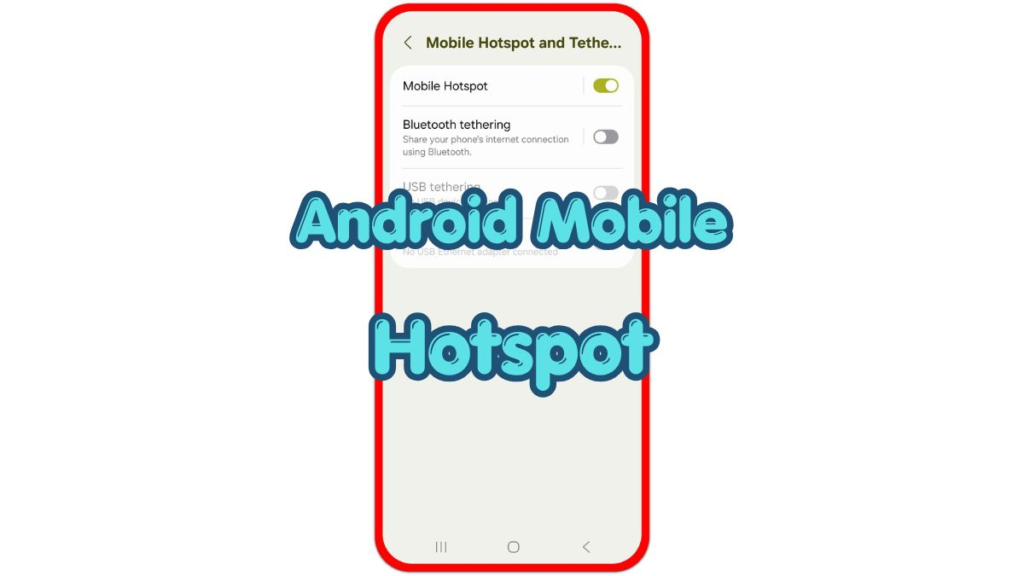
Introduction
Android mobile hotspot helps your phone share mobile data with a laptop, tablet, or another phone. Use it when Wi-Fi is unavailable, but set a password and check connected devices before sharing data.
This is different from joining normal Wi-Fi. Your phone becomes the internet source, so battery level, mobile data, signal strength, and security all affect the connection.
A safer setup begins before the other device connects. Check the hotspot name, password, security option, and connected device list so the phone shares data only with the device you expect.
Step-by-Step Guide: Android Mobile Hotspot
Step 1: Open The Hotspot Setting
Open Settings, then go to Connections, Network & Internet, or Internet depending on the phone. Tap Mobile Hotspot and Tethering, Hotspot & Tethering, or Wi-Fi Hotspot.
Samsung Galaxy phones often place the menu under Connections. Pixel and many other Android phones usually place it under Network & Internet or Internet. Use the Settings search bar and type hotspot when the menu name looks different.
Step 2: Check The Name And Password
Open the setup screen before turning the feature on. Check the network name first so you recognize the correct one from the other device.
Tap Password and set one that is not easy to guess. Use a mix of letters, numbers, and symbols when the phone supports them. A weak password lets nearby people try to join and use your mobile data.
Step 3: Choose Security And Band
Keep security turned on. Use WPA2 or WPA3 when those options appear, and avoid open settings that remove the password.
Check the band option when the phone shows it. The 2.4 GHz band usually reaches farther and works with older devices more often. The 5 GHz band usually gives faster speed at shorter range. Choose the one that matches the device you want to connect.
Step 4: Turn It On And Connect The Device
Turn on Mobile Hotspot or Wi-Fi Hotspot. On the laptop, tablet, or other phone, open the Wi-Fi list and choose your phone’s network name.
Enter the exact password from the setup screen. Keep the phone in an open spot with a good mobile signal. A weak cellular signal gives slow shared internet speed even when the connected device shows strong Wi-Fi bars.
Step 5: Check Connected Devices
After the other device connects, return to the same settings screen and check the connected device list. Make sure only your own device appears there.
Remove or block any device you do not recognize when your phone offers that option. Turn the feature off after use so your phone stops sharing mobile data and saves battery.
Troubleshooting
Troubleshooting 1: Device Does Not Connect
A connection failure usually comes from a wrong password, old saved network details, or a band mismatch. Forget the saved network on the laptop or tablet, then choose it again from the Wi-Fi list.
Change the band to 2.4 GHz when an older device does not see the network name. Restart the feature after changing the band or password, then reconnect with the new details.
Troubleshooting 2: It Turns On But Has No Internet
Shared internet depends on mobile data. Check that mobile data is on and that the phone has a working cellular signal before testing the other device.
Some carriers limit hotspot use or require a plan that includes tethering. Check the mobile plan when the phone has mobile internet, but the shared device has no internet.
Troubleshooting 3: Battery Drains Or The Phone Gets Hot
Sharing mobile data keeps cellular data, Wi-Fi sharing, and screen activity working harder than normal. Plug in the phone during longer sessions and place it away from direct heat.
Reduce the number of connected devices when speed drops or the phone gets warm. Turn on the auto-disable option when your phone offers it, so sharing stops after no device remains connected.
Extra Section 1: When You Use Hotspot For A Laptop
Laptop sharing often feels heavier than phone-to-phone sharing because laptops update apps, sync cloud files, and load full desktop websites. The connection feels slow even when the phone’s signal is stable.
Pause large downloads, cloud sync, and video calls when the connection feels weak. Keep only the work page or app you need open, then check the phone’s data usage after the session.
Extra Section 2: When You Share Hotspot With Family Devices
Family sharing works best when the same trusted devices connect again and again. Save the correct network name on those devices, but keep the password away from people who only need temporary access.
Some Android phones include allowed-device lists, blocked-device lists, data limits, or auto-turn-off settings. Use those controls when several people share one phone’s mobile data, because one unknown device or large download quickly slows the whole connection.
Additional Tips
Rename the network with a simple name that does not reveal private details. A plain device name is easier to find and safer than a name that includes your full name or location.
Keep the password private and change it after sharing access with someone outside your usual devices. Check the connected device list during longer sessions, especially in public places.
Use shared internet only as long as needed. Longer sessions use more battery and mobile data, and video streaming or large downloads use the data plan quickly.
Final Notes
Android mobile hotspot works best when the setup stays simple and secure. Check the network name, set a strong password, keep security turned on, and confirm the connected device list after joining.
When the connection fails, check mobile data, signal strength, password accuracy, band setting, and carrier limits before changing unrelated phone settings. Turn it off after use to protect battery, data, and access.
Checklist
- Open the hotspot setting from Connections or Network & Internet.
- Check the network name before turning it on.
- Set a strong password before sharing the connection.
- Keep WPA2 or WPA3 security turned on.
- Choose 2.4 GHz when an older device does not find the network.
- Check the connected device list and turn it off after use.