
Introduction
Small text makes an Android phone harder to read when messages, menus, app names, and settings look too tight on the screen. The problem feels worse when the phone uses a thin font, low brightness, or a small display layout.
Many beginners change brightness first, but the real issue often comes from font size or screen zoom. A phone also becomes harder to use when buttons and menu labels stay small even after the text size changes.
This guide explains how to make text larger on Android without changing advanced settings. Follow the steps below when reading messages, settings, contact names, and app screens feels uncomfortable.
Step-by-Step Guide: Make Text Larger on Android
Step 1: Open Display Settings and Find Font Size
Open the Settings app on your Android phone. You can also open Settings by swiping down from the top of the screen and tapping the gear icon.
Tap Display. On Samsung phones, look for Font size and style. On other Android phones, look for Display size and text, Font size, or a similar text option.
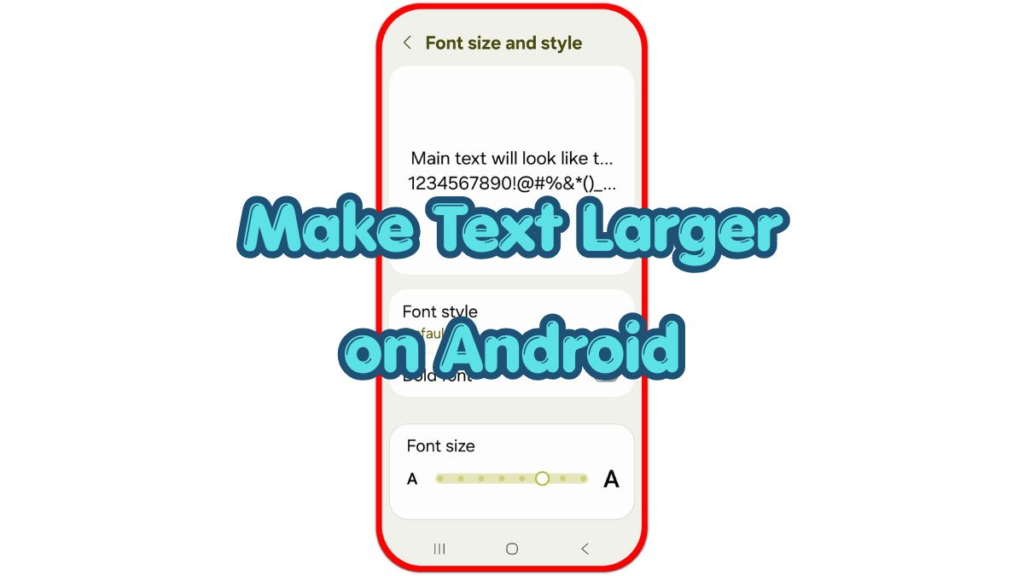
Open the font size screen and pause before moving the slider. The preview area shows how letters look before you apply the change, so compare the sample text with the size you use every day.
Step 2: Increase Font Size and Check Real Apps
Move the font size slider to the right. Increase it one level at a time instead of jumping straight to the largest size.
Open Messages, Contacts, Settings, or another app you use often. Check whether names, menus, and message text look easier to read without cutting off too much information.
Turn on bold font when the option appears. Bold letters help thin text stand out, especially on white backgrounds, small menus, and notification text.
Step 3: Adjust Display Size When Buttons Still Feel Small
Use Display size, Screen zoom, or Display size and text when the letters look better but icons, buttons, and menus still feel too small. This setting changes the overall layout, not only the font.
Move the display size slider one step higher and check the home screen, quick settings, keyboard, and app menus. A larger layout helps when tapping small buttons feels difficult.
Keep the setting at the smallest comfortable level. Very large display size makes some app screens crowded, so balance readability with enough space on the screen.
Troubleshooting
Troubleshooting 1: Text Still Looks Small in Some Apps
Some apps use their own text settings. Open the app’s settings menu and look for font size, chat size, text size, or display options before changing the whole phone again.
Troubleshooting 2: Text Became Too Large After the Change
Return to Display settings and move the font size or display size slider one step lower. Check Messages and Settings again before choosing the final size.
Troubleshooting 3: The Screen Looks Clear but Still Feels Hard to Read
Clean the screen, raise brightness slightly, and check whether dark mode or high contrast text feels better. Use Accessibility settings when normal display settings do not give enough visibility.
Extra Section 1: Font Size vs Display Size
Font size changes the letters you read in menus, messages, contacts, and many apps. It helps when the words look too small but the rest of the screen still feels normal.
Display size changes more of the screen layout. Icons, buttons, menus, and spacing become larger, so this setting helps when tapping small items feels difficult.
Extra Section 2: When to Use Magnification
Magnification helps when only one part of the screen looks too small. It works best for short checks, small app details, map labels, or screens that ignore the main font size setting.
Open Settings, tap Accessibility, and look for Magnification. Use it as a support tool after you set font size and display size to a comfortable level.
Additional Tips
Keep brightness at a comfortable level before judging text size. Low brightness makes letters harder to read even when the font setting looks correct.
Place important apps on the first home screen after increasing display size. Larger icons and fewer pages make the phone easier to use during normal daily checks.
Check the keyboard size separately when typing still feels uncomfortable. Some Android keyboards have their own size, theme, and contrast settings.
Final Notes: Make Text Larger on Android
A readable Android screen starts with font size, then display size, then accessibility tools. Change one setting at a time and test real apps before adjusting another option.
Use the largest comfortable size that still keeps menus, buttons, and messages easy to control. This makes daily phone use clearer without making the screen feel crowded.
Checklist
- Open Display settings first.
- Increase font size one step at a time.
- Check Messages, Contacts, and Settings after the change.
- Turn on bold font when thin letters feel hard to read.
- Use display size when icons and buttons stay small.
- Use magnification only for small areas that still need help.