
Introduction
Dark Mode becomes useful when a bright screen feels harsh at night, menus look too white in a dark room, or the phone keeps switching back to a light theme. Many beginners turn the brightness down first, but the display theme also changes how comfortable the screen feels.
The setting also feels confusing when some apps stay bright, the schedule does not follow the time you expected, or Battery Saver changes the appearance without warning. On OLED screens, darker areas reduce how much the display lights up during normal use.
This guide keeps the Dark Mode checks in a simple order. Use it when you want a darker Android screen, an automatic schedule, or a more comfortable display for nighttime reading.
Step-by-Step Guide: Turn On Dark Mode On Android
Step 1: Open Display Settings
Open the Settings app on your Android phone. Swipe down from the top of the screen and tap the gear icon when you are already using the Quick Settings panel.
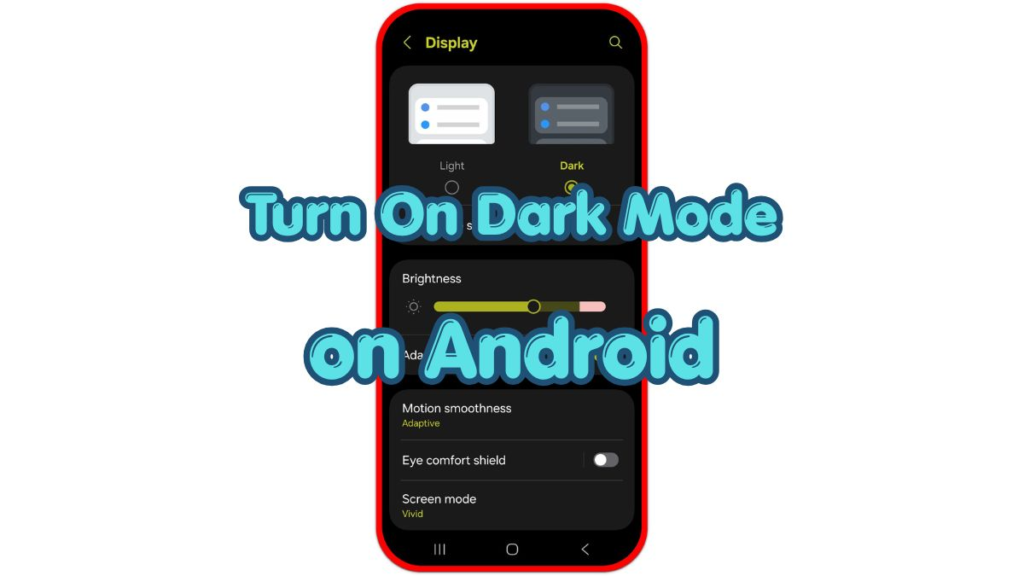
Tap Display, Display and brightness, or a similar menu. Android brands use different names, but the Dark Mode option usually stays near brightness, screen timeout, font size, and other appearance settings.
Before changing the theme, set brightness to a comfortable level so the first Dark Mode check feels accurate.
Step 2: Turn On Dark Mode Or Dark Theme
Find Dark Mode, Dark Theme, or Night mode on the Display screen. Tap the switch and wait a moment while the phone changes menus, panels, and supported system screens to a darker layout.
Open a few basic screens after turning it on. Settings, Quick Settings, Phone, Messages, and other built-in apps usually show the change first, while some third-party apps follow their own theme setting.
When the screen does not change right away, close and reopen the app you are viewing. Restart the phone later if the system theme still looks stuck after you turn the setting on.
Step 3: Set A Dark Mode Schedule
Open the schedule option inside the Dark Mode screen when you want the phone to change automatically. Choose Sunset to sunrise when you want the phone to follow evening and morning light changes.
Use a custom time when you prefer a fixed routine. For example, set Dark Mode to turn on before bedtime and turn off after your normal morning use begins.
Check the schedule after setting it. A wrong time zone, location setting, or custom time makes the phone switch earlier or later than expected.
Step 4: Match Brightness, Wallpaper, And Night Light
Lower brightness slightly after Dark Mode turns on, while keeping text and buttons easy to read.
Use a darker wallpaper only when the home screen still stands out from the menus. This keeps the home screen closer to the rest of the phone.
Turn on Night Light, Eye comfort shield, or Blue light filter only when evening reading still looks too sharp. Keep the warmth moderate so white areas stay natural.
Step 5: Check Apps That Stay Bright
Open the apps you use most after turning on Dark Mode. Some apps follow the Android system theme, while others keep a separate Theme, Appearance, or Display setting inside the app.
Look for options such as System default, Dark, Light, or Use device settings. Choose System default when you want the app to follow Android automatically.
Update the app when Dark Mode does not appear in its settings. Older app versions often support fewer theme options or apply the dark theme only to part of the interface.
Troubleshooting
Troubleshooting 1: Dark Mode Does Not Turn On
Return to Settings and check whether the Dark Mode switch stayed on. Some phones also show the same control inside Quick Settings, so confirm that the tile and Display menu show the same state.
Restart the phone when the setting looks active but the screen stays light. A restart refreshes the system interface and often clears a theme change that did not apply correctly.
Troubleshooting 2: Some Apps Stay In Light Mode
Open the app’s own settings and look for Theme, Appearance, Display, or Dark Mode. Many apps do not follow Android until you choose System default or Dark inside the app itself.
Update the app when the option is missing. When an app still has no dark theme, treat it as an app limitation instead of a phone setting problem.
Troubleshooting 3: Dark Mode Turns Off By Itself
Check the Dark Mode schedule first. A sunset-to-sunrise setting or custom time makes the phone return to Light Mode automatically in the morning.
Look at Battery Saver, Modes, routines, or bedtime settings when the theme changes at unexpected times. These features adjust screen appearance based on battery level, time, or a saved routine.
Extra Section 1: Dark Mode And Brightness Together
Match the brightness level to the room after the darker layout turns on. A lower level usually works better in bed or in a dark room than the same setting used during the day.
Adaptive Brightness helps when lighting changes throughout the day. If the level keeps jumping too high or too low, adjust it manually for a few days so the phone learns a steadier pattern.
Extra Section 2: Night Light And Eye Comfort Settings
Night Light, Eye comfort shield, and Blue light filter change the color temperature of the display. These settings do not replace Dark Mode, but they make the screen feel softer in the evening.
Use a low or medium warmth level first. A strong filter makes photos, videos, and white backgrounds look too yellow, so raise it only when the screen still feels harsh.
Additional Tips
Keep the Dark Mode tile in Quick Settings if you switch themes often. It saves time when you move between bright rooms, dark rooms, and nighttime use during the same day.
When one app looks different from the rest of the phone, check that app’s theme menu before changing Android again. The system theme only controls apps that follow the device setting.
Use Night Light or Eye comfort lightly at first. A mild setting keeps reading comfortable without making photos, videos, and white backgrounds look unnaturally warm.
Final Notes: Dark Mode On Android
Dark Mode works best when the main switch, schedule, wallpaper, and app settings stay aligned. Turning on the switch is the first step, but these extra checks decide whether the phone stays consistent.
Use Dark Mode on Android when a bright screen becomes uncomfortable at night or in low light. When one app stays bright, check that app’s own setting before changing the whole phone again.
Checklist
- Open Settings and go to Display.
- Turn on Dark Mode, Dark Theme, or Night mode.
- Set Sunset to sunrise or a custom schedule if needed.
- Adjust brightness after the theme changes.
- Check apps that keep their own theme setting.
- Use Night Light or Eye comfort only when the screen still feels harsh.