
Introduction
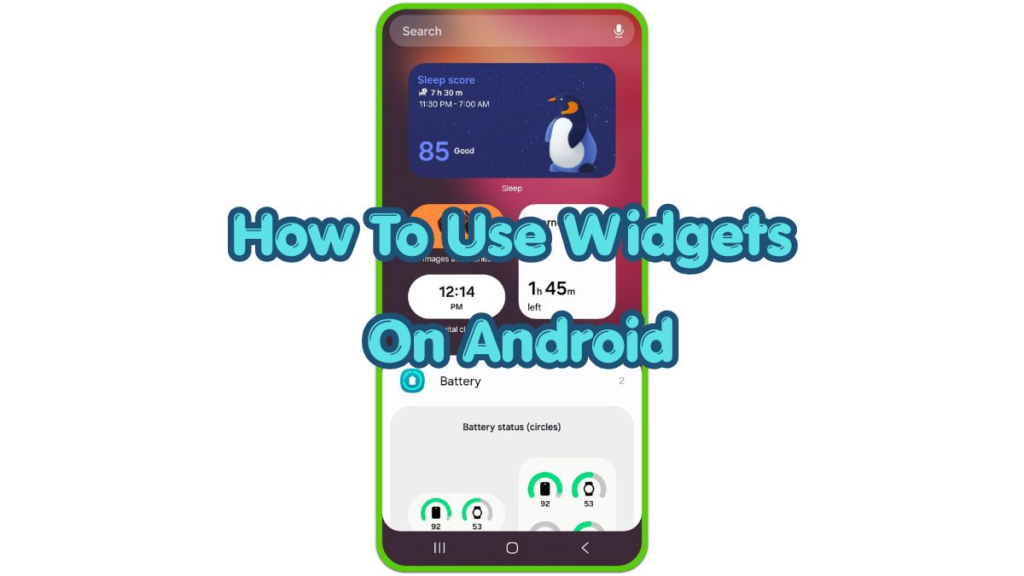
Android widgets help you see useful information from apps directly on the Home Screen. Weather, calendar events, notes, clocks, reminders, and music controls stay visible without opening each app.
A simple setup works best when the screen stays clean. Too many boxes, colors, and live updates make the page harder to read. A clean layout gives each item enough space and keeps daily information easy to find.
Use the tools you check often first. Add one or two useful items, then adjust the size and position after the layout feels right during normal use.
Step-by-Step Guide: How To Use Widgets On Android
Step 1: Clear Space On The Home Screen
Long press any app shortcut, old widget, or folder you no longer need on the Home Screen. Drag it to Remove when the option appears. The app stays installed on the phone, but the shortcut or widget leaves the screen.
Leave enough empty space before adding anything new. Weather cards, calendar boxes, and note panels need more room than normal app icons. A crowded page makes the text harder to read and forces you to move items again later.
Keep the first Home Screen page for items you check every day. Move less important shortcuts to another page or the app drawer. This gives the new layout a cleaner starting point.
Step 2: Add A Widget From The Menu
Long press an empty area of the Home Screen. Tap Widgets when the menu opens. Scroll through the list and choose the app that has the item you want to place.
Press and hold the widget, then drag it to an open area of the screen. Release it when the placement looks right. Some items open a setup screen first, such as a weather location, calendar account, note list, or clock style.
Choose the setup option that matches the information you want to see. After placing it, open the related app once if the box stays blank or shows old information. Many app panels refresh better after the main app loads at least once.
Step 3: Resize And Organize The Layout
Long press the widget after it appears on the Home Screen. If resize handles appear around the box, drag the edges until the size fits the page. A larger size shows more detail, while a smaller size keeps the screen cleaner.
Place the most useful item near the top or center of the first page. Weather and calendar panels fit well near the top because they show daily details quickly. Notes, reminders, music controls, or battery panels work better lower on the page when you use them less often.
Use only the items that support your routine. Remove anything you stop checking. A simple setup usually feels faster than a page filled with several live panels.
Troubleshooting Android Widgets
Troubleshooting 1: The Widget Does Not Update
Remove the item and add it again from the Home Screen menu. Then open the related app once and check whether the information refreshes.
If the problem continues, open Settings, tap Apps, choose the related app, then check its Battery setting. Set the app to allow background activity when it needs regular updates, such as weather, calendar, reminders, or notes.
Troubleshooting 2: The Widget Does Not Resize
Some items use fixed sizes. Long press the item and look for resize handles. If no handles appear, the app does not support that size change for the selected item.
Go back to the Widgets menu and check whether the same app offers another size. Choose a different version if the first one does not fit your layout.
Troubleshooting 3: The Layout Keeps Getting Messy
Move only daily information to the first Home Screen page. Keep extra shortcuts, rarely used tools, and experimental layouts on another page.
Use a plain wallpaper when text looks hard to read. Strong patterns behind widgets and icons make the screen look busier than it really is.
Additional Tips
Choose widgets that solve a quick daily need. Weather, calendar, reminders, notes, and music controls are useful because they reduce small repeated actions during the day.
Avoid adding several live-updating items on one page. Too many changing panels make the screen feel cluttered and distract from the information you actually need.
Review the layout after a few days. Remove items you ignored, resize boxes that take too much space, and keep the Home Screen focused on daily use.
Final Notes
A good Android widget setup makes the Home Screen easier to scan. It does not need many items or advanced launcher settings.
Use a clean page, add the tools you check often, and arrange them with enough space around each one. That simple process helps you use widgets on Android without turning the Home Screen into clutter.
Checklist
- Clear empty space on the Home Screen.
- Open the Widgets menu from an empty area.
- Choose the widget that shows the information you need.
- Place the widget where you see it easily.
- Resize the box when handles appear.
- Remove widgets you no longer use.