
Introduction
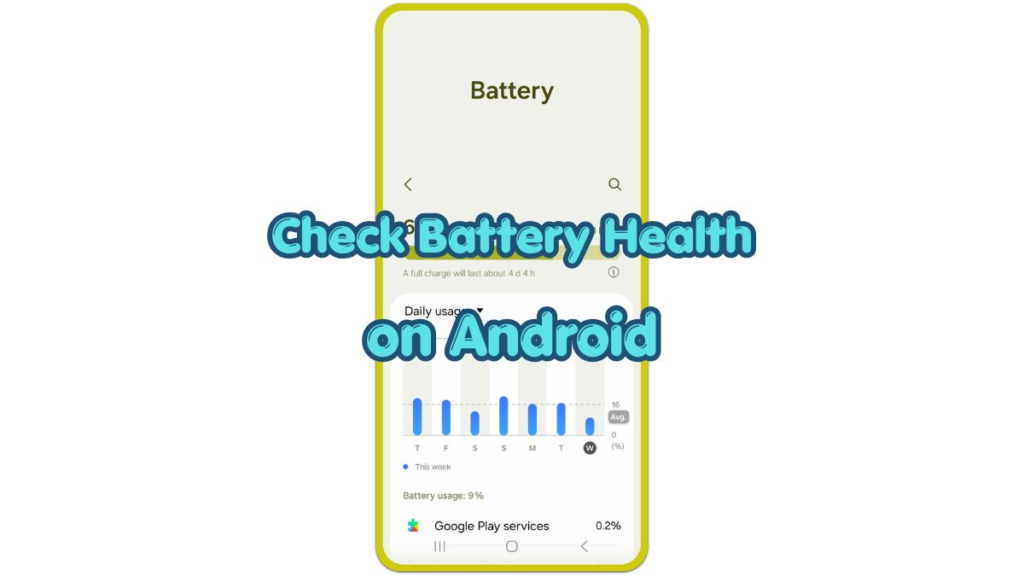
To check battery health on Android, the right menu depends on the phone brand. The Battery page usually shows usage, remaining time, and power-saving options first.
Daily behavior reveals a worn battery: the phone drains faster than usual, warms up during light use, charges slowly, or shuts down while power still remains.
Some phones show health details in Battery settings, while others use Samsung Members, Pixel Battery Health, or a separate diagnostic tool.
Step-by-Step Guide: Check Battery Health on Android and Use Battery Saver
Step 1: Open Battery Settings
Open Settings on your Android phone, then tap Battery. On some Samsung phones, open Battery and device care, then tap Battery.
Check the usage screen first and look at the remaining time, recent use, and apps near the top of the list. Close, update, or limit background use for one app that uses much more power than expected before changing more settings.
Step 2: Check Battery Health on Android
Android shows health details in different places by model. Some phones include a health menu inside Battery settings, while others use a separate support or diagnostic app.
On Samsung Galaxy phones, open Samsung Members. Tap Support, open Phone diagnostics, then check Battery status or run Test all.
On Pixel phones with a Battery Health menu, open Settings, tap Battery, then check Battery Health.
For phones with no health menu, use the warning signs instead. Fast drain, random shutdowns, slow charging, and heat during simple use often mean the battery needs a closer check.
Step 3: Turn On Battery Saver
Open Settings, then tap Battery. Select Battery Saver. On Samsung phones, the same feature often appears as Power saving.
Turn it on for a low battery or for times the phone needs to last longer. Battery Saver reduces background work, lowers some activity, and limits features that use extra power. Set an automatic level if the option appears. A common setup turns it on at 20% or 15%.
Troubleshooting
Troubleshooting 1: Health Menu Does Not Appear
Many Android phones have no separate battery health percentage. The phone still shows useful signs through use, charging behavior, heat, and shutdowns.
Check the phone maker’s support app first. Samsung uses Samsung Members, while other brands often use a diagnostic or support app. If no tool appears, check the condition through drain speed, charging speed, heat, and random shutdowns.
Troubleshooting 2: Battery Drains Fast After an Update
Battery drain often looks worse right after a system update. The phone reloads apps, updates background files, and rebuilds usage patterns.
Restart the phone once, charge it normally, and check battery use again after a few days. If the same app stays at the top every day, limit that app’s background use or update it.
Troubleshooting 3: Battery Saver Makes Apps Slow
Battery Saver reduces power use by limiting background activity. Some apps refresh less often, notifications arrive later, and performance feels slower during heavier tasks.
Turn Battery Saver off for maps, video calls, gaming, or file uploads. Turn it back on for battery life over speed.
Additional Tips
Keep the phone away from hot places during charging. Heat speeds up wear and also makes the device drain faster during normal use.
Lower screen brightness, close unused hotspot sessions, and use Wi-Fi instead of mobile data in weak signal areas. These small habits reduce daily power stress.
Check the same pattern across several charges before deciding that the battery itself is failing.
Final Notes
Use this flow to check battery health on Android and understand common daily power problems before replacing the battery.
The Battery page shows which apps use power, while the phone maker’s diagnostic tool gives a better sign of the condition. Power-saving mode then helps the phone last longer at low remaining charge.
A phone that still shuts down early, heats up while idle, or loses charge unusually fast after several normal cycles needs a service check.
Checklist
- Open the Battery page in Android Settings.
- Check recent battery use and high-drain apps.
- Use Samsung Members, Pixel Battery Health, or your phone’s diagnostic tool.
- Turn on Battery Saver when the remaining charge gets low.
- Set an automatic Battery Saver level if the option appears.
- Check drain speed, charging speed, heat, and shutdowns across several charges.