
Introduction
To reduce data usage on Android, check the mobile data screen, Data Saver setting, and apps that refresh in the background. Android already shows which apps use the most, but many users miss the background access settings that keep apps active when they are not open.
The monthly total rises faster than expected when streaming, uploads, app refresh, and shared hotspot sessions run through the mobile connection. The monthly total drops before the user notices which app or setting caused it.
Data Saver helps limit background activity first. App settings and media settings then reduce the hidden use that builds up during the day.
Step-by-Step Guide: Reduce Data Usage on Android with Data Saver
Step 1: Open Usage and Turn On Data Saver
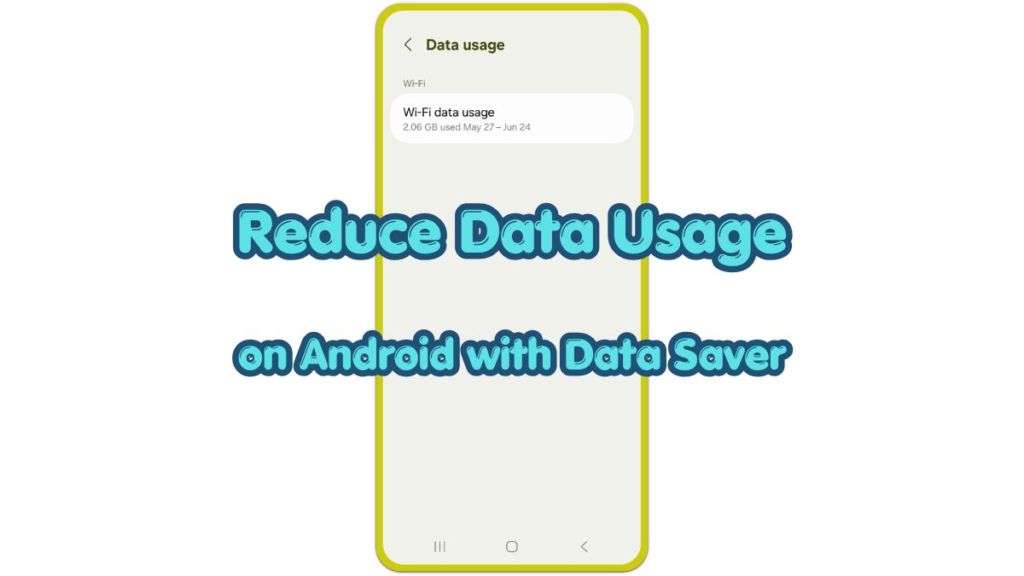
Go to Settings on your Android phone, then tap Network & Internet or Connections, depending on the phone brand. Choose SIMs, Mobile network, or Data usage, then check the current total.
Turn on Data Saver from the same usage area. On Samsung Galaxy phones, the menu often appears under Settings, Connections, Data usage, then Data saver.
If Data Saver does not appear on your phone, stay on the Data usage screen and use the app-level controls in the next step.
After turning it on, return to the usage screen and check which apps appear near the top. Start with the largest apps first, because one video, browser, cloud, or social app often explains most of the monthly use.
Step 2: Review Apps with Unrestricted or Background Access
Open the Data Saver menu and check Unrestricted data or Allowed to use data while Data Saver is on. Keep access only for apps that need timely updates, such as messaging, calls, banking alerts, or important work apps.
Remove unrestricted access from apps that do not need constant background activity. Social apps, shopping apps, browsers, cloud tools, and news apps often keep refreshing unless the phone blocks them.
For a high-usage app, open Settings, tap Apps, choose the app, then open Mobile data or Mobile data & Wi-Fi. Turn off Background data when the app should use the connection only while you use it.
Step 3: Control Video, Updates, Hotspot, and Sync
Open the apps near the top of the usage screen and check their own settings. Video apps, social apps, and browsers often have autoplay, high-quality playback, preload, or saver options inside the app.
Set app updates to Wi-Fi only in the Play Store. Check photo backup, cloud backup, and messaging backup settings as well, because uploads also count against the monthly total.
Turn off hotspot after use and avoid large downloads while sharing a connection. Hotspot sessions use the plan quickly, especially when another phone, tablet, or laptop starts updates or cloud sync in the background.
Troubleshooting
Troubleshooting 1: Data Saver Is On but Mobile Data Still Drops Fast
Open the mobile data usage screen and check the top app for the current billing cycle. Data Saver limits background activity, but foreground use still counts when the app stays open for streaming, browsing, maps, or downloads.
Open that app and lower video quality, stop autoplay, or change download settings to Wi-Fi only. Then check the usage screen again after a normal day of use.
Troubleshooting 2: One App Keeps Using Too Much Mobile Data
Open Settings, tap Apps, choose the app, then open Mobile data or Mobile data & Wi-Fi. Turn off Background data and remove unrestricted access from the Data Saver list.
For cloud, photo, browser, and social apps, also check the app’s own settings. Many apps keep separate controls for uploads, preloading, autoplay, and media quality.
Troubleshooting 3: Hotspot Uses Mobile Data Too Quickly
Hotspot use rises fast because connected devices treat the connection like normal internet. A laptop or tablet starts app updates, file sync, photo backup, or software downloads without showing a clear warning on the Android phone.
Turn hotspot off right after use. Before using it again, pause large downloads on the connected device and check whether the phone has a hotspot limit option under Hotspot & tethering.
Additional Tips
Use Wi-Fi for app updates, system updates, cloud backup, and large downloads. These tasks use a large amount of the monthly plan in a short time.
Download maps, playlists, videos, and documents over Wi-Fi before leaving home or work. Offline files reduce repeated downloads during the day.
Check mobile data usage at least once during the billing cycle. A quick mid-month check helps catch one app before it uses the rest of the plan.
Final Notes
To reduce data usage on Android, turn on Data Saver first, then check which apps still have background or unrestricted access.
The usage screen shows the apps that need attention first. App settings, video quality settings, Wi-Fi-only updates, and hotspot control then reduce the hidden parts of daily use.
A phone that still uses too much after these checks needs a closer look at the top app, backup settings, hotspot sessions, or carrier billing cycle.
Checklist
- Open the mobile data usage screen.
- Turn on Data Saver.
- Check apps with unrestricted access.
- Turn off background data for high-usage apps.
- Set app updates and backups to Wi-Fi only.
- Turn off hotspot after each session.