
Introduction
Android slow charging on a low-power charger becomes noticeable when the battery barely moves after the phone stays plugged in for a while. The charging icon appears, but the percentage rises too slowly to feel normal.
The phone looks connected, so the problem feels confusing at first. The first check is whether the charger is giving enough power for the battery level to rise at a normal speed.
Step-by-Step Guide: Android Slow Charging on a Low-Power Charger
Step 1: Check Whether The Charging Icon Stays On
Keep the same charger and cable connected to the phone first. Do not change the charger yet, because the first check needs to show whether the phone stays connected under the same setup.
Place the phone down and leave it still for a short time. Look at the screen and check if the charging icon stays on without flickering, disconnecting, or changing when the cable sits normally.
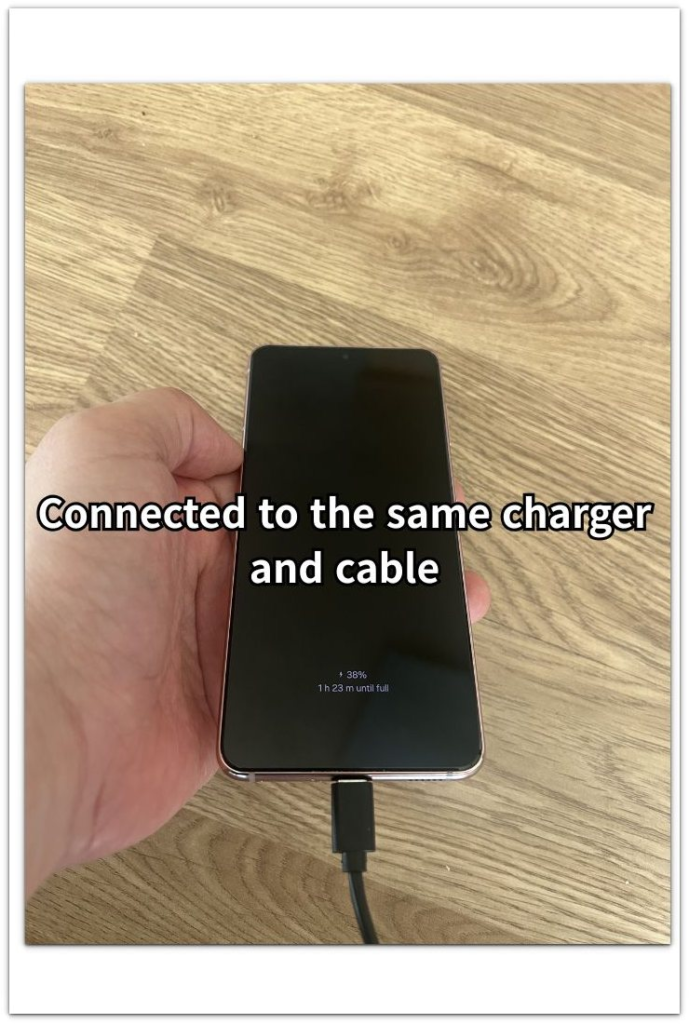
A steady charging sign only means the phone is connected. It does not prove that the charger is giving enough power to raise the battery at a normal speed.
Step 2: Compare The Battery Level After A Short Charge
Open Settings → Battery and check the battery level after the phone has stayed plugged in for a short time. Use that screen instead of judging only by the charging icon.
Leave the phone connected with the screen off, then return and compare the number. When the charging sign stays on but the battery barely rises, the problem is no longer just the connection.
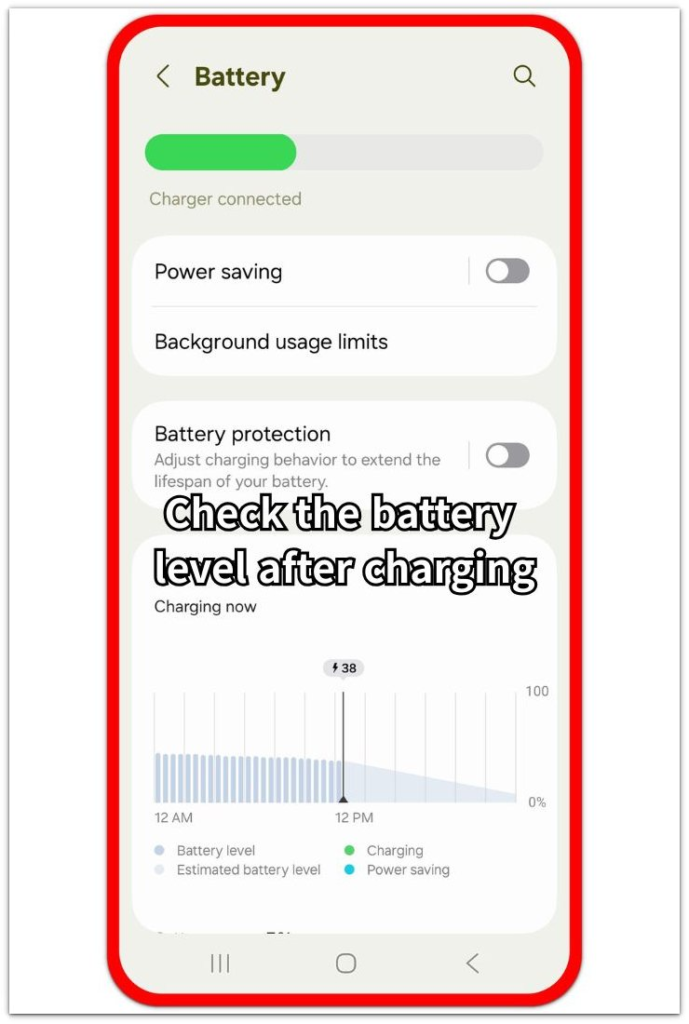
The result matters more than the icon. A phone still shows a charging icon even when a low-power charger raises the battery level too slowly for normal charging.
Step 3: Test A Higher-Power Charger Under The Same Conditions
Use a higher-power charger with the same phone and leave it in the same place for another short charge test. Keep the screen off so the result stays fair.
Come back after the same short wait and look at the percentage. A faster rise points back to the original charger. A flat result with the stronger charger points next to the cable, charging port, or battery condition.
Troubleshooting
Troubleshooting 1: The Adapter Rating Looks Too Low
The rating looks too low even though the phone still shows a charging icon. The screen makes the connection look normal, but the adapter output is the part to check here.
Check the rating printed on the adapter before changing more settings. A very low output rating points back to the charger, not the phone. Compare the battery percentage again after that so the result stays focused on power.
Troubleshooting 2: Charging Improves At First Then Slows Again
The battery rises faster at first with another charger, then slows again after a short time. The stronger adapter helped, but the charging result is still not steady.
Keep the same stronger adapter connected and switch only the cable next. A better result with another cable points to the cable as the weak part. The charger was not the only thing affecting the slow charge.
Troubleshooting 3: Charging Is Slow Only From USB Ports
The phone charges slowly from a laptop, monitor, car port, or power strip USB port, but it improves with a wall adapter. The phone looks connected in both tests, so the weak power source is easy to miss.
Use the wall adapter as the main comparison point. A better result from the wall adapter shows that the USB port was not giving the phone enough power.
Extra Section 1: The Battery Number Stays Low After A Longer Wait
The problem often becomes clear only after the phone has been plugged in longer than expected. The charger does not look broken, and the phone does not keep disconnecting, but the battery number still stays close to where it started.
That result points more to power than to the icon. A low-power adapter keeps the phone connected while adding power too slowly to make the battery level move normally.
After a longer wait, the slow number change matters more than the first connection sign on the screen.
Extra Section 2: A Low-Power Charger Falls Behind When The Phone Is In Use
The slow pattern becomes easier to notice when you use the phone while it is plugged in. The screen stays bright, apps keep running, and the phone keeps using power at the same time the charger is trying to add power.
A low-power charger has less room to catch up during that kind of use. The battery number rises very slowly, stays almost flat, or moves only after the screen turns off for a while.
The phone or cable is not always the broken part. The result looks worse when the phone keeps using more power than the charger can replace quickly.
Official Source: Google Links Unsupported Chargers To Slow Charging
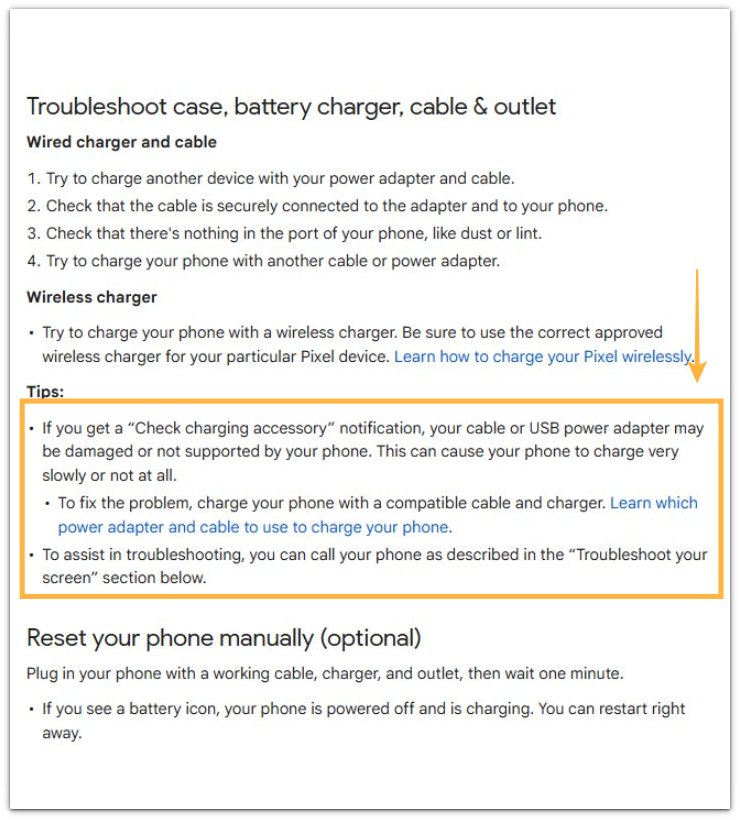
Google says a damaged or unsupported cable or USB power adapter can cause very slow charging or no charging. When the charging icon appears but the battery number barely moves, review the adapter and cable before blaming the phone itself.
Additional Tips
A charger that worked for an older phone is still weak for a newer Android phone when the same adapter charges one device normally but barely moves another.
Long cables make the result harder to judge. A short, solid cable gives a cleaner result when the adapter already looks weak.
A loose plug gives an unreliable test result. Use a firm wall outlet before judging the adapter itself.
Final Notes
The quiet screen-off test confirms android slow charging on a low-power charger better than the icon alone. A steady icon only proves that the phone sees a connection.
When the phone stays connected but the battery barely rises under a quiet screen-off test, the charger becomes the main suspect. A better result with a stronger adapter confirms that the original charger does not give enough power.
Replace the adapter first when the same slow pattern keeps showing under the same conditions. Check the phone itself only after you separate the charger and cable clearly.
Checklist
- Check the icon first, then compare it with the battery number.
- Compare the battery number after a short screen-off charge.
- Check the charger rating printed on the adapter.
- Test a stronger adapter under the same conditions.
- Use another cable after the stronger adapter gives the same slow result.
- Review the charging port only after the charger and cable are separated clearly.
- Avoid judging normal speed from laptop, monitor, car, or power strip USB ports.
The guide above shows the main checks when the battery barely moves.