
Introduction
You leave the Android phone alone, and the battery drops more than expected. The screen was off, you were not using an app, and nothing about your normal routine changed.
That kind of standby drain is hard to judge because something keeps waking the phone in the background. Android battery drain wakeup alarms matter only when the device fails to rest properly during idle time.
This differs from screen use drain. Heavy apps cause a different power drop, and a short update adjustment also behaves differently.
The phone looks idle from the outside, but it does not stay in deep sleep long enough to slow the drop.
Check for standby drain first. Avoid blaming your own use immediately, and check screen use and normal app activity separately.
Step-by-Step Guide
Step 1: Check Whether the Battery Drops While the Phone Is Not Being Used
Start with the stretch when the phone was left unused. Open the Battery page, then check screen time, screen off time, and the listed apps.
If screen time looks very low while the battery still dropped, avoid blaming active app use first. The screenshot highlights low screen time while usage still appears during a long idle stretch.
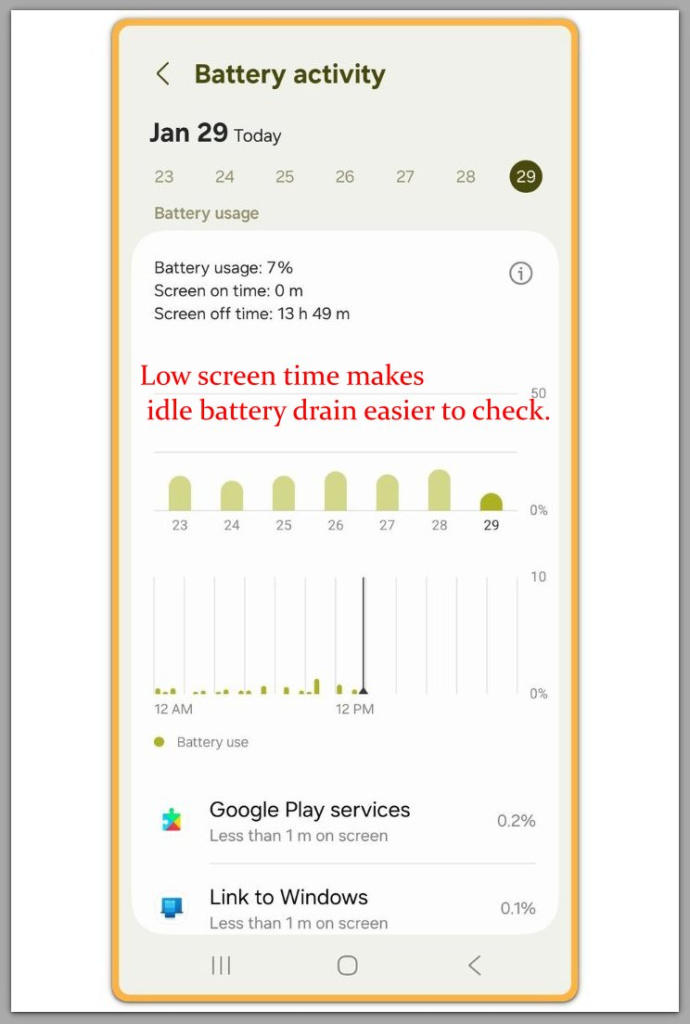
Usage charts show very little screen time, and app usage looks small with no single app standing out.
When the screen stays off and no single app explains the drop, the drain looks less like active app use.
If the phone loses power while the screen stays off and no app explains the drop, keep the next check focused on background wakeups.
Step 2: Understand Why Wakeup Alarms Can Keep the Phone From Resting
Wakeup alarms are not always bad. Android uses these alarms during idle periods when something needs to run at a specific time.
A normal wakeup should be short. The problem starts when the phone keeps waking constantly and fails to enter deep sleep.
The screen remains off, no app looks active, and the power still drops during this state.
Do not start by closing random apps. First, check whether the same screen-off battery drop returns after the phone sits unused again.
The issue remains specific: the phone wakes too often in the background.
Step 3: Check When Battery Settings Stop Explaining the Drain
Open Battery settings, then check Background usage limits or Sleeping apps. These settings help during normal background power use, but they fail to explain repeated wakeups.
The screenshot highlights background usage limits. Unused apps go into sleeping status, and deep sleeping apps show similar patterns.
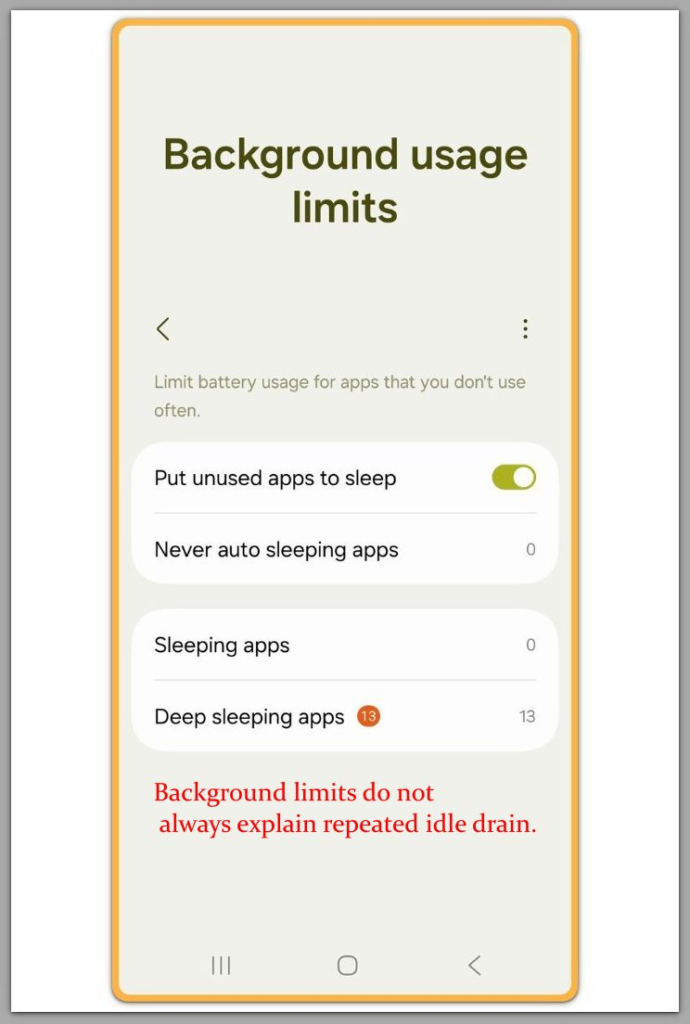
If those limits are already on and standby drain still returns, avoid changing the same setting repeatedly.
The setting may still be working, but it does not explain why the phone keeps waking during a quiet idle stretch.
Troubleshooting
Troubleshooting 1: Battery Limits Are On, but Idle Drain Still Continues
Battery optimization helps during normal background power use, but it does not stop repeated wakeups.
Standby drain sometimes returns after active optimization, so check power loss during quiet idle stretches instead of changing the same toggle repeatedly.
Keep the next check focused on timing. Leave the phone unused again, then compare the battery drop with screen time and the app list from that same stretch.
If the same idle drain returns despite active battery limits, the problem is no longer about changing that setting again.
Troubleshooting 2: A Restart Helps Once, but The Drain Returns Later
A restart improves phone performance for a short time, and a reboot can slow the drain for a while. The core cause still returns later.
Keep watching the next idle stretch instead of trusting the restart immediately. Leave the phone alone again and check for power drops after it settles.
If the same drop returns later, the restart cleared only a short-term state.
The next idle stretch matters more, and the restart itself provides less evidence.
Troubleshooting 3: No Single App Clearly Explains The Battery Drop
The Battery page does not show one obvious problem app. Screen time stays low, and app usage looks small with no single app standing out.
The app list alone does not explain the problem because the same idle drop keeps returning. Avoid deleting random apps, since clear answers require deeper tracking.
No single app explains the drop, so compare the next quiet idle stretch instead.
When the quiet drain returns and no app explains the drop, a closer check becomes necessary.
Extra Section 1: When the Idle Pattern Became Clear
I once checked a phone that looked normal during the day. The power did not fall fast while the screen was on, and the app list did not show one clear problem.
The first check did not give me much to blame. The strange part showed up later, after the phone sat untouched for a while.
The screen stayed off, but the charge still dropped more than expected. No warning message appeared, and no single app stood out at the top of the Battery page.
I stopped looking for one heavy app and started checking the idle pattern instead.
The phone stayed idle, but the same loss came back, so the drain was easier to judge then.
Normal use no longer explained the battery drop by itself, so the next check had to stay with background wakeups.
Extra Section 2: When a Restart Looked Like the Fix
Another case looked better after a restart. The phone stopped losing power quickly for a short time, so the restart looked like the fix for a while.
After the phone had been left alone again, the same standby drain came back. The screen was still off, and the app list still did not point to one clear app.
Changing the same setting again did not explain much. The restart itself was not the useful clue.
The useful clue came after the phone returned to normal use. The same idle drop came back, so the problem looked less like a temporary glitch.
The pattern looked more like something kept waking the phone in the background.
One better stretch after a reboot was not enough to trust.
Official Source: Google Android guidance on scheduled alarms
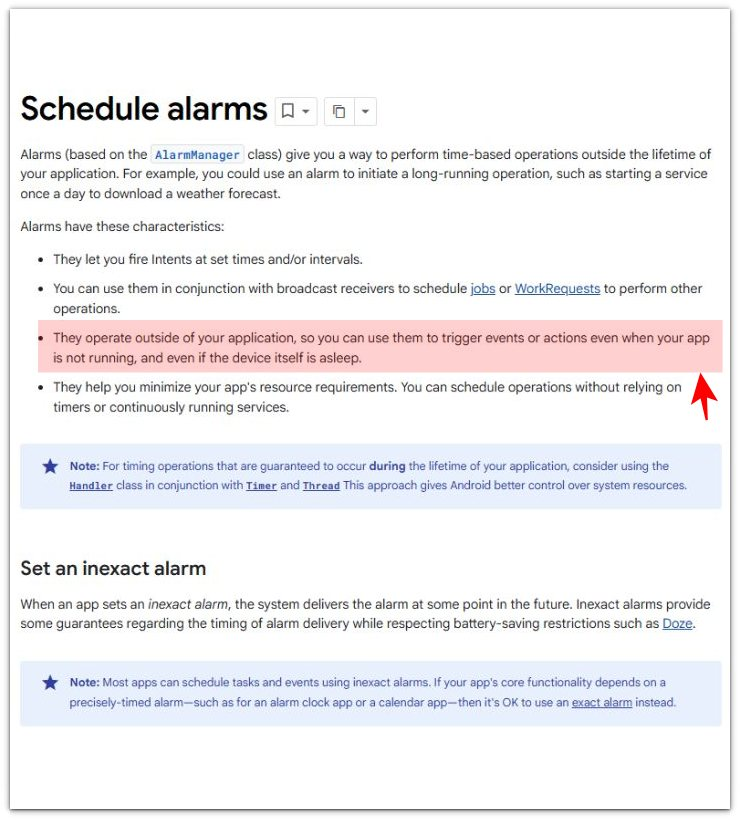
Google’s Android documentation explains why this matters. A wakeup alarm can wake the device from sleep even when an app is not visibly open.
The alarm name alone proves nothing. The drain matters only when it matches the idle pattern, low screen use, and repeated battery drops.
Additional Tips
System changes are a good place to check first. A recent update, device restore, or app migration can change background behavior and make screen-off battery drops easier to notice.
Keep tracking the device status. Leave the phone alone again and check for power drops during low screen use.
Heavy app use is a separate issue because the real check targets screen-off power loss.
Isolate the data points carefully. Check the Battery page, screen time, and app list during the next idle stretch.
Final Notes
Standby drain becomes easier to judge when the same idle loss returns after each check. Do not keep changing the same battery settings if screen time stays low and no obvious app explains the drop.
The stronger clue is not normal app use. It is the repeated screen-off drop that keeps pointing back to android battery drain wakeup alarms.
Checklist
- Compare standby loss with active screen use.
- Track power drops after a recent system update.
- Monitor the next quiet idle stretch.
- Separate screen-off drain from normal app use.
- Avoid changing settings before checking screen-off time.
For broader battery drain problems, see the main guide on Android battery drain.