
Introduction
Android fast charging not working gets harder to ignore when you plug the phone in for a short break and come back to a battery level that barely moved. You use the same charger, the same cable, and the same outlet you normally trust.
The charging icon can still appear, but the battery level rises too slowly for that kind of charging break. First, check whether that slow rise keeps showing up under the same normal charging setup.
Step-by-Step Guide: Android Fast Charging Not Working
Step 1: Check Whether the Battery Rise Stays Small During a Short Charging Break
Start with your usual charger, cable, and outlet. Leave the phone connected for the same short break where the slow rise first stood out, and keep the setup unchanged before you unplug it.
Check how much the battery level actually changes during that break. A small increase under that setup gives you the first result before you check the fast charging setting itself.
Step 2: Check Fast Charging While the Phone Stays Alone
Set the phone down and leave the screen off for a short charging block. Keep apps, media, and repeated screen checks out of this charging block so the test stays focused on charging speed.
A slow rise during this untouched charge points away from screen use or active apps. It gives you a cleaner result before you move on to the fast charging setting.
Step 3: Check Fast Charging Settings Before Blaming the Charger
Open Settings, then Battery, then Charging settings. Turn on Fast charging and Super fast charging before replacing the cable, charger, or outlet.
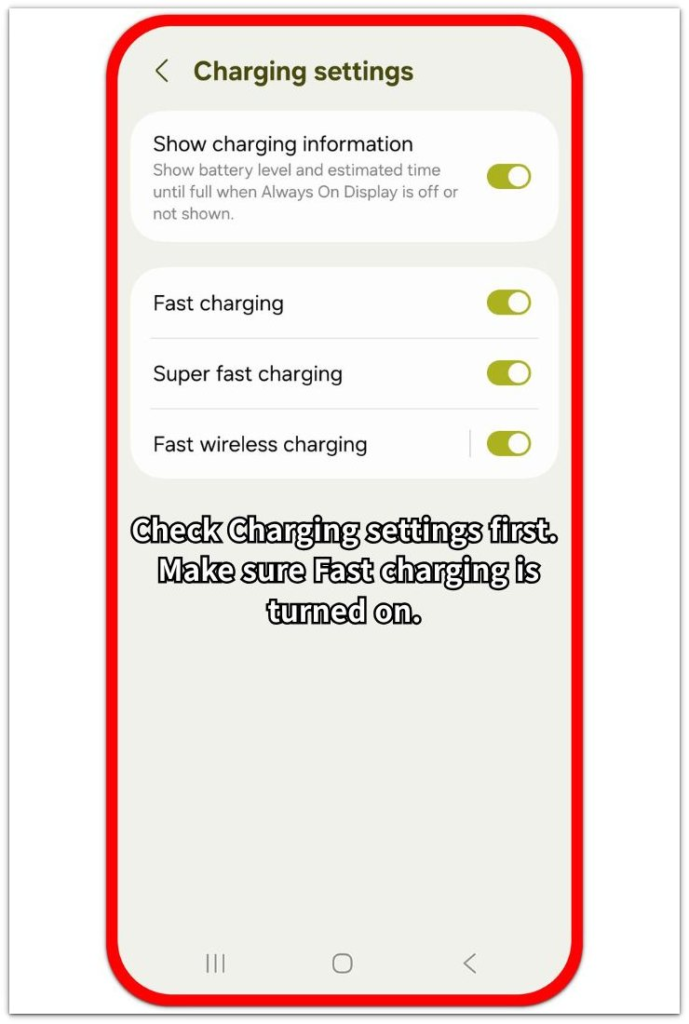
Repeat the same short charging break after checking the setting. Keep the charger, cable, place, and charging time unchanged for this check.
Watch whether the battery level starts moving up more clearly. A weak result after that check moves the next test to the cable, adapter, charging port, and phone temperature.
Troubleshooting
Troubleshooting 1: Charging Speed Drops After the Phone Gets Warm
A phone often slows charging after it gets warm, even with fast charging on. This usually stands out when the battery rises normally at first, then starts moving slowly during one charging session.
Check the phone temperature after the slow rise appears. Remove the case for the next short charge and keep the phone away from direct sunlight, a hot desk, or a running game.
Compare the next charging break with the earlier one. A clearer rise after the phone stays cooler points to heat control, not a missing fast charging setting.
Troubleshooting 2: Fast Charging Works With One Cable But Not Another
A cable still charges the phone even when it does not support the faster charging speed. The charging icon appears, but the battery level rises like a normal slow charge.
Test one known working cable with the adapter and outlet you used before. Keep the phone still and use a matching short charging time so the cable is the main change.
A clearer increase with the other cable makes the cable the stronger clue. Keep the charger test focused there before changing more settings or replacing the phone.
Troubleshooting 3: Android Fast Charging Not Working With the New Charger
A new adapter or borrowed charger does not always support the fast charging type your Android phone expects. The phone still charges, but the speed stays lower than the charger label suggests.
Check the charger rating and use the adapter that originally worked with the phone, or another trusted fast charger that matches the phone. Keep the cable and outlet unchanged during this check.
A faster battery increase with the trusted charger points to the new charger’s fast charging support. Keep the check on the adapter and cable match before blaming the phone itself.
Extra Section 1: Fast Charging Looks Slow During a Short Break at Home
A user plugs in the phone during a short break at home and expects the battery to rise quickly. The same charger, cable, and outlet worked well before, so it is easy to think the charger suddenly failed.
A better check starts with the charging break itself. The user leaves the phone connected for a matching short amount of time, keeps the screen off, and checks the battery level again before changing the setup. When the rise stays small under that normal setup, the result becomes clearer than a quick glance at the charging icon.
This kind of case should stay focused on the first comparison. Keep the charger and cable out of the first blame. The useful clue is whether the battery still rises too slowly while the usual charging setup stays unchanged.
Extra Section 2: Fast Charging Fails After Switching Chargers
A user switches from the usual adapter to a charger from a desk, travel bag, or another room. The phone still shows the charging icon, but the battery no longer rises like it did with the charger that worked before.
The useful comparison is the charger change, not the phone itself. The user goes back to the adapter that used to charge the phone faster and keeps the cable and outlet unchanged for the next check. A clearer battery rise with the trusted adapter points to the new charger setup, even when the new charger looks powerful on the label.
This case should not turn into a full phone repair check too early. A fast charging problem after a charger change often starts with the adapter and cable combination. Keep the check there before blaming the charging port, battery health, or the phone itself.
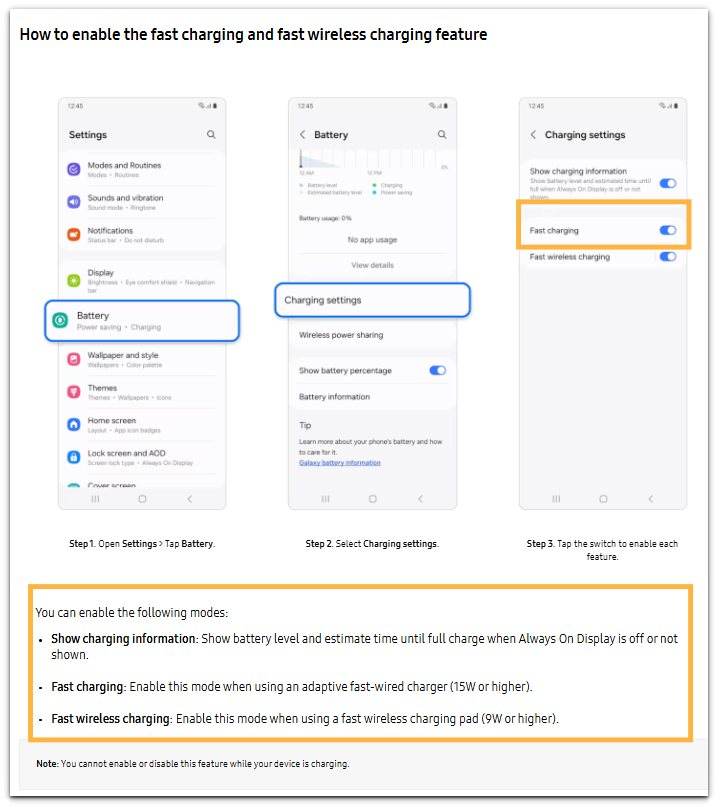
Official Source: Samsung Fast Charging Settings
Samsung’s support page shows the path for enabling Fast charging through Settings, Battery, and Charging settings. Samsung also explains that Fast charging uses an adaptive fast-wired charger, so the source supports the setting check without turning the article into a general charger guide.
Additional Tips
Fast charging speed is easier to read when the battery is not already close to full. Many phones slow down near the higher battery range, so a weak increase near the top carries less weight than the result from a lower level.
Charging while using navigation, video, games, or hotspot makes the result harder to trust. Those tasks use power while the phone is charging, so the battery percentage looks slower than the charger alone.
Dust or moisture around the charging port needs a careful check before pushing the cable in harder. A loose fit or warning message changes the problem from a fast charging setting check to a port or connection issue.
Final Notes
Confirm Android fast charging not working by checking the battery rise, fast charging setting, and charger setup together. A charging icon alone is too weak because the phone still charges slowly when fast charging is not actually active.
The strongest clue is a repeated slow rise under a controlled charging setup. After you turn on Fast charging, leave the phone alone and test the usual charger again. A weak rise moves the next check to the cable, adapter, charging port, and heat.
Treat the phone itself as the last suspect. The setting, charger type, cable fit, and temperature usually confirm the problem before it becomes a battery or repair issue.
Checklist
- Check the battery rise during the same short charging break.
- Leave the phone untouched during one charging block.
- Confirm Fast charging and Super fast charging in Charging settings.
- Compare the result with the usual charger, cable, and outlet.
- Check heat, cable fit, charger type, and the charging port before blaming the phone.
- Treat the phone itself as the last suspect when the setup still gives a weak rise.
Use the Android fast charging guide below to compare the setting, charger setup, and slow charging result.