
Introduction
Airplane Mode helps when an Android phone keeps searching for a weak mobile signal. It turns off mobile service quickly, so the phone stops trying to stay connected to nearby towers.
Wi-Fi Calling helps when the mobile signal is weak but a stable wireless network is available. The setting depends on the phone model, carrier, SIM, and mobile plan, so the menu does not appear on every device.
These two settings work together when mobile service stays off and Wi-Fi stays connected. That setup helps in places where the phone has poor reception but a trusted network is nearby.
Step-by-Step Guide: Airplane Mode and Wi-Fi Calling on Android
Step 1: Turn On Airplane Mode
Swipe down from the top of the screen to open Quick Settings. Tap the Airplane Mode icon and wait a few seconds.
The mobile signal icon should disappear or change after the setting turns on. During this state, the phone stops using the normal mobile network for calls, mobile data, and standard cellular service.
Use this setting when the phone sits in a weak-signal area, keeps switching between towers, or needs mobile service turned off for a short time.
Step 2: Turn Wi-Fi Back On
Open Quick Settings again while Airplane Mode stays active. Tap the Wi-Fi icon and connect to a trusted network.
Android still lets Wi-Fi work after mobile service turns off. Once the connection returns, internet apps and supported calling features use the wireless network instead of the mobile signal.
Keep the phone near the router during the first test. A weak Wi-Fi connection creates the same kind of calling problem as poor mobile reception.
Step 3: Check the Calling Setting
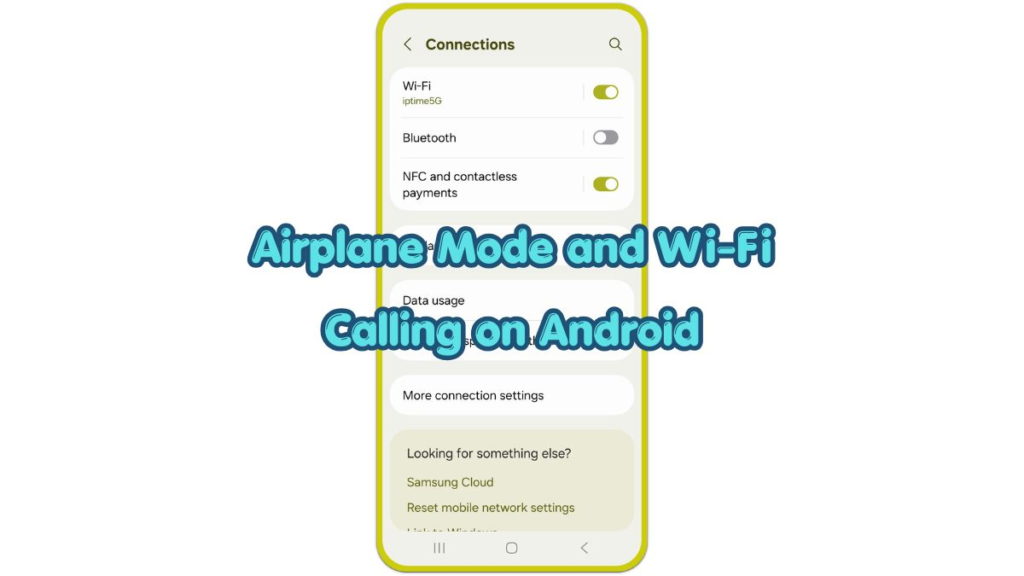
Open Settings and look for the mobile network or SIM menu. On many Android phones, the path is Settings, then Network & Internet, then SIMs or Mobile Network. On Samsung Galaxy phones, check Connections or the Phone app when the option does not appear in the main menu.
Open the Wi-Fi Calling menu and turn it on when the option appears. When the menu is missing, the phone, carrier, SIM, or mobile plan likely does not support the feature on that line.
After turning it on, keep mobile service off, keep Wi-Fi connected, and place a normal test call. Some phones show a small label or calling icon when the call uses Wi-Fi.
Troubleshooting
Troubleshooting 1: Calling Option Does Not Appear
Check that the SIM card works normally and the mobile line has finished activation. Restart the phone, then check the mobile network or SIM menu again.
Some carriers hide the feature when the plan, region, or device does not support it. Changing random Android settings will not force the menu to appear.
Troubleshooting 2: Calls Fail in Airplane Mode
Turn Wi-Fi off and back on, then reconnect to the same network. Open the calling setting again and confirm that it stays turned on.
Place the test call only after Wi-Fi fully connects. When the call still fails, try another network before changing more phone settings.
Troubleshooting 3: Call Quality Sounds Poor
Move closer to the router and stop large downloads during the test. Video streaming, file uploads, and crowded public Wi-Fi often make voice calls unstable.
Turn off a VPN during the test when calls fail only while the VPN runs. Some offices, hotels, schools, and public buildings also block voice traffic on their networks.
Additional Tips
Use Airplane Mode when the phone drains battery in a weak-signal area, but remember that it turns off normal mobile service.
Check the Wi-Fi calling feature before relying on it at home, work, or during travel. The setup works only when the carrier, phone, SIM, and Wi-Fi network support the feature.
Menu names vary by Android version and phone brand. Use the Settings search bar and type Wi-Fi Calling when the path looks different.
Final Notes
Airplane Mode and Wi-Fi Calling on Android work best when each feature has a clear role. Airplane Mode stops the phone from using the mobile network, while the calling feature uses a connected Wi-Fi network when the carrier supports it.
For a simple setup, turn on Airplane Mode, turn Wi-Fi back on, then test a normal call from the same place. When the option does not appear or calls still fail, treat it as a carrier, SIM, or network issue instead of changing every Android setting.
Checklist
- Turn on Airplane Mode from Quick Settings.
- Turn Wi-Fi back on after mobile service turns off.
- Connect to a trusted Wi-Fi network before testing a call.
- Open the Wi-Fi Calling menu and turn it on when the option appears.
- Place a normal test call while Wi-Fi stays connected.
- Try another Wi-Fi network if calls fail or sound unstable.